If you want to add a logo or watermark while playing videos in VLC Media Player, then you can just use the available effects and filters. The overlay video effect is what comes into use. This effect will allow you to load a .jpg or .png picture or logo. The position of that logo over the video can be customized. You can also set the transparency of that watermark so that it does not block the currently playing video file. If you like, you can also add a text overlay.
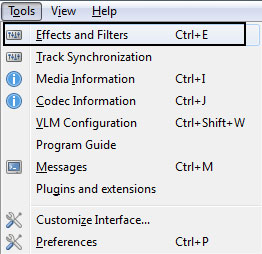
The “Overlay” video effect can be found in VLC Media player under Tools > Effects and Filters > Video Effects > Overlay. You will have to activate it by clicking on check boxes and then you can set the options.
If you need full details to use this feature, here are the steps:
- In the menu bar, click on Tools > Effects and Filters. [Shortcut: CTRL + E].
- Click on the tab that says "Video Effects" and then click on "Overlay".
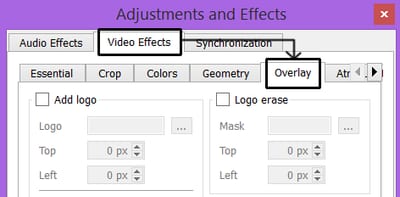
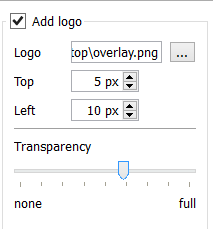
- Check the "Add Logo" checkbox.
- Click the three dots besides the logo textbox. Browse and open the overlay image.
- Use the "Top" and "Left" options to specify the position of the image.
- Drag the "Transparency" bar from full towards none to increase transparency.
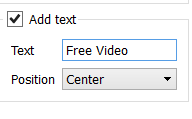
- In Overlay Video effects, check the box that says "Add text".
- Input the Text in the available field.
- From the position dropdown, choose a position like "Left", "Right", "Top-Left", "and Bottom-Left" etc.
You may be interested in: How to Hide or Blur Logos of Videos Playing in VLC
Notes:
- Make sure you have a .png or .jpg image file to use as a watermark.
- Open a video file and keep it paused to see the instant preview of the image or text overlay.
- For text overlay, there are only eight possible positions: Center, Left, Right, Top, Bottom, Top-Left, Top-Right, Bottom-Left and Bottom-Right.
- There are no transparency options for text overlay.
Making the Edits Permanent
The logos, texts, and watermarks that you overlay on the video can be permanently edited and placed into the media file. All you have to do is follow these steps:- From the menu bar, go to Media > Convert / Save. [CTRL + R]
- Click on Add, and browse and add the current video.
- Click on Convert/Save.
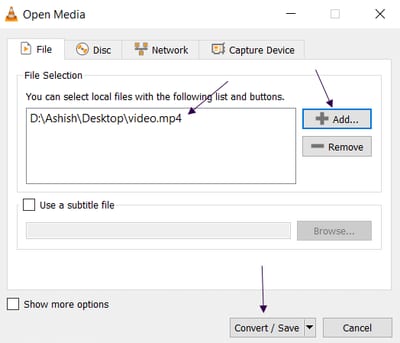
- In the next step, edit the profile settings first

- Navigate to Video codec > Filters tab
- Check the ☑ Logo video filter and hit Save.
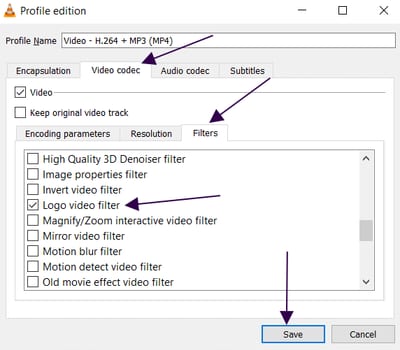
- Choose an appropriate destination location and filename and press Start.
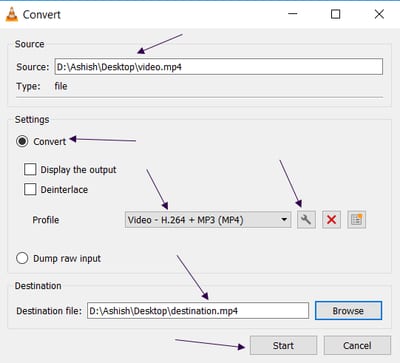
- Press Play in VLC to begin the process.
I put a logo on my video using VLC. When I reopen the video in VLC, the logo works fine. But, when I open the video in Window Media Player or in Movie Maker, there is no logo! HELP!!!
To permanently add the logo to your video, follow the new steps under the heading "Making the Edits Permanent" above.
So my comment is the same as above from Sabeen: I put a logo on my video using VLC. When I reopen the video in VLC, the logo works fine. But, when I open the video in Window Media Player or in Movie Maker, there is no logo.An I followed the steps as indicated "Making the Edits Permanent.....
Make sure to check the Logo video filter under Video Codec > Filters tab in Profile edition that comes up if you press the settings button next to the profile.
I'm starting a radio station that will air on tunein.com But I was told I need vlc. I have vlc on my computer but do not know how to stream. It can someone help me or send a link on how to set it up. Thanks
Well, VLC can be used to stream content over the internet. Go to Media > Stream on VLC and add the audio files that you want to stream over the internet. Your IP address and a port can be used to access the stream. This IP:PORT should probably be submitted to services like tunein.com so that other people can tune in using apps like TuneIn Radio.
Thank you so much glad someone answer me
I have a MacBOOK and i have to add a log on the bottom right, the tools ask me to add a URL , but i am confused how do i get that, the image is saved on my desktop . Thank you
There should be an option or button to browse to the location of the logo that is in the desktop.
Open the Finder and drag the image over the text box!
am not able to paste the image at different stages of the video,one image is being dragged to the whole video.help me out
This option can only be used to add a single image to a video while playing it. Multiple images cannot be used so as to display them at different intervals.
I am streaming the video file from my system using vlc stream option to local host, then displaying the video in HTML page using Firefox browser through vkc plugin, once there is no video I want to display the my own image which us saying 'no video', but it's not happening anyone can help..
how to save the color changing and water mark added video in vlc plz tell me ???
I have added the steps above "Making the Edits Permanent".
Hello, Regarding adding logo on stream with vlc. When i start streaming, vlc add my logo but sometimes when jump to another media from that playlist i loose logo from streaming. if i close that sream logo appear again but when change file from playlist it dissapear again. What should i do to solve this issue? Thanks in advance
Hi. When I add a logo to the vido it it shown, no problem. But, saving/converting the file doesn't merge the logo into the vido. I follow the “Making the Edits Permanent”. I have tried with text as well, same problem.
I'm having the same problem when you add the logo and convert it doesn't save it permanently. I want to download the video to Facebook with the logo added.
Check the logo video filter option as shown in the updated tutorial above.
Make sure that Logo video filter option is checked in Profile edition > Video codec > Filters
i did what you said,but that logo is coming for all the video
Go to the same option and remove it.
Tried to convert and save it many times but when I am transferring the video to another device the logo is gone. Please help me regarding it
When you check the Logo video filter this issue should go away. Please see the updated tutorial above.
Hello i did exactly what described on this website to let the logo be permanent. But it isn't working. When i play the video in windows media player the logo isn't there. it's just te original video. Or do i have to choose a specific destination file i just took a map on my desktop as a destination file ? is that alright ?
Now, with the additional step of enabling the Logo video filter as shown in the updated tutorial above, the logo will be permanent.
it works only for vlc playback after making permanent.... doesnt works in other media player
It's true it won't work if I upload it to Youtube or any other video sharing websites, I know I could do it on Youtube, but the sites I am uploading to does not have that option.
Now it does if you choose the Logo video filter option in Profile edition > Video codec > Filters
It does now.
to make logo permanent: 1) Go to the menu > 'Tools' > 'Effects and Filters' > 'Video Effects' > 'Overlay' > 'Add logo'. Choose your image and place as you want. 2) Go to the menu > 'Media' > 'Convert/Save...' > 'Add' , at this step - Choose your video file, next 'Convert/Save' > 'Convert | Profile | Video - H.264 + MP3 (MP4)' configure profile > 'Video codec' > 'Filters' > check option [X] 'Logo video filter' > 'Save' > locate 'Destination file' > 'Start'
Sorry to say but it doesn't work even with the "Logo video filter" checked. The logo appears when the video plays in VLC but not in other media players. Can you advice further?
That should do it. Can you share your screenshot of the step?
Thats right thank you!!
This worked! Thank you so much! Note: You must use Windows to Convert the video with the overlay.. the Mac version does not seem to have the Filters option when choosing the Video Codec settings! (not sure about Linux version…)
This doesn't work, I've the latest version 2.26, the instructions are well layout and easy to understand, but unfortunately something must be wrong in the coding or some sort of bug in the player!, I'm able to follow the screenshots provided clearly, when you're saving the video with the logo or text you've inserted, you can record a copy fine, but if I send this video to someone else to view, who also has VLC player the Logo or text you've inserted disappear from the recorded version saved!
The screenshot has been updated. One additional step which is to enable Logo video filter has been added to the steps above. Do it and you will add a logo permanently.
I've tried everything to make the changes permanent and it doesn't work. If they were permanent you should never be able to remove them. What we are looking for is to embed/add/insert the image or the text in the video. Maybe that's the misunderstanding, because in the end the result should not be a filter, but a video image. Is that the problem? If I'm correct we need then a video editing software.
The tutorial has been updated to make your logo permanent. Just check and activate the logo video filter. Go through it again and you will do it successfully this time.
Anybody know if this is posible on vlc for android?
I do not think it is possible
help i added my logo on the video but my logo size is too big....how do i decrease the logo size on my video
Resize the logo in a photo editor and add again.
is there a way to display the logo for 2 seconds then remove it?
I don't think so.
Then how does Extramovies or other websites put there logo in movies for like 15sec.
They use video editors to hardcode it
Don't see three little dots to click on when adding logo. just has a space to type something which defeats the purpose of adding your own logo. MacBook Pro 2010
I added the logo successfully and then saved it as indicated. When I open it with VLC media player then I see my added logo. but if I just click on the MP4 and play, then I do not see the watermark logo. Should I upload this to FB, will the watermark logo be visible to all people or only to those who open with VLC?
Make sure you do this step
I cant get it to work. After I do according to your tutorial, the video effect text will only show up if I am using VLC to play that video. If I use another player to play, the video effect add text won't show up.
Try watching the video at the bottom so that you do not miss any steps.
Ok, I just updated to version 3.0.3 and now it works as expected. I don’t know though which version I had before. Anyway, thanks for the clear instructions!
All steps checked.. but no video edit permanent.It only permanent when we open this video in VLC.. but when we open this video in Windows media player or another it doesn't work.
i tried converting a 1-hour video, the output has audio only (no video). it works fine with short videos. can you help me?
I have trial version 3.0.4, I did all the steps but the logo doesn't appear after converting, could you help me?
Try upgrading to the latest full version.
Is there a way to mass add the same watermark to a bunch of videos at once?
It does work for logo but doesn't for text overlay. I guess text overlay has another filter. Could tell what the filter is it?
Hi, somehow once i use other platform to open the video after i done everything stated. there's no sound except when i play the video in vlc
I have latest version of VLC media player. I tried the same steps given in the video but unable to see logo on it. Kindly help.
I moved from version 2.2.0 to the latest one and now my logo is stretched depending on the resolution of the video, when in the old version my logo would stay in the same position and size no matter what video was being played, please fix. Also before I could stream a playlist by adding a file and right clicking "stream" but now the only way to stream is to click "media" then "stream" then add the playlist in that way
I have just spent a couple of hours testing the VLC logo feature. Adding a graphic logo is no problem the steps as described worked just fine. The only thing that I find very disappointing is that it will not save the text you put in the overlay. You can see it when playing the video but you can't save the video so that it shows that text on other video players. Anyone knows a trick to do that, I would love to know.
I followed the steps and everything worked in preview. My logo showed as an overlay and the video played. When I tried to do the convert/save, I got an error message about a codec (there was sound but no picture). I tried to change the video codec from MP1 encoding to MP4 and was able to convert, but the size of the converted file was reduced by about 90% and the resultant video was really grainy and pixelated (but the logo was visible in the right place). Can you suggest which Video Codec I should be selecting, and how do I adjust the frame rate (the default setting is to match the frame rate of the original video).
can someone send me link of VLC that has tools option with filter and overlay for mac 10.10.5 please? The VLC version 3.0.16 or 17 that I have does not seem to have the tools button and no filer or overlay options available. Only a button called Miscellaneous does shows up a option to add logo but does not have the upload button for it. Please help!