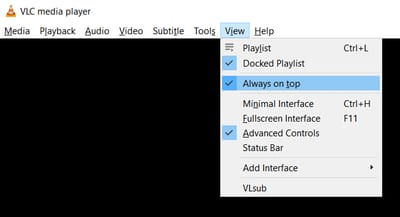
If you do not want to be disturbed at all while watching movies, series, or other videos in VLC Media Player then one option we have is to set it to be Always on top. It’s an easy thing to do, just go to View > Always on Top. Activating this option means that other programs cannot overlap or display over VLC Media Player on your computer. Your PC or Laptop will give its screen real estate to VLC and VLC only. Other programs cannot just pop out of anywhere and disturb you and your media watching experience. This option is especially useful if you have things on your computer that pop out of nowhere time and again. When you have a check mark in the option Always on top, you will have to set it off manually or minimize VLC to give the screen space to other programs.
There are also additional options to make sure that Always on top is activated by default. It means VLC will have it on whenever you launch the player. It will ensure that you won’t have to go to the View menu to activate the setting every other time.
Steps to activate “Always on top” for one-time viewing:
- Click on View from the menu bar (or right-click menu).
- Click on Always on top.
Enable/Disable Always on Top by Default
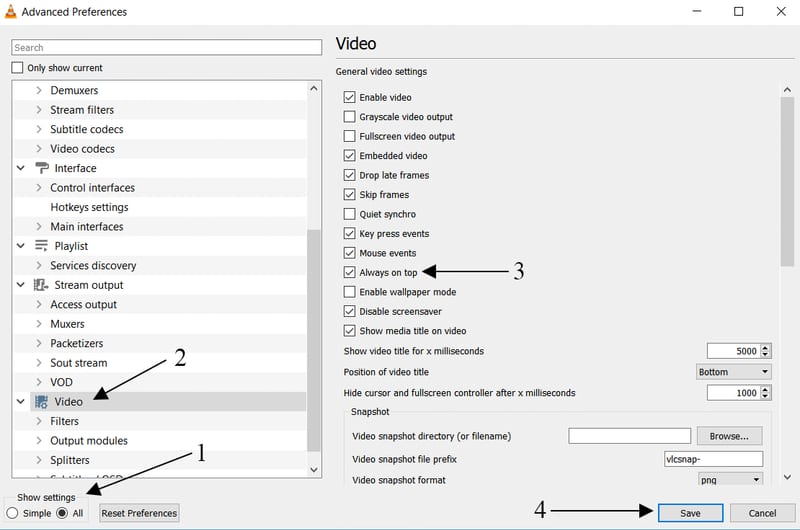
When you close and open VLC Media Player, the Always on top option isn’t activated. It is unchecked by default. You will have to check it every time. If you find yourself checking this option time and again, you might want to keep it on by default.Steps to check “Always on top” by default for every time:
- Go to Tools > Preferences [CTRL + P]
- Go to Advanced Preferences by click on All on the bottom left.
- Click on Video.
- Check Always on top
- Hit Save.
How do I tell it to stop interrupting my other applications every song? Really annoying. I just want it to play in the background. Even when I'm in an old dos program in full screen mode.
Set it to not be on top all the time?
A year too late ... but in order to do that go to the taskbar and right click on VLC icon on the hidden icon tab then select hide VLC and you can play you repeat shuffle list happily ever after none of the songs will bring it up, To make VLC visible just reverse what you just did.
disable notification in win 10
Always on top fails more often than it works, have been for years. Why not fix it?
Right click on the VLC icon on the hidden icon tab and choose hide VLC
Now it's just located under the "View" menu
Always on Top is now located under 'Video' instead of 'View' on the toolbar
set Always on top on then restart VLC It works perfectly.... :)
I worked ! Thanks man !
Thank you so much. I had to set that when every open the program.
Sometimes the best thing someone else can do for you is be in your corner when you need support.
thannnnnnks