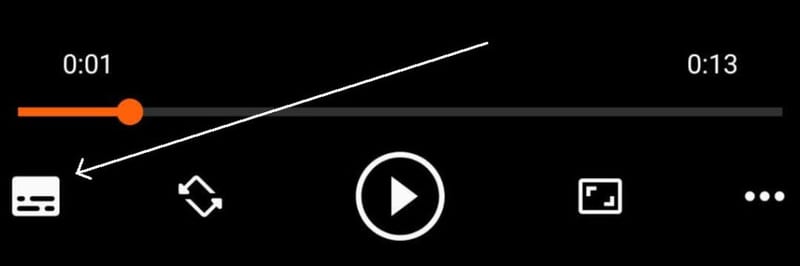
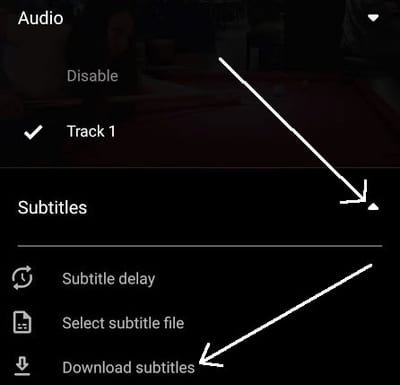
We can easy add subtitles to movies playing in VLC for Android. It can be done automatically as well as manually. The automated option will search for a matching subtitle. If found, it will download it and automatically load it on the player. While watching a movie, you just have to tap on screen to bring up the on-screen controls. The option is in the button present on the far left. Once the audio and subtitles option shows up, select the Subtitles > Download subtitles option. That will scour the internet for a relevant subtitle. To load a subtitle file like those ending with .srt, you will have to download it first, then use the same subtitle button on the app and tap on the Select subtitle file option. After that, you just browse your local storage to load up the file that has the extension like .srt, .sub, .sbv. It is as simple as that. It’s a pretty smart option for your Android smartphone or tablet.
For loading up subtitles in VLC for Desktop: Get Subtitles Automatically for Movies in VLC Media Player
Here are the detailed steps for you to download subtitles automatically while a movie is playing in the VLC for Android app:
- Open a movie in VLC for Android app.
- Tap on the screen to bring up the on-screen buttons (if it is not showing already).
- Tap the button on the far left.
- Expand Subtitles option by pressing on the down arrow next to it.
- Tap on Download subtitles.
Loading Up Subtitles in VLC for Android Manually
Now, it is not always that VLC for Android app can find your subtitles. Sometimes, you will have to download them manually. You can search on google for your movie subtitles. Do it straight on your phone so that once you search, find and download it, it will be saved on your Android device. It's likely that the .srt file will be saved in your Downloads folder. You might have to extract it first if it is inside a zip file.To manually load subtitles in VLC for desktop: Loading External Subtitles in VLC Media Player
Once the file is there on your Android phone or tablet, you can load it up in VLC with the help of the following steps:
- Open your movie in the VLC app.
- If the on-screen buttons aren't visible, tap on the screen to bring it up.
- Tap on the button on the far left.
- Expand Subtitles option.
- Click on Select subtitle file.
- Browse to the location of the .srt/.sub file and open it up.
Problems - 1.When you are playing Vlc android at network it is not loading subtittles from same folder, same name. 2.Select subtittle does not have network selection option
Yes, it does seem that the subtitles with the same name and in the same folder aren't automatically chosen by VLC for Android. This is what the desktop version used to do. You can load it automatically or manually.
I have a problem I don't even have the download subtitle button,I downloaded app from Google play .
Hi Thanks for this option . Bit defenetlly is not working i try everything and not work please let me know that to do . If it is that easy just press download and load the subtitle alway say subtitle not found i try a lot of mobies . We can select server to download the subtitles woh works exactlly..? Many thanks
The automatic subtitle download feature is not available for all the movies.
Download subtitle is not working. It will display the search results under Download but when you select any from the list it will just load for a few seconds but will never show a check mark to indicate that it was downloaded successfully. Please fix.
When adding subtitles (.srt) manually, is there a way I can make the language show up in the subtitle select menu? The files are named so this works on PC (movie.EN.srt), so it would be nice if I can make them show up with the language instead of Track 1, Track 2 etc.
I don't think so.
Shame. Technically, it's a great app, but there's a few things like this that make it a little too hard to use for some people, like my parents. Is there perhaps a place where I can request features?
Does VLC stream subs to chromecast? I see them on my phone, not on my TV when streaming from my phone to chromecast to TV
If you go to ≡ and then tap on Local Network, you should see the options to stream from the VLC app to your television using chromecast.
I downloaded the subtitles automatically and checked if its in sync. When I found its all good, I closed the app. After few hours or few days when its time to watch the movies, all subtitles are gone. Was not connected to net. Im using F1 pocophone. But this isnt happening with my old Samsung phone even Im not connected to net. Subtitles are still there. Does it have to be online while watching for the subtitle to work even if it has been previously downloaded?
Yes, I think that you have to be online since those subtitles are fetched online.
I downloaded English subtitle for a movie (URI - Hindi movie) and when i sync it with my movie in VLC its not working. Also the forward or rewind option gets disabled when the sub title file is synced
Hello, I have a an issue with the download subtitle button. I tried like 20 different movies and I always receive the "subtitle not found." I tried with old movies as well, just to be sure. I am using VLC Player on my firestick. Any help will be appreciated. Thanks!
There could be an issue with the subtitle website that VLC is grabbing the files from.
My "select subtitle file" option is not working. So I can't upload the subtitles. This option is not working for any videos
What happens when you tap on the "Select subtitle file" option?
Have an srt file... gave through the subtitle path... but not working... even downloaded online .. found three matches.. selected one of them but still not working?? What it could be??
When I click on download subtitles. It brings the subtitles. But when I try to download any of the subtitles. It just roll for some mins. And then it stops. And the subtitle won't download. I have to download manually with my browser and add it. I don't know why it's not downloading automatically. Help please. I've uninstalled and reinstalled and it still won't download automatically
I do face the exact same issue... I can search for subtitles, but when I click to download one from the list, it rolls few moments then stopped and nothing happens (like nothing at all was downloaded after all)
I have the same issue, facing it on Sony Smart tv. It worked in initial few days but this started facing this issue and has not gone away with re-installing the app
Thank you! This was very helpful
Please I have been trying to download subtitles but each time I do so, it doesn't download. What do I do
The download does not work. When I tap on download subtitles a list of subtitles for the movie appears but none of them downloads. Tapping on them makes an orange circle appear to the right and it keeps spinning forever
Well, it is likely that it couldn't find the subtitle for your video.
I tried to do for several times....it function good but the problem comes when I tried to auto-rotate the phone to see full screen...the screen become black and subtitle continue with voice without picture.. please I need help
May be add the subtitle after rotating the screen.
File m2ts include English subtitle. When I add srt with same file name to movie then VLC freeze looping showing logo spinning around forever.
Then opening the subtitle manually is the best option for you.
It's not possible to load subtitles manually. I was see black screen and there was no option to load manually subtitles.
I have trouble finding some titles on VLC app it say subtitles not found....but the subtitle for the same movie(same extension) on VLC PC is there.I found that VLC PC dowload subtitles from OpenSubtitles.org . Are they using the same site for the VLC app ? Or there is another problem ?
VLC for Android on Android TV: I stream a movie named 61234 from internet and I do have a local file (on android storage under Subtitles folder) named 61234.srt but when I select it as explained in this article it is asking me "Play as audio"? WTH!?
What type of video is 61234? You have to manually select the subtitle file in this case.
That's the name provided from the source; it's just a name and it is playing just fine. So this is what I'm trying, to manually select subtitle and when I get to the file and select it, is offering 2 options: "Play as audio" or Delete...
I have the same problem and it seems like there is nothing we can do about it
Tried everything possible. Never ever worked. Tried manual as well as downloading... No respite....Just doesn't work!
I have the same issue. It works perfectly fine on my laptop, but on my Nvidia Shield running AndroidTV, it dosn't..
I am having the same problem, play as audio or delete. And if I try to download a new subtitle it just thinks about it for a bit then stops, no green tick.
Having the same issue pls help very annoying... VLC is d best player for android tv and i cant attach subtitles pls help
Please solve this problem admin. I'm using Bravia smart TV and when adding the subtitle it only has two choices either play as audio or delete. please solve this
Subtitles cannot be selected from network folder only local folders. The option is not there.
It tells me to check my Internet connection. Why
NAS movies - I used to watch movies on my Sony KD smart TV using VLC for android and my Samsung 9 phone, mirroring them from my NAS. Everything was alright as I have my own srt files in my Disk Station (I often edit the subtitles found on the web as there is plenty of minor errors), but with the latest update it only seems to allow me to look for srt files on my phone or on the web (btw, this second option always tells me that there was a problem with my connection and please retry later). How can I make it use the srt file which is already there in the DiskStation folder, with the same name as the MP4/AVI/MKV file of the movie itself? Aside from downloading each time the srt file on my phone, that is... Thanks in advance for the answer.
I have exactly the same problem, anyone?
it is not working even though i already selected the file
The new UI in Vlc android 3.3.1 doesn't allow me to add a subtitles file. Why do they have to fuck up the already working software programs?
Since the last update, in September I think, on android tv is no chance to load the subtitles. Are 3 dots where is the option to select the subtitle file but with the tv remote is no way to get to the 3 dots.
With the latest update for VLC for Fire (TV Stick), the subtitles menu has moved to the bottom, and now there seems to be no option to download and/or add subtitles manually. A 3-dot menu is visible but cannot be triggered using the FireTV Remote. It was the perfect player for years, don't know why they decided to "revamp" the UI.
It's such a shame for that useful app. On androidtv loading movie from the local network with upnp and when i try to load srt manual The player say - No subtitles in this directory. I try with even copy them to medialib on the tv, not work. I want to ask ADMIN - have you been trying to load subtitles that way on android device?
same here.. hope this will be resolve soon
How can i run two subtitles at a single time in andriod app? I've tried by ticking two languages but they get overlapped and can't see either one
I used to be able to watch movies and series without any issues with VLC in my Huawei Mate 20 Lite. Until a few days ago when I changed to my new Poco X3 NFC. In that new cell phone, if I want to watch anything with subtitles, have to select the options "Better adjustment" or something like that. That really shrinks the images and leaves a notorious black frame frame all around it. If I select "Adjust to screen", then I can enjoy of all of the screen (with a proportional image), but I'm not able to see the subtitles (which are already loaded, of course). Anybody with this same issue? Anybody who can help? This just started to happen since I change my cell phone to my current one. As I mentioned before: a Poco X3 NFC. I would really appreciate some assistance. Thanks!!
When I was about to download a subtitle a call came that I picked. after that I cannot download subtitle. I tried reinstalling but did not work. now I can't download subtitle from VLC. I am using it on my android mobile.
I am using VLC for Android on a Firestick and the Subtitle option for each media file I play is always set to “Off”. Is there a way for the subtitle option to be kept as “On” as every time I watch a media file I have to keep selecting the subtitle files even though the option of automatically loading subtitles is on in the settings…
unfortunately "automatically loading subtitles" function does not start subtitles playing, it only downloads files from internet AFAIK.
Download subtitle does not work. It will just let you select the subtitle then poof gone.