In VLC for Android, if you find that the audio of a particular movie or video is out of sync, then you can fix it using the audio delay feature. You can specify how much to delay the sound by, in terms of milliseconds. If a sound is delayed by 1000 milliseconds then it will play after 1 second after the video. If a sound is delayed by -1000 milliseconds, it will move forward by 1 second in the video. The option is available on the screen after hitting the three dots … from the controls menu. It is the seventh icon in the on-screen options.
For the desktop version: Syncing Audio in VLC Media Player
The detailed steps to sync audio by adjusting the delay in VLC for Android:
- Open a video in VLC Media Player.
- If the on-screen control isn't showing, tap on the screen.
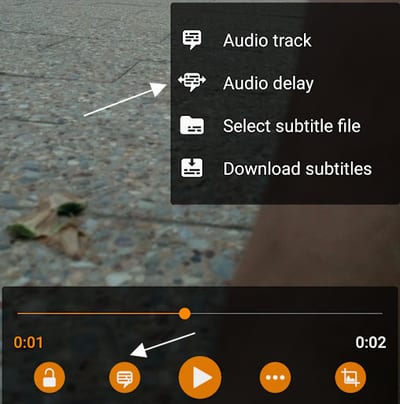
- Tap on the second button in the interface
- Press the option that says Audio Delay
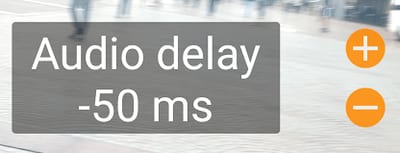
- Tap on the plus '+' or minus '-' button
Syncing audio is a really useful feature. Sometimes in movies, you will notice that an actor will move their lips but the sounds of the dialogue will come after a while. Sometimes, the opposite happens and the dialogue will come before the lips move. This is where the audio delay feature will come to the rescue.
So, if your audio comes first before the video, adjust it with the plus button by increasing the audio delay. If your audio comes later than the video, adjust it with the minus button. Sounds confusing? Play with it around for a while and you will get the hang of it!
Remember the Audio Delay
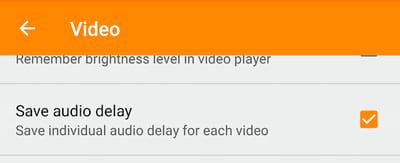
You might have noticed that the audio delay that you set will be there for the current run only. When you open the movie, the next time, it won't have the same delay in place. VLC will forget the settings. If you want to keep the audio delay for the next run then you should head on to the options.Here are the detailed steps to make sure that VLC for Android will remember the audio delay:
- Go to ☰ Menu
- Tap on Settings
- Under Extra Settings, tap on Video
- Check (or uncheck) the Save audio delay option
How do you set an Audio Delay as global on Android? On a Firestick, 100% of the video files need -300ms delay
100% this is needed. Same issue here.
I’m having the same issue with VLC and -300ms delayed audio. All other apps on FireStick work fine
I had noticed once I set the audio delay and tapped the screen to remove the + - symbols that a quick message popped up at the bottom of the display to save settings and it seems that it is now a default audio delay for all files.
Gary, would you reply on what exact version of vlc for firestick did this work for you? Would you provide a step-by-step on how you were able to get this to work? I'm having the same issue as all others here where all my video files need a 300ms delayed audio on a global setting for all videos. It would be much appreciated. Thanks
The audio delay settings in VLC worked fine for me adjusted for firestick - sadly I have just upgraded the app the this function is now gone making the app useless - can it be put back please I cant watch everything out of lip sync!!!
The feature is still there. Just follow the steps/screenshots.
Nope, the second button gives the same options as the fourth: Sleep Timer down to Save Playlist. No mention of subtitles, audio track or audio delay. Looks like a glitch of some sort.
I would try with a fresh install.
I did that too. Still the same. No option
Are you trying to antagonize people dude? Please stop
There's an icon that looks like a speech bubble. That's where the Audio Delay option moved to.
I am using VLC on my Fire TV Cube, After setting the delay I was waved if after setting the delay, I pressed back to dismiss the adjust dialog and immediately pressed the down arrow I would have the opportunity to "Save the delay as default". After resetting my Cube and reinstalling VLC (v3.2.7) (probably a different version than previously installed), I no longer have the option of saving the delay. The save delay per video file has never worked, but I figured it was because I was playing from a server on my network. I just noticed that I am not running the newest version, v3.2.9, I will update and report if anything changes.
I have exactly the same issue. I uninstalled vlc, on 29/03/2020 and did a fresh install. The option IS NOT PRESENT.
I use a command-line option. It might solve your problem. Settings – Extra settings > Advanced Custom libVLC options: --audio-desync=-300
Looks like this was removed. Thank you VLC devs for your infinite wisdom.
Yep all Bluetooth headphones users hates you
Welcome to a new feature. What a pain.
Since the Sept/Oct 2020 update I cannot find The Audio delay setting on my fire tv app. Can someone help?
The October 2020 update using the fire stick tv now means you can’t use the audio delay anymore - even the speech bubble is gone - this option doesn’t exist anymore. Was this tested on the fire stick or was this feature removed? Seems very odd it’s gone and the U/I is far inferior. Any help much appreciated.
VLC has just updated and now latest version has no audio delay. Is it there? Or has it been removed? Thanks
Is there no way to go back to the old version? I am really getting fed up of out of sync audio on my TV. I am going to have to find another way of controlling the audio or another media player now.
Hi... the speech bubble icon is gone from the Fire TV version. Please release an update that restores this critical functionality. Thank you!
Bring it back PLEASE ... with VLC version 3.3.2 The audio delay override there is selected by pressing the three dots, does not work with the Amazon fire TV cube. each time you try and activate it, VLC shutdown. Please VLC developers, bring it back and sort this out.
Regarding the VLC version 3.3.2 Audio delay shutdown when clicked, try this: Instead of simply clicking or selecting the Audio delay button, press and hold it for 3 seconds. I have 3 Nvidia Shields and it works reliably on each one.
Okay, folks. I had the same problem. I have an Amazon FireTV where the VLC audio delay worked until the update last fall. On my TV, while playing a video in VLC, I click the down arrow which brings a transport menu on the bottom of the screen, click over to the icon on the left which looks like the Morse code dash-dot and dot-dash. Another menu pops up for Audio and Subtitles. Click on the 3-dot menu for Audio and the delay is now there. Most of my videos require a -250 or -350 delay. I don't believe the delay is persistent and I don't see a menu item to set the default delay. I don't know how well these instructions will mesh with other platforms.
I've switched to Nova Video Player for Android. It lets you set a global delay for all videos and adjust the one you're watching. It's free/open source and available for Fire TV in the Amazon Appstore.
Thank you!
Having the same issue as everyone else, can't adjust the audio delay, it disappeared when I had to reinstall VLC on my new phone. I came here to find an answer but my comment is falling on deaf ears.
I found the audio delay under "Subtitles" in the latest VLC version for Android.
Atheism bless you Joe, you beautiful bastard.
THIS! Thanks Joe, I was going crazy! Who would think to look under subtitles for audio delay?? You saved my sanity.
it works with vlc: https://www.vlc-forum.de/thread/4050-audio-synchronisieren/?postID=23215#post23215 https://www.android-hilfe.de/forum/sony-xperia-xz1-compact.3122/videos-ton-und-bild-asynchron.881382.html#post-12805767
That's pretty shitty design...
Well I tried this and either adding or subtracting subtitle delay, even A LOT (+/- 10,000 ms) didn't seem to make any difference to the audio sync?
Love you Joe
Omg.. Thanks
Found it! When you press the subtitle icon there is a small arrow in Audio. Press it to get the delay control.
Thanks Jefry,made me into an idiot but I deserve it . Would not have found it without you.
Yeah, it seems like the actual controls for audio sync were removed /hidden REALLY well in 3.3.4.