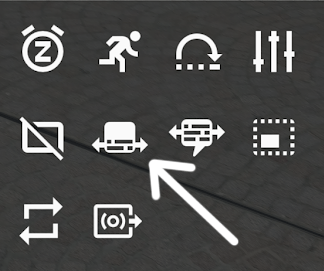
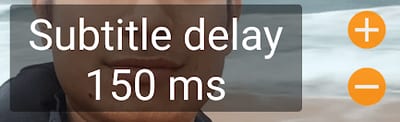
In the Android version of VLC Media Player, a quick on-screen setting is available for syncing subtitles. The option is there on the screen to bring out the controls. It’s the three dots … on the app’s interface. You will find it on the bottom of the screen when a video is playing. Tap on it and then a whole set of options appear on the phone’s display. The subtitle delay option in the VLC app is the fifth button from the top. Once you tap on it, you can increase the subtitle delay by hitting the plus ’+’ button. You can reduce the delay by hitting the minus ’-’ button. Obviously, you will have to load up the subtitle in the VLC Android app first. Then, if it not appearing on time, you can fix it by slowing it down or making it come up faster.
If you need the detailed steps for syncing subtitles by adjusting subtitle delay in the VLC for Android app:
- Open a movie in VLC for Android.
- Tap on the screen to bring out the on-screen controls.
- Tap on the three dots (...) options button.
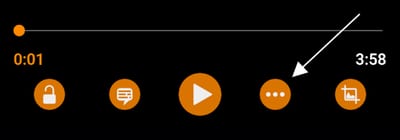
- Tap the fifth button from the top.
- Hit the plus '+' or minus '-' button to adjust the subtitle delay.
At first, it might be a bit confusing but understand it like this.
When your subtitles are showing up faster, you will have to slow them down. To slow them down, you delay them. So, a positive delay like 2000 ms.
When your subtitles are showing up later, you will have to speed them up. You have to speed them up. Speeding them up means reducing the delay. So a negative value is required. That means, something like -5000 ms.
The best way to learn it is to use it in actual videos. So, pop in a movie, open it with VLC, add in the subtitles and play around with the delay buttons. You will get used to it. Know that, you can also format the subtitle text that appears on the screen.
OK but my subtitles are often minutes off... I don't want to sit here for half an hour adjusting the subtitles 50 ms at a time just to get them a minute later ffs
hahahahahahahahahaha
Hi, VLC for android vs:3.3.1 no more doin audio sync..can we expect it back someday ? Honestly this was a major bonus for me in using VLC player...anybody knows something about?
Thanks VLC. It was so kind of you to upload this helpful guide about how to sync subtitles & control subtitle speed. It was very helpful.🤗
I'm on a tablet with Android 7, the controls look completely different. And why there is a 3 dot menu it has no item whatsoever relating to subtitles. Which leaves me obviously having to use a different player.
Thanks highly helpful. I've figured it out, using Ur explanation.
That fifth button doesn't appear anymore in the lastest VLC update. Why do you always remove the nice useful tools ?...
For people having a different control buttons: Click on the left bottom corner, the "textballoon" icon. You will get a audio track and a subtitle track. If you click on the arrow (pointing at the bottom) just near the word "Subtitle" you will get a new menu and can delay / fasten the sub there. You're welcome.
The fifth button doesn't appear
For people who don't find the option, it's near the download subtitles option You can see " delay subtitles " !