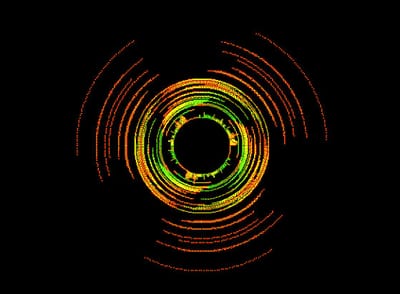
Audio visualizations is a feature in VLC which is mainly used while playing audio files. Visualizations are graphic shapes and signs that respond to the audio being played in VLC Media Player. Suppose you play a song and it has no video. Only a dark black screen is displayed in VLC Media Player. But if you turn on visualizations, you will find that the screen has been filled by some really cool moving images. These visualizations respond to the sound that is being played.
Visualizations are really cool to fill your screen with some screen saver like effect but it works as the audio plays. You can also enable visualizations for videos, but those open in a separate window. Your video screen and the visualization screen must be placed side by side in order for you to view both. There is not much point in watching visualizations alongside a video but if you want to do it you can do it. This method is useful for only listening to the audio part of a video.
Related: How to Install New Audio Visualizations in VLC
To turn visualizations on in VLC:
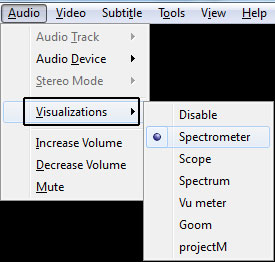
- From the VLC Menu click on Audio > Visualizations and then select a visualization.
- You can also select visualizations by right clicking while your audio is being played. From the right click media go to Audio > Visualizations and select a visualization.
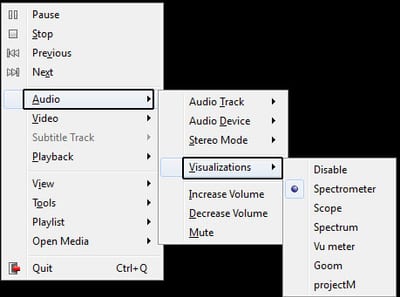
- The default available visualizations are Spectometer, Scope, Spectrum, Vu Meter, Goom and ProjectM. They all have their own style. Switch between them and select the one you like.
Turning off Visualizations in VLC:
From the same menu where you accessed visualization Audio > Visualization or right click > Audio > Visualizations click on the option that says “Disable”.
<img src=“/images/2013/11/disable-visualizations.jpg” alt=“disable-visualizations” / loading=“lazy” decoding=“async”>
No Goom or ProjectM visualization feature in VLC on Ubuntu!
Disable? That is a joke. I turned them on once saw that they were rubbish so disabled them (I thought). Now even though it says disabled I get full screen visualisations every time the track changes. Frustrating is NOT the word.
So you are telling us that visualizations come back when the player moves to the next track?
did you try closing and re-starting VLC? seems to help
Disable the pop out window option.
Where?
I can verify that beyond-frustrating fact that each new track brings up the visualization window which covers up the primary window even though visualizations have been disabled. A quick check to confirm, and the menu 'Audio > Visualization' shows 'Disabled'.
I suggest you to go to Tools > Preferences and click on the button that says Reset Preferences.
What about android
Get a truly awful frame rate using Goom on mp3 tracks. Doesnt even look like animation, just few frames of pics each second. Is it my low end 2.16Ghz 4GB ram laptop that cannot handle the graphics or something else. I,ve only tried standard 320kb/s mp3s up to now. Any settings I can change to make it run smoothly as it looked good on the vid of goom I saw on youtube.
yeah Goom is gpu intensive so on a bad laptop dont be surprised it doesnt visualise properly... it is easily among the most graphically intense and as such its last or almost last by default
tip: you have to restart the client for changes to take effect, sometimes
Is there a "visualization" that just produces a static image background? Many of the songs in my playlist don't have album cover art, I would just like vlc to show some full-screen background while I play music so I'm not just looking at my desktop...
im not getting those options in my Linux VLC
Me too, did you find a solution?
You need to install them (goom, ProjectM) separately in your package manager, and restart VLC. ProjectM crashes VLC, but goom works properly.
Is there a "timeline" graph that can be added? I would like to view the whole file on the timeline and see the actual "spikes" in the audio so I can quickly skip areas on my files where there is nothing to hear. Such as blank spaces in conversations.
I evidently did not communicate my thoughts well enough for you to understand. I'm not talking about those "visualizations". I am talking about the graph that represents the sound itself. VideoPad by NCH Software has what I looking for. thanks
When you want to find out which time is a silence, you are talking about the decibel/loudness at that time.
As a parent no one understands my question. The timeline on an audio file can be viewed something like an oscilloscope or a heart rate monitor. And that graph that represents the decimals or lack there of is what I am referring to.
mike, you are looking for something with a waveform display like audacity.
As a parent?????????????????????????????????????????
apparently?
i am also unable to permanently turn off visualizations. i have to disable them every time i open vlc. and solutions? Mark
I think you have set the default visualization from the 'Advanced Preferences'. If that is the case, then you can always disable it by going to Tools > Preferences > All > Audio > Visualizations and then, choose Disable or Automatic from the Audio visualizations drop-down menu.
Yeah but then you don't get visuals (automatic) when running audio only stuff and you have to manually enable it every time. Also not all visuals work when setting them via "Tools", they just aren't there in the drop down menu. There is also an issue with full screen, not all of the visuals will do full screen. Oh and if you do force visuals via tools, the separate visuals window that then pops up with video files is unclose-able. Yes you can close it via the menu but just clicking the close window X does nothing. Yeah audio visuals in VLC are a big mess.
Is there any way to disable visualisations for video, but leave them set for audio only? The only way I can see to do this is to set it up when I want audio, and to disable them when I want video. This is really inconvenient.
It definitely doesn't work on Linux. Windows only feature :-(
No luck here either, a dull grey screen is all I get. Turned on or off, nothing.
Just because you guys couldn't make it work, it doesn't mean that it doesn't work on Linux. Make sure have the needed packages installed via apt. If you are not sure about which, install all the plugins.
Any chance you are able to add visualizations to the x64 version such as some from windows media player or winamp? The visuals seem to sink up better & are more "atmospheric" on a large screen but I prefer the vlc interface. If I remember correctly there may have been an extension about a decade ago called milkdrop that had a bunch without interruptions like the text in goom.
When I load an MP3 file for dictating, the counter runs backwards. how can I make it run forwards?
Goom is garbled.. It's like a small picture stretched but skewed as well on my newer laptop. Fine on other laptop. ProjectM just opens in lower left corner (1/4 screen) Only difference is screen resolution on laptops - 1366*768 working. 1920*1080 not working! Any ideas? Same model laptops - Asus X555L. i3@2ghz (1366 res) and i5@2.2ghz (1920 res). I'm baffled!! Both 4 core. Integrated GFX - Intel HD 4000 on i3 and Intel HD 5000 on i5. 8Gb ram on both. Win 10 home. Thanks in advance. Dave
goom is different - not the way it used to be - horizontal lines with snow