We can configure VLC Media Player to automatically take screenshots at certain intervals for a video that is being played. Normally, snapshots can be captured in VLC by going to Video > Take Snapshot [Shift + S]. But it extracts only one frame. Suppose, you want to click a photo every 30 seconds, then there is another trick with VLC. You can easily take batch screenshots with the Scene video filter. A bit of calculation and changes in the advanced setting are necessary periodic screenshots. With the scene filter, we can’t exactly define time intervals but we can define frame intervals. So, as an example, we can set it as, “After every 200 frames of video, take a photo”.
The steps to take automated screenshots at certain intervals in VLC Media Player:
- Go to Tools > Preferences [CTRL + P].
- Click on All to show Advanced Preferences.
- Select Video from the left.
- Under Snapshot, browse and select folder to specify a Video snapshot directory.
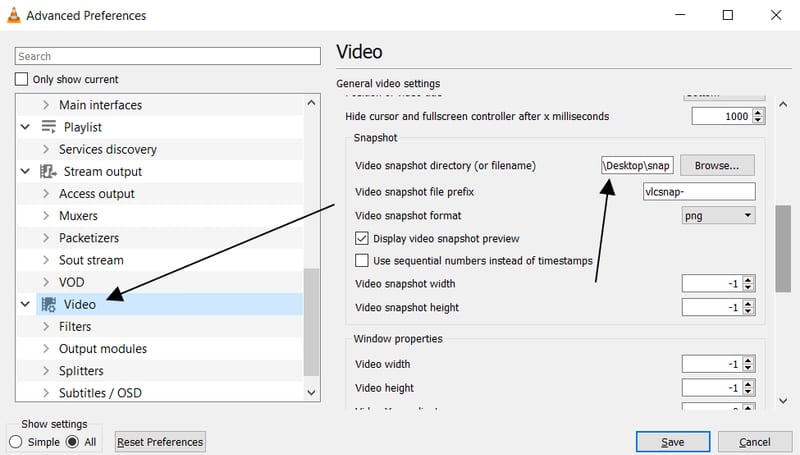
- Next, expand and navigate to Video > Filters from the left.
- Check the ☑ Scene video filter.
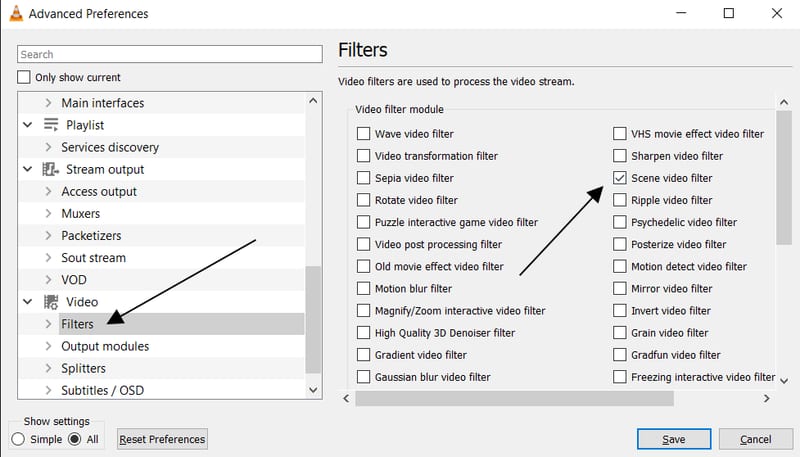
- Expand further, Video > Filters > Scene filter, and set the Recording ratio.
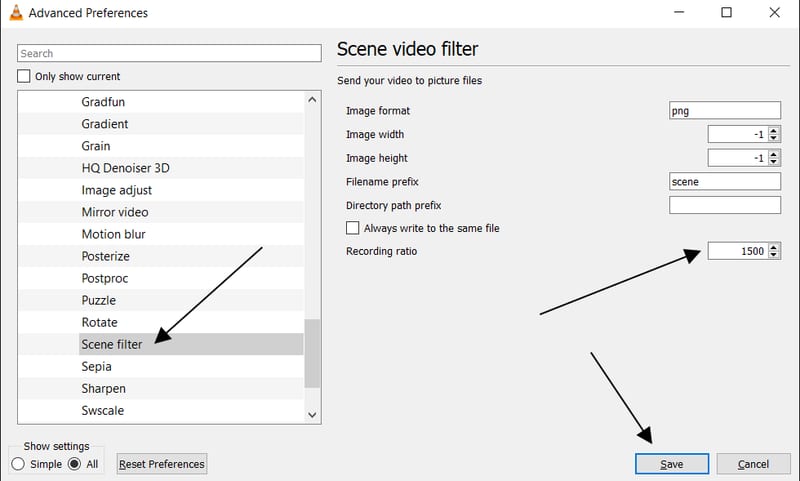 Recording ratio is the frame interval after which an automatic screenshot is taken. For a 30 frame per second (fps) video, entering 300 as Recording ratio would take a screenshot every 10 seconds and 1500 would make it 50 seconds. To find out the fps of a movie, open a video and go to Tools > Codec information [Ctrl + J]. Note: For some entering the Directory path prefix to store the images in the target directory willbe required.
 -
Hit Save to keep your changes.
I think you missed a step as I didn't get VLC to record from your directions. I found another site that added a step by adding the directory path to the "Scene Video Filter" page.
Doesn't work for me, regardless of adding the directory path prefix :( Also restarted VLC, re-installed VLC (it had saved my preferences though so maybe a bad re-install, but I had only downloaded it earlier today). I also tried restarting my laptop. I'm on MacOS.
Have you tried checking the Pictures folder? That might work.
Yes, this worked for me
hi, thanks for the tip. now how is it possible to change the Filename prefix? i would like to have the video name + sequential number / frame number.
Followed these instructions. It made the capture but instead of making several images it made one and kept replacing it.
You can try choosing Tools > Preferences > All (Advanced Preferences) > Video and under Snapshot check the option that says "Use sequential numbers instead of timestamps". I have a feeling that VLC is just choosing the same filename over and over again, and having numbered files will certainly help.
I guess I am just wasting my time. I followed the steps rechecked 3 times but just couldn't get the results. Besides, I was (still am) interested in getting one file with sheet of say 24 smaller screenshots than 24 separate images, which I believe is what this process entails.
If I want it to take a screenshot every 1 second, what recording ratio should I put it?
How many fps is your video? If it is 30 then i would input 30. Enter an amount equal to the frames per second of the video and see if it works. To see the video information hit CTRL + J on Windows.
I have multiple 1 second mp4 videos recorded at 30 fps ...I put 1 in the recording ratio expecting to get 30 jpegs...Instead I get 8-10...?
Looks like the app is skipping frames for ya.
I am trying to extract frames from multiple videos with one "open folder" or open multiple files...but the output (defined at Scene Video Filter) jpeg file names are overriding themselves...Ideas?
Is the "Always write to the same file" checked? The box should be left unchecked.
I've tried following the steps you outlined along with the troubleshooting questions and I still can't get my VLC player to take continuous screenshots. Is there anything else I can do to get my VLC screenshots to work?
It didn't work for me the first time but I ran it a second time and it worked perfectly. Just follow the directions to the t. I just wish it would put time stamps on the frames.
I have the same trouble. In fact, you must Save at each step (and reopen Advanced Preferences). In particular just after you Check the ☑ Scene video filter.
It didn't work for me because I was opening the video as Open File. If you hit the Arrow (Play button) you should get a pop up to select video. When I did that it worked
I have a 17 seconds video of 30 FPS. I set the recording ratio to 6, expecting to get 5 pictures per second. That is 80 to 90 pictures from this video. VLC gives me 133 to 138 pictures when I set the format to jpg. VLC gives me 70 to 75 pictures when I set the format to png. Any ideas?
uncheck 'Skip Frames'
My problem was I wasn't running it in Admin
Run VLC in Administration mode, and select the video from within VLC, it should work.
This is what finally worked for me. Thanks.
One step that was left out was that in step 7, in the "Scene video filter" dialog, you need to enter the full path for where the images are to be stored. For automated screenshots, VLC does not seem to recognize the folder you designated for screen shots on the main "Video" dialog shown in step 4.
If only someone could record the instructions in a video, and make screenshots of that.
This did not work for me at ALL until I exited VLC and re-entered it. THEN it worked.
As well as checking in with the comments of others here, I found that my mistake was not matching the output format selected in the video tab and scene filter tab. Then it worked.
After checking in with the previous comments for possible errors I found that a mismatch in output format selected in the video and scene filter tabs was causing no output. Once corrected it worked fine. So beware of this.