VLC Media Player is available on several popular platforms. It could be said that VLC is trying to become a universal media player. This free and awesome player is readily available for Apple computer users. The software is freely available for computers and laptops running different Mac OS X systems. Different player versions. are required for a different Mac and the VideoLAN team has got it covered. Read the instructions below to understand how can install VLC on your Mac.
Downloading for Mac
Basically, you download a dmg package for your Mac computers from the following page:http://www.videolan.org/vlc/download-macosx.html
On the official mac download page, the “Download VLC” button should give you the correct version for your system. The little arrow next to the button will show more options like-
- VLC for Macs with Intel processors,
- VLC for Macs with Apple Silicon Chips, and
- VLC for Mac (Universal Binary).
Download For Older Versions of Mac
For older versions, leading to Mac OS X 10.0 Cheetah and 10.1 Puma, scroll further down on the official Mac download page. Choose the appropriate file for your Mac OS X Snow Leopard, Leopard, Tiger, Panther, Jaguar, Cheetah and Puma. These are Apple OS versions 10.0 - 10.6. Please note that these releases are no longer supported and so, there are no updates or additional work on them. We use the software as it is.Installing VLC in Mac OS X
- Download the VLC installation file (DMG Package) from the location mentioned above (VideoLAN website).
- Locate the downloaded file in your downloads which will be named something like vlc-3.0.18-arm64.dmg
- Double-click to open the file.
- Click and drag the VLC icon to the applications folder. Release it.
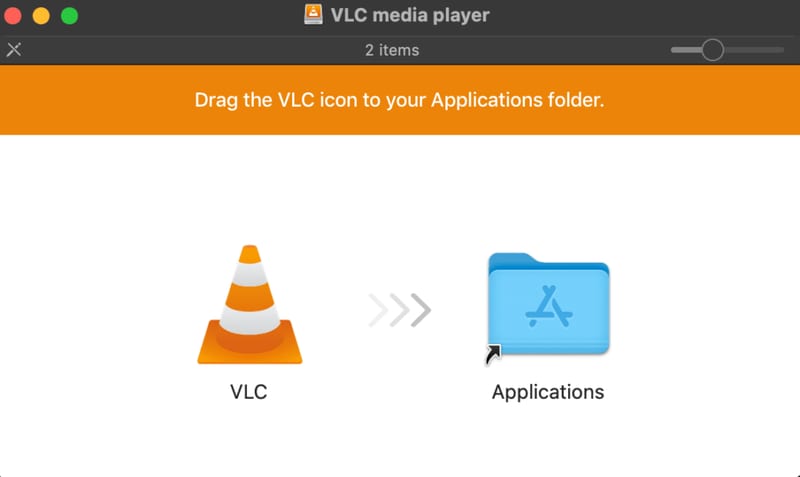
- VLC will be copied and installed on your applications.
- Open VLC using Finder or search for it.
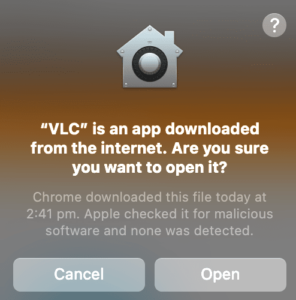
- Provide the confirmations and hit Open if your Mac asks for it.
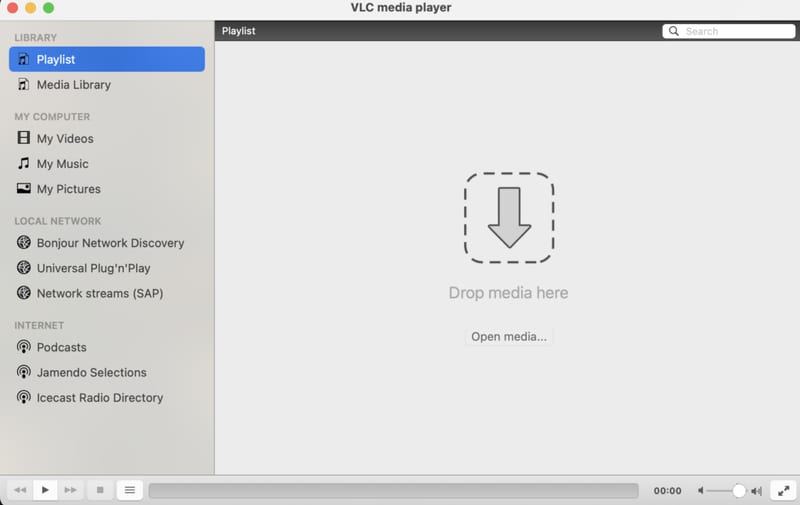
- VLC Media Player will launch for the first time. Use it to play all your media with ease.
Uninstalling VLC on Mac
To uninstall any application on a Mac, we need to move the item to the Bin. We can do it by following several ways. Let's do it with VLC Media Player.- Open the Finder app.
- Switch to Applications.
- In the bottom, scroll through and find the Cone (VLC) icon and click on it.
- Click on File > Move to Bin or Right Click > Move to Bin.
when will I be able to use it using Sierra??
Have you tried VLC for Mac?
I need a version that works with High Sierra 10.13.6 Is this possible?
I have Mojave, and it won't open, the window saying to drag it to the applications folder is the only thing that pops up, even after I've dragged it to applications. Please help...
For years now Mac seems to be hostile to VLC. It can never be assigned as the default player and whenever a video is clicked on, a notice comes up saying "This is the first you are using VLC....etc." Why???
hi there! does this fantastic vlc app open .exe files in mac? i have an .exe video file that i need to open but am getting an error msg that says vlc "can't open this file. check log for details." unfortunately, there is no log ;( any suggestions?
EXE files aren't videos.
they are if they're footage from security cameras. mine is ;) it's also a very large file because it's has recordings from 16 camera angles for approx 1 hour each... so size may also be an issue. any suggestions? thanks!!
one last thing... we were able to open the EXE through an app called "Clip Player" and both scroll through and watch all 16 camera angles. unfortunately, i no longer have access to that DELL computer so i'm trying to find a workaround using Wine, Winebottler, VLC to download the Clip Player app. Thanks again!!
Same as AGloria, I have Mojave and I can't get anywhere with VLC