By default VLC Media Player is set to have multiple instances. That means more than one player or player window can run and operate at the same time. It can be used to access or play multiple media files simultaneously. You can be playing two audio files or a video and an audio file at the same time.
The feature comes to great use when there is a video or an audio file playing and you want to pause it and open a different media file. It allows you to keep your playback position in the original media file so you can continue it later. You can do a variety of other tasks like convert audio formats or cut video files in one VLC instance while playing something entertaining in another window.
Enabling Multiple Instances
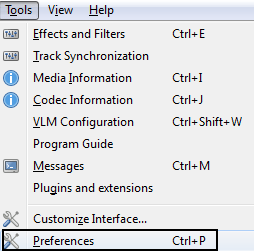
VLC comes pre-packed with the multiple instance option enabled. If it has been somehow disabled and you want to allow it:- Go to Tools > Preferences [CTRL + P].
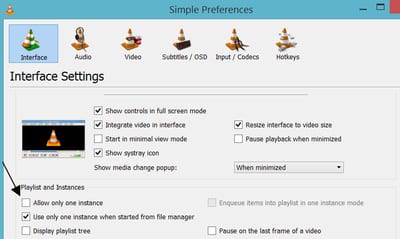
- Under the currently selected Interface preference, find the heading that says Playlist and Instances.
- Make sure that Allow only one instance checkbox is not checked.
Different media files can be dragged to or opened [Media > Open File] from any one of the running VLC instance. But when we directly open a media file by clicking on it or by instructing it to play with the software, the first open window of the software plays it. That means if you’re trying to pause and play a different file, the new instance—even though it is already open—is not used.
So, if you want every new file to open in a new VLC window then follow these steps:
- Go to Tools > Preferences [CTRL + P].
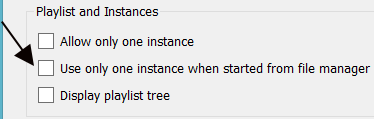
- Under Playlists and Instances, uncheck the option that says Use only one instance when started from the file manager.
Disabling Multiple Instances
If you prefer to use a single window of the player every time then do not open more than one instance. But you want to disable the feature completely then follow these steps:- Go to Tools > Preferences [CTRL + P].
- Under Playlist and Instances, check the option that says Allow only one instance.
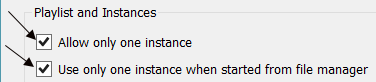
- If unchecked, check the option that says Use only one instance when started from file manager.
If you want the new one to queue up in the playlist:
- Go to preferences once again.
- In the Playlist and Instances option check the one that says Enqueue items into playlist in one instance mode.

You may be interested in: How to Run Multiple Instances of VLC app in Android?
recently VLC opens a new player every time i open a file, I can't get it to run one instance at a time and it does this wheteher a file is playing at the time or finished playing. changing these settings does nothing, reseting back to default and changing settings does nothing
Delete all the running instances of VLC after changing the preferences, from taskmgr in windows or via 'kill' in *nix.
THANKS JMNK- that was the missing element on my problems with the glitch. I also tried resetting preferences and closing all instances (traditional way). Never thought about task manager but that was the "secret sauce" so to speak. Appreciate it.
I"m having the same problem. It started doing it just recently and on files it didn't used to...like the 2015 Dr. WHo Xmas Special for example, in mp4 format. I've just started the usual stuff like checking for viruses and so on. Windows Defender quickscan came back negative on it. Did a windows defender custom full scan on it. Negative. Registered copy of Malware bytes antimalware home premium and turned up negative. I have no idea what would be causing. It opens one big main window then a topn of baby windows and when i click x to end one of the baby windows it acts as if it just reopened it again. The results are te same f i end task in task manager. Closing the Main window is the only way to kill them all. It opens 10 instances. ... Note: I just noticed when looking at all the windows at once, they are different points of view. Is there some kind of video surround technology going on? Maybe I accidentally activated it or something.
The baby windows open in the upper left corner of my monitor in a cascade, and cannot be moved. However I also noticed that they can be maximized and when I do, the full window title is displayed and it says "VLC (Direct 3D output)". I also notice that the video is playing rotated positive 90 degrees.
Well I gave up and hit reset all preferences and it went away. I realized it was happening on all files regardless of type that I had. Obviously I either fell asleep and my hands landed on the keyboard and turned something on or the last thing i was tweaking with caused it which was the audio mixer but I tried to remember setting it back to what the settings were before my tweak and pretty sure i did but that didn't work either...and i didn't really expect a change in the audio mixer panel to have this kind of effect. ... I do have on last parting thing anyone reading this might help exploring. The multiple screen display looks like it's for one of those big giant wall of monitors you would set up to display the picture aross all of them. And my hypothesis has one little bit to support it: there are 9 windows that open up as I mentioned earlier, all with a different piece of the picture... but the number is significant because when you look at it in task manager it says you have 10: it's counting the 9 little baby ones and #10 is the main big one which, if you think about it, would be your control booth monitor for queuing your stuff and adjusting the others and so on. There may even be an array of special effects and if you see anything that asks you which monitor 1 thru 9 to apply something to, that's exactly what it is then. No doubt there's a name for one of those large multi-panel display walls and we have them all over the place here in Vegas (Like The Rain night club at the Palms with Paul Oakenfold and stuff like that) I just don't know the tech term or I could look for it in the settings and answer the question just for OCD purposes (some of you will get the joke :) ) Good luck on your quest.
What about mac?
thanks! you save my day. :)
This is not working. Everytime I want to que a video to start after the current one, it opens in a separate window and starts playing. It wasn't doing this until I updated it over the Thanksgiving holiday. How do I get it to stop?
For months, I've had VLC set up to only use one instance and to add to new files to queue rather than the new files taking over. But there seems to be a glitch now, after the update. My preferences are still set to "one instance" and "enqueue" but when I try to add multiple files to build a playlist, VLC instead opens a new window for each file. Solution?
tried everything but vlc player version 2.2.6 has this glitch and it is very annoying. please help.
I hope you have updated to 3.0+ version.
You are right. I am also suffering from this glitch. Its very annoying.
Thank you. This information was very helpful to me.
It looks like this bug is back. I have double, triple, and quadruple checked my preferences, and both the "Allow only one instance" and "Use only one instance when started from file manager" boxes are checked. I have exited and re-started VLC, the boxes are checked, but still when I double click on a video a new instance of VLC is started. I have completely removed VLC and all remnants using Revo and done a fresh install of VLC and it still happens. Does anyone know how to get VLC to really and truly use only one instance with V3.0.3 or V3.0.6? (I went back to 3.0.3 because there is a MAJOR screw-up in the way 3.0.6 handles security certificates.) Thanks.
Try checking the "integrate video in interface" enabled in the preferences option.
I have this problem sporadically (Windows, 3.0.16). I have both single instance checkboxes checked and a global stop shortcut. Usually everything works as it should - only one instance is allowed and the kyb command works when that instance is playing in the background. But fairly often, the global shortcut fails and that's when I realize that I have two instances running in spite of both single instance checkboxes still being checked. I've tried to reproduce this so I can give steps to get it every time but I can't. It just happens every day or two depending on how much I'm using it. Does anyone know how to (1) cause it (2) stop it from happening (3) make the global stop command work when multiple instances are running. It's odd because the default is multiple instances, so in that state, how are global kbd commands supposed to work? Finally, I'd be interested in reading a more thorough explanation of why there are two checkboxes and what the behavior is if one or the other is checked but not both. It's probably obvious, but I haven't wrapped my head around it yet.
helpful in 3.0.4
This review was very useful. Truly appreciated.
I'm having an annoying related problem. I know little about IT. Until today, every time I play an audio track with VLC it opened a single screen with playlist, and the controls (volume, pause, etc) at the bottom. Today when I opened VLC, it opened two separate windows; one with the track that is playing, which has the controls; and the other which has the playlist. I don't want this! I want a single window with the playlist and the controls! I don't want to have to click back and forth between two separate windows, for playlist and volume, pause, etc I've been searching this forum for the last 30 minutes without finding a solution. I've looked at Tools, Preferences, View, etc etc etc
From the Menu, click on View > Docked Playlist to activate it.
Thanks, that didn't work initially, but I did a computer restart, and tried it again afterwards and it did work.
3.08 This tab does not exist!
Showmax is playing two movies simultaneously. How do I stop this?
I think this (problem) setting changed in an update, it wasn't like that before, it would be great to make it by default that the new file replaces the old file playing
I appreciate all the hardwork but you guys broke VLC in 4.0, none of the options are working anymore, and it's only forcing the awful two windowed option on me.
Same issue here. I am using Ubuntu 22.04.03 and realized my VLC wasn't up-to-date yesterday and after I updated it to 4.0 it only opens in two separate windows, one for the video (which I can't adjust the size or the position on the screen, or put into full screen) and the other for the playlist and control buttons (i.e., pause/play, forward/rewind etc.). Docked playlist is set by default, and checking the "allow only one instance" box in the Interface settings (preferences) doesn't fix it either. Seeing no other way around this issue with my preferred methods (I had originally used apt, then used the VLC ppa method when I updated), I ended up uninstalling it and reluctantly installed the snap version. I don't like snaps for various reasons but it works.
Same issue here. I have been using VLC on Ubuntu 22.04.03 LTS for over a year now (which I installed using apt). I realized yesterday that my VLC player was out-of-date (I don't remember what version it was, I just know it had no noticeable issues so I regret "upgrading" from it). I used the VLC ppa/apt-get method to upgrade it to the latest version (which my system is saying is "VLC media player 4.0.0-dev Otto Chriek (revision 4.0.0~rc1~~git20231022+r99143+342~ubuntu22.04.1)") and now it only opens two separate windows: one for the playlist and media controls, the other for the video (which I cannot adjust the size or position of, cannot get it to go fullscreen, and cannot close without closing the other window). The "Docked Playlist" setting is activated by default, and checking the "Allow only one instance" and "Use only one instance when started from file manager" boxes under the Interface Settings (preferences) did not work either, even after several restarts and reinstallations. Since I could not figure out a way to get my VLC player back to the version I had before with the apt or ppa methods, I purged VLC (even after purging the VLC --version command still displays the version I mentioned above) then reluctantly installed the snap version. I don't like snaps for a number of reasons, but it was the only way I could get it back to a version of VLC that was close to the functionality I had before.
these option didn't work for me, and my VLC is updated
I don't know if it will help you but I had the same issue. I searched my old NAS for older version of VLC (since updates dont have any effect for me all the cause is trouble) I found an old version 2.1.5 (Rincewind) doesn't have any of the issues. Supports all formats I use. Can recommend! 2.1.5!!!
This fails to solve the problem, using Ubuntu 20.04, though it seems the issue is not unique to linux/GNU