Sometimes, for a video file, you might need to view its video resolution and its frame rate. Video resolution is the dimension: width x height of a video file. The video resolution information allows you to confirm the quality of the video that you are watching. Frame rate tells us the number of frames per second the video is. Higher frame rates means smoother video quality.
To find out video resolution and frame rate of a video file, you can simply view its properties in modern Windows or any other OS. In Windows 7, the information is found out from the Properties > Details (tab) of a video. Video information like frame width and frame height is present there.
It should also be noted that this same information is viewable easily using VLC Media Player. You can quickly find out the resolution (frame width x frame height) and frames per second of any video that you are currently playing in VLC.
To find out video resolution using VLC Media Player:
- Make sure that you are using the default VLC Media Player skin. You shouldn't be on the skinned mode of VLC.
- Make sure that your video is open in VLC Media Player.
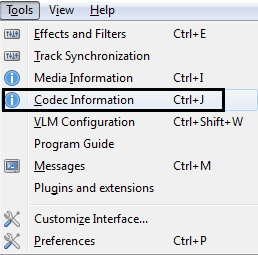
- From the VLC menu, click on Tools > Codec Information [ Shortcut: CTRL + J ].
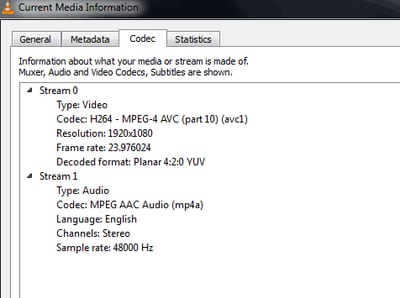
- VLC will come up with something like this:
“Higher frame rates means higher video quality.” Not exactly true. Higher frame rates means a more smooth video footage but also better for slow-motion. I have seen 240fps video footage with bad/low compression (low bit-rate). You can have a high frame rates video footage with low bit-rate which will end up in a choppy video footage. You get higher video quality only when you save the video in higher bit-rate, not high frame rates. its like when you save a file in Photoshop (you go from low to maximum).
Thank you for this. Fixed!
Is there any way to see the frames on the time clock as the video plays? Sometimes its handy to know exactly which frame you are on and to be able to step through the video frame by frame.
The only frame information that I can find is Tools > Media information and switching to the Statistics tag. It displays the frames decoded, displayed and lost. If you play the video serially from the beginning you can add up frames displayed + lost to get the frame number.
Frame rate info seems to no longer be displayed playing video / DVD in latest version.
can you plz tell how many frames per second should i set in vlc to record the videos???
It is up to you. 24, 30 etc are good numbers.
If I have VLC for Android installed on a Android TV. How do I check and see the file I am playing via VLC is 1080P? or 4k? or 720P? and soon
Well in Android VLC player, on the screen where it lists all the videos, we can long press or hit the options menu besides every video and then tap on information to get the resolution and frame rate displayed along with a bunch of other information.
what about VLC for MacBook ??
On Mac, its Windows-> Media Information (Cmd+I)
Thanks!
Frame rate in my case is not described.. What is described for stream 0 is; Type (stream type(video)), codec, language, display resolution(no frame rate specified), resolution, and decoded formation(colour ect). In my case, there is no entry for frame rate, at least in the case of some videos. However in the case of some other videos, my vlc does specify frame rate. Though, because vlc does so(displays frame rate as described) seemingly on a case basis, the contention, that this declared method is functional absolutely, as such, is not true, and is incorrect/misinformation and misleading. A clause or stipulation made in the article, I suggest would be useful.
May be it didn't work for your particular video. Otherwise, this is the simplest trick to find the video resolution and frame rate details.
if am using a MS life cam and ELP USB cam and captured some of the videos then how could i check the fps for those videos...?
i played those videos with VLC media player but its showing blank....!
Open it in VLC and follow the steps above.
Very Helpful Thank You.
Can we log this Codec information into a log file
Well, it can indeed get "simpler than that", as you put it. On many other players, the resolution is clearly listed at the lower bottom of the toolbar, by default. Why, oh frakking why....does VLC not have an option for that??? If I'm wrong, then shame on me. But I looked, and looked, and looked, for over an hour. I went to every single section of the Preferences, repeatedly. There's a lot there, but I went over it many times. If such an option exists, than I must be blind.
I am trying to determine FPS for a video in VLC with my Macpro. There is no toolbar on the VCL as shown in the tutorial. How do I turn on the toolbar? thanks
Try the shortcut key: ⌘+i to display media information in Macbook.
thank you. N
This doesn't appear to work with FLV format video files? Perhaps it only works with mp4?
Is there any way to do this in mass and have it added to the title?
I don't think so.
This does not show frame rate of WebM videos.
It does for me. So, it should be some particular WebM videos which VLC couldn't figure out the frame rate??
Best method: (Direct by calculating right parameters, confirmed by ffmpeg) Cmd -> ffprobe.exe -v error -select_streams v:0 -show_entries stream=r_frame_rate,duration -of default=nw=1 "d:\movies\The.Matrix.1999.1080p.BrRip.x264.YIFY.dut.mp4" Result -> r_frame_rate=24000/1001 duration=8177.794625 Calculation -> Frames=24000/1001*8177.794625=196071 (exactly... ;P) Proof -> ffmpeg -i "d:\movies\The.Matrix.1999.1080p.BrRip.x264.YIFY.dut.mp4" -f null /dev/null ffmpeg version N-92938-g0aaaca25e0-ffmpeg-windows-pacman Copyright (c) 2000-2019 the FFmpeg developers built with gcc 8.2.0 (GCC) configuration: --pkg-config=pkg-config --pkg-config-flags=--static --extra-version=ffmpeg-windows-pacman --enable-version3 --disable-debug --disable-w32threads --arch=x86_64 --target-os=mingw32 --cross-prefix=/opt/sandbox/cross_compilers/mingw-w64-x86_64/bin/x86_64-w64-mingw32- --enable-libcaca --enable-gray --enable-libtesseract --enable-fontconfig --enable-gmp --enable-gnutls --enable-libass --enable-libbluray --enable-libbs2b --enable-libflite --enable-libfreetype --enable-libfribidi --enable-libgme --enable-libgsm --enable-libilbc --enable-libmodplug --enable-libmp3lame --enable-libopencore-amrnb --enable-libopencore-amrwb --enable-libopus --enable-libsnappy --enable-libsoxr --enable-libspeex --enable-libtheora --enable-libtwolame --enable-libvo-amrwbenc --enable-libvorbis --enable-libvpx --enable-libwebp --enable-libzimg --enable-libzvbi --enable-libmysofa --enable-libaom --enable-libopenjpeg --enable-libopenh264 --enable-liblensfun --enable-nvenc --enable-nvdec --extra-libs=-lm --extra-libs=-lpthread --extra-cflags=-DLIBTWOLAME_STATIC --extra-cflags=-DMODPLUG_STATIC --extra-cflags=-DCACA_STATIC --enable-amf --enable-libmfx --enable-gpl --enable-avisynth --enable-frei0r --enable-filter=frei0r --enable-librubberband --enable-libvidstab --enable-libx264 --enable-libx265 --enable-libxvid --enable-libxavs --enable-avresample --extra-cflags='-march=core2' --extra-cflags=-O2 --enable-static --disable-shared --prefix=/opt/sandbox/cross_compilers/mingw-w64-x86_64/x86_64-w64-mingw32 --enable-nonfree --enable-decklink --enable-libfdk-aac libavutil 56. 25.100 / 56. 25.100 libavcodec 58. 43.100 / 58. 43.100 libavformat 58. 25.100 / 58. 25.100 libavdevice 58. 6.101 / 58. 6.101 libavfilter 7. 47.100 / 7. 47.100 libavresample 4. 0. 0 / 4. 0. 0 libswscale 5. 4.100 / 5. 4.100 libswresample 3. 4.100 / 3. 4.100 libpostproc 55. 4.100 / 55. 4.100 Input #0, mov,mp4,m4a,3gp,3g2,mj2, from 'd:\movies\The.Matrix.1999.1080p.BrRip.x264.YIFY.dut.mp4': Metadata: major_brand : isom minor_version : 512 compatible_brands: isomiso2avc1mp41 encoder : Lavf58.25.100 Duration: 02:16:17.91, start: 0.000000, bitrate: 2497 kb/s Stream #0:0(und): Video: h264 (High) (avc1 / 0x31637661), yuv420p, 1920x800 [SAR 1:1 DAR 12:5], 2397 kb/s, 23.98 fps, 23.98 tbr, 24k tbn, 47.95 tbc (default) Metadata: handler_name : VideoHandler Stream #0:1(und): Audio: aac (LC) (mp4a / 0x6134706D), 44100 Hz, stereo, fltp, 93 kb/s (default) Metadata: handler_name : GPAC ISO Audio Handler Stream mapping: Stream #0:0 -> #0:0 (h264 (native) -> wrapped_avframe (native)) Stream #0:1 -> #0:1 (aac (native) -> pcm_s16le (native)) Press [q] to stop, [?] for help Output #0, null, to '/dev/null': Metadata: major_brand : isom minor_version : 512 compatible_brands: isomiso2avc1mp41 encoder : Lavf58.25.100 Stream #0:0(und): Video: wrapped_avframe, yuv420p, 1920x800 [SAR 1:1 DAR 12:5], q=2-31, 200 kb/s, 23.98 fps, 23.98 tbn, 23.98 tbc (default) Metadata: handler_name : VideoHandler encoder : Lavc58.43.100 wrapped_avframe Stream #0:1(und): Audio: pcm_s16le, 44100 Hz, stereo, s16, 1411 kb/s (default) Metadata: handler_name : GPAC ISO Audio Handler encoder : Lavc58.43.100 pcm_s16le HERE!!! -> frame=196071 fps=331 q=-0.0 Lsize=N/A time=02:16:17.90 bitrate=N/A speed=13.8x YOU SEE???? GREAT IS'NT IT EH? video:102631kB audio:1408772kB subtitle:0kB other streams:0kB global headers:0kB muxing overhead: unknown shareeditdeleteflag https://www.facebook.com/Pacman-Graphics-1601114056700700/ https://www.facebook.com/gerard.wensink gerardwensink@gmail.com https://www.youtube.com/watch?v=W7_udMM_yHU&list=PLkcSmJZ4L--v6Lz6TfVITbj09mQS5a8FP Thank you...
wow! Just a question, I have action camera, its states 4K video, how can I prove its not?
4K videos have 2160 pixels, check if thats the resolution in your recorded video.
just make a video and get the video on ur pc the test if it is or not
I have tried to get the duration of a video for half an hour and this was the answer
Just for the record, Using Windows explorer to display files, right clicking on a video file and opening a properties window will only yield the resolution and other info if the encoder or encoding app included it. I have lots of video files where most of that stuff, sometimes all, is blank. I'll try from within VLC