In VLC for Android, you can group videos by name and display them on a grid or as a list. You can also separate the seen videos from the ones that you haven’t played. There are also options to set the default video orientation as per your taste. This post deals with those fine-tuning options.
Grouping Videos
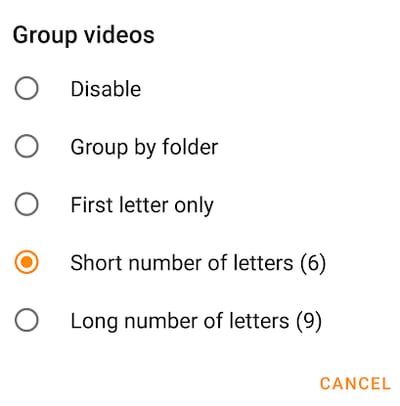
The first one that we are going to talk about is grouping videos.On the main screen of the VLC App, you can see that videos are grouped by name. You can change this so that they are categorized as per your requirements. To access the video grouping options:
- Open up the ☰ Menu
- Go to Settings
- Scroll down and click on Video under Extra settings
- Tap on Group videos
- Choose a suitable option
- Disable
- Group by folder
- First letter only
- Short number of letters (6)
- Long number of letters (9)
Show Seen Video Marker
In the same (☰ Menu > Settings > Video) page, you can also see the second option that says Show seen video marker. It marks a video as seen but you will have to play the file until the end. This way you can separate movies or episodes that you’ve already completed.
Listing Videos
There's also a setting that allows you to configure how the videos are listed when you are in portrait mode. This is when you are holding your phone the usual way and not in landscape (the wider way). By default, grids are used but you can also pick list as well.Navigate to the ☰ Menu > Settings > Video page. Check the No grid in portrait mode option. That will display it as a list.
Here are screenshots for grid vs list.
<img src=“/images/2018/05/grid-vs-list-1024x642.png” alt=“Grid Vs List” title=“Grid Vs List” / loading=“lazy” decoding=“async”>
Video Orientation
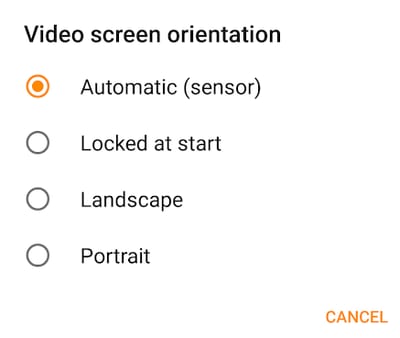
By default, the player will follow the phone's configuration for video orientation. If your phone is set to just portrait mode then VLC for Android will also play video in portrait mode. If it is set to auto rotate, then the app will also auto rotate the video according to your phone's orientation. You can obviously set VLC independent of your phone's position.To set VLC’s default video orientation, follow these steps:
- Go to ☰ Menu
- Tap on Settings
- Tap on Video screen orientation
- Choose your desired option
- Automatic (sensor): Will follow your Android device's orientation.
- Locked at start: It will go with the orientation that you use during the start and will not auto rotate
- Landscape: It will use the wider alignment
- Portrait: It will use the taller alignment
Hi, I'm using VLC for Android 3.0.13 (installed from Google store ) on Android 7.1.2 ( x86 twrp) : 1) In Setting menu there is no option to Disable Android TV Interface, therefore I'm permanently in Android TV interface 2) In Setting\Video : the grouping option does not exist Is there a reason why it is like that and how can the option mentioned above can be added ? Thank You Jonau
I am facing the same issue. No menus which are described in the article are available for me. (VLC for android 3.0.13)
Likewise, I do not have an option for grouping in the described location - or seemingly anywhere else in the app. I'm running "Revision: 3470199f8 VLC: 28eddab6e (2020-10-06)" on a Galaxy S20 Ultra. Has this feature been removed?
Same here. I want to disable the grouping, but I'm missing several options in the setting.
Video screen orientation is missing a very - and most wanted - important option which is Following system orientation current configuration... The automatic option is based on the phone sensor not what I choose the system to be.
I have VLC for Android 3.3.1 and do not see the grouping option mentioned on this page.