Sometimes when you play a video using VLC Media Player, it might have a hardcoded logo or graphic in the media and you want to hide it from the view. Those logos might be distracting or reveal something that you do not want to. If that is the case, then you can easily blur out the logos using the logo erase feature available in VLC. What VLC does is it places another graphic in a blurred form on top of the logo while covering it.
You will have to have an image which is equivalent to the size of the thing that you are trying to blur and overlay. You can easily browse your computer for such an image or create a simple one. Then place it over what you are trying to hide. You will have to manually set the position and VLC will blur that region automatically. After that it will not look so prominent but isn’t invisible.
Here are the steps:
- Open your video and pause it.
- Click on Tools > Effects and Filters. [CTRL + E or Command + E]
- Switch to the Video Effects > Overlay
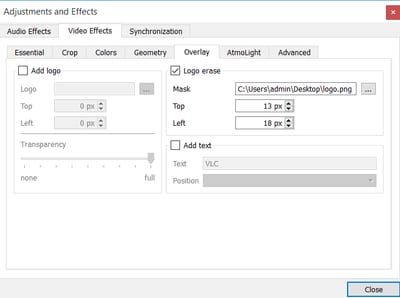
- Click on the three dots … to browse the appropriately sized Mask. (You will notice a blur on the top left corner)
- Move it and place it over the logo by inputting values in the Top and Left
- Hit Close when you are done.
To Blur the Logos Permanently
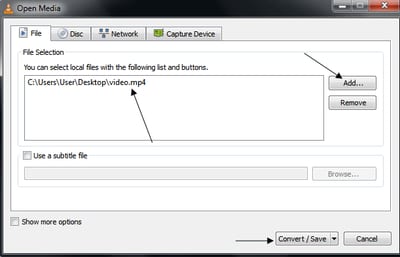
If you want the blur to stay and the logos/watermarks to be hidden at all times even when you use another player or play it some other day, then you need to convert / save it using VLC. Here are the steps for it:- From the menu bar, go to Media > Convert / Save. [CTRL + R]
- Click on Add, and browse and add the current video.
- Click on Convert/Save.
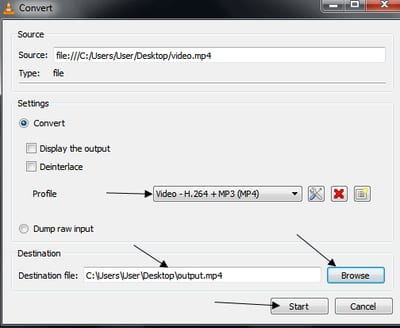
- In the next step, don’t forget to choose a Destination file.
- The default Profile should be fine. So, press Start to begin the process.
I am using VLC 2.2.4. The logo erase filter works while playing a video but I am unable to burn the blurred logo into the video using the 'convert' option.
Go to Tools > Effects and Filters > Video Effects > Overlay and uncheck the ☐ Logo Erase checkbox.
Just a heads up. This will *not* guarantee the removal of hidden identification watermarks in screener movies. These can use advanced stenographic techniques to avoid this sort of removal.
This only seems to work when playing in VLC.
I know how to keep logos permanently hidden in videos. First do the overlay trick in VLC player first then save the video as mp4 or whatever video format you want the video. Then get a video converter to convert the video. After conversion, you should see the converted video result.
Matt (Extended Message) I actually saw someone on YouTube do this more differently but I will explain this more thoroughly. 1. Open up your vlc player 2. Go to “Media”, then go to “Open Network Stream” 3. Insert your video link into the white bar under the “Please enter a network URL” title, then press play. 4. You can press pause at any stage of the video. 5. Next go to “Tools” then select “Media Information”. 6. You will come up with a dialog box with 4 tabs saying “General”, “Metadata”, “Codec”, “Statistics” 7. Leave settings as is but on the bottom of the “General” tab you see “Location” at the end of the “General” tab. 8. Beside the “Location” name you will see a bar with a whole lot of info in it. 9. Highlight the whole bar with the info by right clicking on this and a little menu will say “Copy” or “Select All”. 10. Choose “Select All’ as highlighted. 11. Right click again and choose “Copy” 12. Open up your browser. Whatever browser you have on your computer or device. 13. Once your browser is opened, paste your video link into the main link bar on your browser then press enter on your keyboard. 14 This will hopefully show the main video inside your browser by copying and pasting the video link from the VLC Player. 15. Again pause the video at any stage. 16. If you have Google Chrome on your computer, you can right click on video and choose “Save Video as” 17. Find a place where you want your video saved on your hard drive. 18. After your video has finished downloading, you can now watch your video at your leisure. Hope this will clear up the issue of saving videos from vlc to your computer. PS Now if you want to hide your logos in your video, find your saved video you just downloaded and follow the above instructions.
Help ! How do I reverse this ? I did it for one and now they ALL play like this.
HELP ! I did the above with one file and now all of my files that I open are a complete blur. How do I reverse this ???