VLC for Android, Windows PC, and Apple Mac can cast videos and audios to any Chromecast-enabled device. That means, if you use VLC to watch a movie, you can instead stream it to a Chromecast-connected big-screen living room TV. You can also stream just your music playlist to any device that has a Chromecast. For the desktop and laptop versions, all you have to do is open a video and click on Playback > Renderer and choose external your playback device. For the Android or Mobile version, we can click on the Chromecast icon(on the top-right of the app) and choose the big screen tv. This works for the VLC Media Player which has been developed for Windows PC, Apple’s Mac laptops, and desktops. It also works on VLC for Android. Make sure that you get the 3.0+ version of the application. Staying up to date with the latest version will help make sure that this nifty trick works. Also, ensure that both the streaming device and your VLC hosting device is connected to the same WiFi network.
Chromecast is a media streaming device by Google. It goes in the HDMI port of your television. Some televisions come with an internally built Chromecast so we do not need to connect one externally. Media streaming devices like MI TV S also has it. VLC Media Player supports all these Chromecast devices. So, if you are watching a movie on your mobile, stream it to your television instead and watch it on a bigger screen.
Now, let’s go into detail on how you can stream content from laptops, desktops, or smartphones to your chromecast-enabled TV for the big screen experience.
How to Stream from VLC Media Player in Windows PC to Chromecast Devices
It's a simple procedure where you open a media file and select a playback device. The steps are as follows-- Open VLC on your Windows PC.
- Open a video/audio file on it.
- Click on Playback > Renderer.
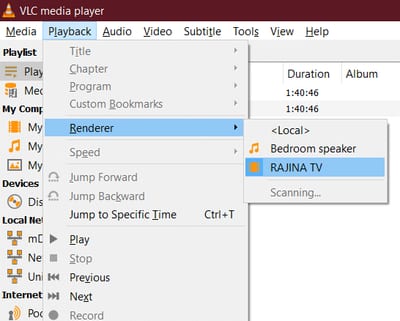
- Choose your Chromecast device.
How to Stream from VLC Media Player in Macbook to Chromecast Devices
The steps to stream VLC's video and audio to Macbook are similar to the ones on the PC. Here are the steps-- Open VLC on your Macbook.
- Open a media file by dropping a file or clicking on the Open media button.
- On the menu, click on Playback > Renderer.
- Pick your TV/monitor which has the Chromecast.
How to Stream from VLC Media Player in Android and smartphones to Chromecast Devices
In Android, the steps to stream media content to a bigger screen are different but quite straightforward. Here are the steps-- Open the VLC app on your smartphone.
- Tap on the Chromecast icon (top-right).

- Connect to your Chromecast TV/Device by selecting it under Displays.
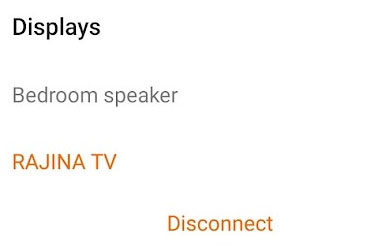
- Now play any media and it should stream on the big screen.
Additional options to casting for smartphones can be found under, … More > ⚙️ Settings and then navigating to Extra Settings > Casting. We can enable or disable casting from here, choosing which device (phone or television) manages audio rendering, and pick a conversion quality (High, Medium, Low, Lowest).
THis not the question I asked. I'm not interested in casting video or music from my iPhone to my computer. I want to show the speech to text screen I can get on my iPhone onto a blank computer screen for the benefit of deaf people listening to a talk. Is this possibile?
So, you want to turn on the subtitles?
Yes, but not for video or music. The sound source will be the external microphone or the microphones built into the computer. I want the app to pick up external speech via the microphones and display it as text on a blank screen. That's possible on SST apps on a smartphone. I want to do the same on my laptop.
I don't think that it is possible with VLC.
Will it be possible to cast video with subtitles soon? Especially via UPnP? Thanks
I have had VLC installed on Windows computers for longer than Chromecast has existed. I have never been able to successfully configure VLC to detect any renderers, ever. A walkthrough that covers all the basics with respect to the hurdles Microsoft and Google have erected to prevent user happiness has never been produced.
Local casting on VLC using Windows no longer works. For about 4 months, VLC connects successfully to my chromecast, but will not play the video. The tracker on VLC freezes, and after displaying the media filename on TV, the TV remains black, and nothing happens.
VLC casting fast forward rewind not working. Pause and play does work. How do I setup fast forward and rewind? This is for PC to Chromecast to Samsung TV.
For some Reason It has never worked for me
VLC works fine in android phone to chromecast, but I just tried on a windows 10 pc to same chromecast and it doesn't work in any format audio mp3, video mkv 264 265 or mp4 264. I can cast from same win 10 pc youtube videos so it's not a network issue. VLC 3.0.16 Vetinari just freezes after I render to chromecast and nothing is being received by the chromecast. I can see in task manager that vlc is running even though it's frozen, even after I close out the frozen vlc task manager shows it still running. Is this a bug or something that is a known issue or a fix available? THANKS!
I'm using VLC (64b v3.0.17.4) on a WIN10-laptop. On my LAN, also a Smart-TV is available running Android-TV, which supports ChromeCast. We run a video-file in VLC and as instructed we cast it to the Smart-TV. This was operating fine. And I believe this is a LAN-only operation.... my laptop with VLC is on the LAN and my Smart-TV is on my LAN also. But than my ISP failed and my internet connection was down. Now surprisingly... when I tried to cast from VLC the same videofile to my SmartTV, it was NOT working. When my internet connection was online again, casting from my laptop/VLC to my Smart-TV was again possible. Does the casting process require a connection to Google ? Why is this LAN-based casting process dependable of my internet connection ?
I have VLC on my windows 11 PC and I can stream to my TV but the stream randomly and without warning disconnects. I haven't been able to find an answer as to why this happens or a solution. Please help.
FAILURE. Shows the device. Then VLC does nothing upon enabling the casting. No errors. Even made sure on same WIFI network. Come on VLC what the heck is up with this
Same here. It has NEVER worked.