VLC Media player can easily load any external subtitle like a .srt file while playing videos. The subtitle is usually positioned near the bottom-center of the screen. But do you know that there are a lot of ways you can configure the display position of the subtitle? Not only can you choose the alignment as left, right and center, but you can also fine-tune its exact position. It is possible to move the text up or down by a certain number of pixels. This is a method to show it in an empty black area below the video instead of over the video.
Changing the Subtitle Alignment
While the bottom area of the screen is a preferable location for subtitles, some might want it in the top or align it in the left or right side of the screen. VLC has all the necessary features to place the text exactly where you want to.To change the position:
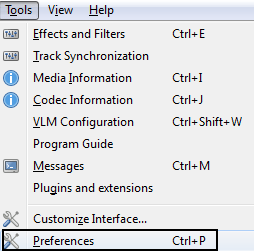
- Go to Tools > Preferences [CTRL + P].
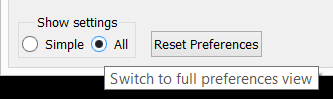
- Under Show settings, select the option that says All to switch to the advanced preferences.
- Navigate to Input/Codecs > Subtitle codecs > Subtitles.
- Under Text subtitle decoder set, the Subtitle justification to left, right or center.
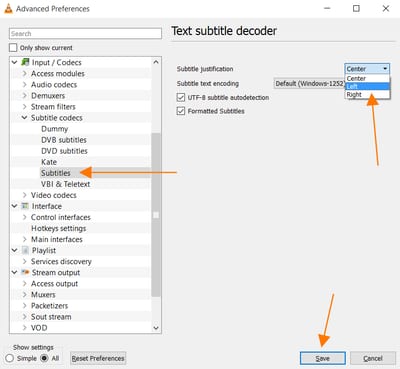
- Hit Save to keep the changes.
Positioning the Subtitle below the Video (Instead of Overlaying)
There is another way to fine tune the subtitle position. Normally, the text is over the video and can disturb us while we watch something. Instead of overlaying it, you can push it down. Doing this, you can place the subtitles right below the video but it won’t be visible at first. The goal is to create an empty black area under the video and push it there. This will prevent the on-screen text from overlaying anything.To Create an Empty Black Area First
- Go to Tools > Preferences [CTRL +P].
- Switch to All settings to access the advanced preferences.
- Navigate to Video > Filters.
- Under Video filter module, check the option that says Video cropping filter.
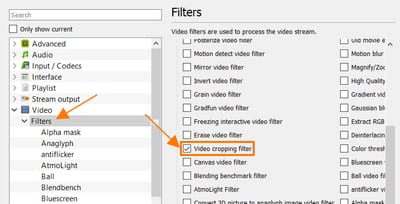
- Now navigate further to Video > Filters > Croppadd.
- In Video cropping filter options, under Padd, add a numerical value for Pixels to padd to bottom. Enter a value like 100.
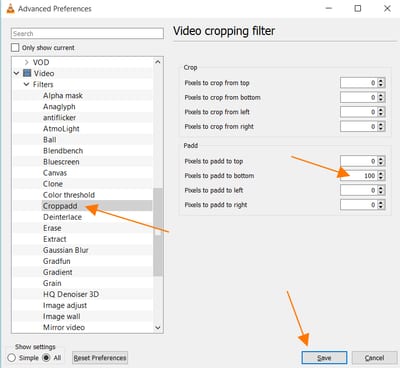
- Click Save at the end.
To Move the Subtitle in the Black Area (Below the Video)
- In the same Advanced Preferences; navigate to Video > Subtitles / OSD.
- In Subtitles / OSD’s under Subtitles, enter a negative numerical value for Force subtitle position. Input a value like -200.
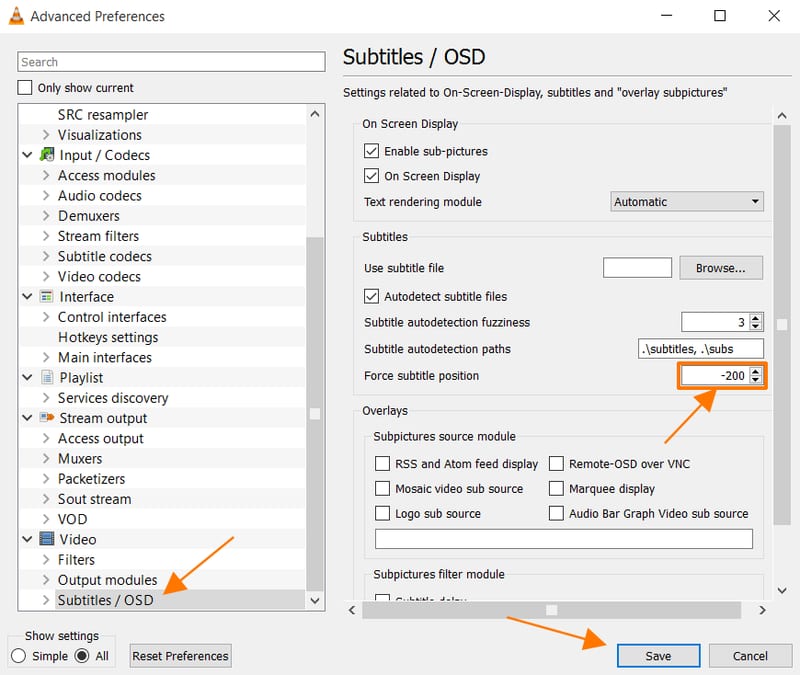
- Hit Save.
Positioning the Subtitle above the Video
To move the subtitle to the top of the video, enter a positive value for force subtitle position. It is also accessible by:- Opening up Tools > Preferences [CTRL + P].
- Navigate to Subtitle > OSD.
- Under Subtitle effects, enter a positive number for Force subtitle position.
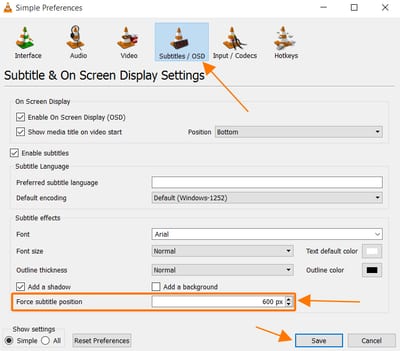
- Hit Save and restart the video.
Thanks a ton :)
Subtitle not moving below the video after the settings were changed as you told. I am using VLC Media Player Version 2.2.1. I did change the value to 100 of Padd>Pixels to Padd to bottom under Tools>Preferences>Advanced Preferences>Video>Filters>Croppadd and clicked Save, and then I changed value to -200 in the Force subtitle position field under Tools>Preferences>Advanced Preferences>Video>Subtitles/OSD and clicked Save too. I did close and reopen VLC and played a new video and yet the subtitles appear overlayed on the video. Can you please help me to move the subtitles below the video?
http://askubuntu.com/questions/284709/how-to-show-subtitles-under-the-video-in-vlc More exactly, "NB! There are two "Video scaling filter " options to choose from: one in the left and one in the right column. On of them is for another filter - "Swscale". Choose the one, that will give you the word "croppadd" written in the text field below (see the picture):"
It's stupid that we can't make an effective placement of the subtitles to the bottom of the screen. Doing the above will always add those black bars, thus pushing the video upwards and even add black bars to the sides. The best solution is to put an option somewhere, to let us push the text to the bottom of the screen but not with fixed values (px) instead use percentage, I'd use 99.5%. Another thing that's bugging me is the subtitle font size. I can't have an effective relative size that I want. What I mean is that the "Normal" size is good, but not perfect for me, what I would like is to have just a bit smaller than "Normal" but bigger than "Small", so having a font size of either percentage or like the font sizes in pretty much any text editor (for example, open notepad go to Format-->Font. See the sizes? They are not pixels) Those are just a few reasons why I prefer mpc-hc. I could list more, but I'm tired of typing...
If you want to enter the pixel value for subtitle fonts then do it in Advanced Preferences > Video > Subtitle / OSD > Text renderer under Font size in pixel.
No, I don't want font size by pixel. By using pixels the size of the text may look just fine in full-screen but it will be too big for a window sized player (un-maximized). So I was looking for text by % or like in any text editor (those are not pixels). Even if that somehow gets sorted, it doesn't solve the problem with the text being always over the video and not in the black area below it like it should. I think I explained good enough why the method given in the article is not applicable.
There is another way to padd the video, and it may very well be better to use. To do what I did, you go in filters, and find "Canvas", put the output width, height, you want (I have put 1920x1080, this is my monitor display resolution btw), which is aspect ratio 16:9. And make sure 'pad video' option is selected as well. Because if it is not checked, the video will be cropped, and we don't want that. Next go over at "Cropadd" filter and make sure every value there is set to zero. Finally, go and mark enabled "Canvas video filter", then restart vlc. If you have enabled cropadd, you can go ahead and disable it now, Canvas will use it if needed. That's it, from now on, there will be no need to continuously enable/disable filters for every video. The only thing that I don't have now is a good size for the subtitles, currently vlc offers predefined sizes (small, normal, large) or pixels. And we all know pixels are a no go, the other options are not that good either. I think I explained this better in my other posts. Anyway, enough from me, I'm out. Peace ✌
Thank you, thank you, thank you. This actually worked exactly as i wanted.
I use ass subtitles instead of srt ones .I use subtitle edit software to do that.
thank you!! i was looking for exactly this thing, but i never found it before. i do have a question, if you somehow see this message and care to reply. the canvas is green. have you encountered this problem? any idea what causes this and/or how to make it black, like god intended when he made torrents and all?
tried this, played around with settings to give me room. but even when i shorten the height and have wider aspect ratio, it centers the video so that there's black bars above and below. i want all that space at the bottom so my subtitles appear below video. instead of small black bars on top and bottom i want 1 black bar twice the size on bottom only. currently I can keep playing with it to give me the correct space but then the video is tiny since same amount of space in top. the crop-add filter will padd bottom only (although appears green) and can force the subtitles lower so they appear in the green bar. But it maintains aspect ratio, by also reducing the width of video. the issue with this is if i have a long subtitle line, its not allowing it to fill the width of my screen it breaks it into smaller lines that will go only the length of the smaller video width.
Man this work better! Thanks!
hi I have problems when I play .265 codec videos. It shows green bars, how to fix this?
Hi, I have a question. Where is the "Canvas video filter"? I've been looking it up, but no luck. Thanks in advance.
why VLC does not allow people to move the subtitude using keyboard during the video playing ? The KMplayer does that since ten years !!
KM Player crashed the first time i used it...
Whenever I cut the video to 16x9 to fit the screen, the subtitles become displaced, moving to the right instead of being on the center (bottom) of the screen. Any ideas on how to fix it?
You can try aligning the subtitle to the right. Tutorial here: https://3.80.182.104/how-to-change-subtitle-position-in-vlc/
It doesnt work for me, there are some missing options on MAC version.
I've followed the instructions, however, since I up[dated to VLC Version 3.0.3 Vetinari (Intel 64bit) for Mac, the extra area appears with a green color. How disturbing. I haven't been able to find any instructions on changing the color. Any clues, anyone? This used to work fine previously.
how can I put two subtitle (hardsub) ?
I don't think you can.
You can merge 2 subtitles online and then add them as 1 subtitle
VLC 3.0.9 for MACOS 64bit the extended "black" area is NOT black but green!!! Is this a bug or can we change the color? Thank you!
Thank you
What a pathetic solution for 2021, crop and create a black area for an already cropped movie format. Wake TF up developers. no movies are made in true 16:9 format anymore, They are have black areas at top and bottom. Just natively force the subs to the bottom of the screen, like bsplayer have done for more than 10 years, KM player does...
If you already have the black area due to the widest resolution available to us in this decade, you can skip the part and just move the subtitles wherever you want.
Some movies have the black area and some don't. Changing preferences for every movie is not practical.
Absolutely right. Somehow the VLC developers seem to want to keep VLC from truly improving. This is low hanging fruit! And how to move the subtitles up in the Android version?
IKR! This is so pathetic in 2021
You're right, it's simply unbelievable that the VLC devs can't manage to get subtitles written on top of the full display area that includes the black parts outside the main video. Pretty much everyone who uses subtitles wants this, and have wanted this, since the very first video player was made. There are so many different way this can be implemented, and none of them seem to be particularly difficult.
I agree with rantthewakeup. This is the most tedious way of doing it. I mean subtitles should always be defaulted to the very bottom on screen by default. Now I have added black bars on my 16:9 videos and when I try to remove the cropadd setting it crashes vlc without removing the setting so I have to reset the preferences everytime.
I don't want to use subtitles with a video, I want them to live transcribe on a blank screen the conversation about a topic under discussion. I'd like to use the whole screen to do this, is it possible?
This didn't work at all. Also, Ctrl+J (command on a Mac) opened a "jump to time" prompt.
Yeah VLC for MAC has a lot of missing options that Windows users get.
This is a message to VLC programming team and the board: NONE of these workarounds have helped me: I've tried adjusting VLC subtitles in FOUR SEPARATE COMPUTERS with THREE DIFFERENT OPERATING SYSTEMS over a TWO DECADE PERIOD and NONE OF THEM have worked. Tried again and again and again and again. This is a deep and abiding failure of the VLC programming team. Nobody should have a single point of constant failure for *decades*. And how many different versions of VLC have I put on? I've lost count! The fact that I can't automatically and easily adjust the subtitles to fit whatever I'm watching should make the Subtitle team have the intense desire to commit ritual seppuku, It seems ritual suicide (in Japanese) to an inaccurately timed English translation seems to be the Subtitle teams only honorable exit at this point, because there will clearly never be a fix. How much sheer time have I put into this problem over the years? Thinking about it makes me wince: I've probably put more time into this than talking to my wife. I ADORE VLC. I will never ever ever give it up. You're awesome! I recommend VLC to everyone. You've gotten so much right when everyone else is a DISTANT second. If you ever asked me to write copy for a new jingle and do it for free, I'm your writer! I would write jingles and sales copy for you just for the joy you've left me for a program well done. VLC is an uninterrupted success. I mean this. Thank you! VLC is the only (nearly) perfect video platform in existence. It's a case of one great program and a bunch of lousy imitators. VLC is the best. Ok, it's hyperbolic to say so, but this Subtitle problem is like inventing a new Republic where Men Are Equal but keeping slavery around for 100 years. It doesn't ruin the genius of your accomplishment, but wow does it need some......uh....adjusting. Get it? Adjusting? I'll show myself out.
That was a great read. Thank you.
Same thoughts. The only reason I have to use other video players. Thank you.
2025 and still VLC are up a wall with the subtitles. I can only imagine it is way way beyond their technical know how. Probably the brainy one has left the company and only the fools are left to update the code.