If you want to disable the slow Building font cache dialog displayed by VLC Media Player that shows every time a new font is installed, then there is a simple way to turn it off. You will just have to go to VLC’s Advanced Preferences [Tools > Preferences > All (radio button)], then navigate to Video > Subtitles / OSD and change the Text rendering module option from Automatic to Dummy font renderer. Then, we also disable the Enable sub-pictures checkbox. This will disable the annoying font cache building message that pops up and delays your experience when starting up VLC Media Player.
The message says
Building font cache Please wait while your font cache is rebuilt. This should take less than a few minutes.
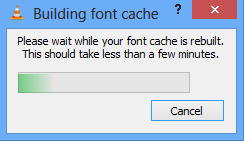
The detailed steps to permanently disable the “Building Font Cache” message/feature in VLC are:
- In VLC, click on Tools from the menu bar and then choose Preferences [CTRL + P].
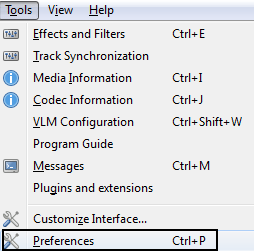 Simple Preferences will be displayed. This part only contains the simple configurations to customize your experience with this player.
 - In the bottom left, under Show settings choose the All radio button.
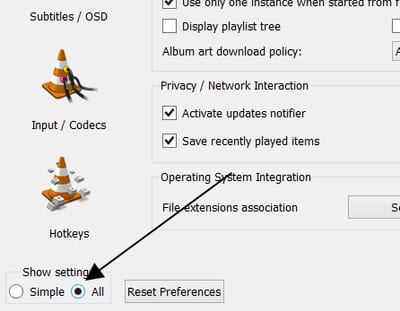
- From the left, scroll down to the option titled Video and click on Subtitles / OSD which is found under it.
Remember, you're not trying to expand the Subtitle / OSD option. You click on the heading itself. Then in the right, you will be displayed options related to subtitles and other on-screen displays.
- The first heading says On Screen Display and under it you will find Text rendering module. Change that option from Automatic to Dummy font renderer.
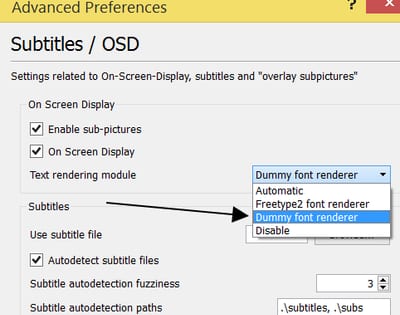
- Uncheck Enable sub-pictures checkbox.
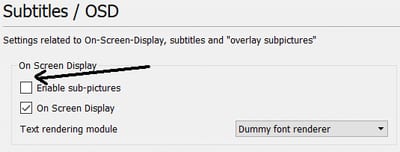
- Click Save to keep the changes. You are done.
What’s happening when the Font Cache message is being displayed?
According to a Reddit comment by a VLC developer, this not so great part about the awesome VLC Media Player deals with subtitles using new and crazy fonts and effect. VLC needs to update its font cache time and again to get the list of all the fonts that our systems have in them. Some systems behave incorrectly while building the font cache and the process repeats multiple times.
That is why the message is seen every time you add a new font, even if it just one font. Sometimes the message just doesn’t go away. While creating a cache of the font list is slow, it allows the player to use all those nice fonts in subtitles and other on-screen displays. For most of us who don’t care about the subtitle font and their effects, we can just configure VLC to the Dummy font renderer option as shown in the steps above.
And after installing a new font if you feel you are missing out—then revisit this option, set it back to automatic, restart your player, wait for the font cache to be built, and then turn off the option again.
I tried it exactly like you said and it's not working. It's still showing the font cache thing and it's annoying. If this keeps up I'll switch to another player.
I'm getting the exact same thing. I encountered this issue on an older install of VLC, changed it to the Dummy font renderer, and it solved the problem. But, with the latest release (2.2.1), this doesn't work. I may just uninstall and go back to an older version until this issue is resolved.
The preference option described here is not available in Version 2.2.1
I also have the same issue, and even with the Dummy font renderer option it still gets stuck on 'Building font cache'...
If you disable auto-detect subtitles (if you can live without subtitles) you should have no issues. Thats what worked for me anyways.
Here is solution... >> First follow instruction as given above: "Tools > Preferences > All (radio button), navigate to Video > Subtitles / OSD" >> In "On Screen Display" box, just uncheck "Enable sub-pictures", thats all.
thank you for your tip! it worked!!
Thank you! This worked for me too.
thanks this finally worked for me (im running on a mac). so frustrating.
You are an absolute legend. Thank you, mate. This worked!
Underrated comment you star, this has been bugging me periodically for years and finally here's something that works. A thousand thanks.
2.2.1 on a Mac: This works absolutely perfect. Thanks a lot for it!
Actually, the option is available in 2.2.1. It's just in a different place. Not that it matters, though... this doesn't FIX 2.2.1. Neither does the new "disable" option in that drop down menu.
I personally prefer all the features and fonts of subtitles. That's probably because I mostly use subtitles for anime. Anime tends to have a lot of work put into it's subtitles including the font being overlaid on top of the video text (like signs) to translate and also moving around the screen to stay on top of text as the scene moves. Not to mention things like adjusting the perspective of the font so it doesn't look out of place when it is over something that is at an angle to using the same font and colour scheme to match titles. Also, the text highlighting during songs in a karaoke fashion during songs is pretty neat as well. In my opinion waiting a minute or two before the video starts playing to get those features is worth it.
Thanks. I was about to delete the movie. you saved my bandwidth
But then you lose subtitles. This is a bad, compromising work-around at best, not a solution.
I did this step by step and am still getting the same message. This has been the issue for a long time now. And it's disappointing that such a widespread player, used by so many people, has had the same issue for so long.
ME2 and it is really annoying :( its not like we are building a rocket ship so why is it so difficult to stop this annoying font rebuild? MIKLO
Tried with VLC 2.0.6 & 2.2.1: — NONE — of the above "solutions" work. Even deleting "vlc-cache-gen.exe" doesn't work (must be some kind of trigger, the actual "cache" function being included to another file...). Therefore, and not for that reason only, switch to another player, such as "MPV Player" — or "PotPlayer", that displays EMBEDDED subtitles: randomly, BTW!.. and keep VLC aside, to sometimes convert corrupted videos that nothing else can play — although the VLC conversion module is a real pain... Sad, but unless its programmers decide to (really) wake up, VLC seems to be on its way to the "abandonware" junkyard...
Not working at all on Mac OS 10.11.6 with VLC 2.2.6 Please fix this at least, it is very annoying.
Try a different subtitles-file -> worked for me
IF NOTHING ELSE WORKS: Try downloading a different subtitles (.srt) file from subscene.com or opensubtitles.org -> some files seem to be corrupted or use illegal formating functions. Worked for me.
This flat out doesn't work.