If you are looking to add new audio visualizations (projectM) to VLC Media Player, then first you need to download the files. Next, you need to copy them to a folder in VLC’s program directory. Finally, point to the projectM directory from the visualization options of VLC’s Advanced settings. It does sound a bit complicated, but all that we’re doing is downloading, copying and pointing to the visualizations.
Here are the detailed steps to install visualizations by projectM in VLC Media Player:
- Download the projectM visualizations hosted in SourceForge. The latest one is: projectM-complete-2.1.0-Source.tar.gz (31.1 MB).
- Extract the compressed .tar.gz file and everything will be extracted to the directory projectM-complete-2.1.0-Source. Open it.The visualizations or .milk files are present inside the following sub-directories:
- presets
- presets_milkdrop
- presets_milkdrop_104
- presets_milkdrop_200
- presets_projectM
- presets_yin
- Copy presets_milkdrop file to C:\Program Files\VideoLAN\VLC\Visualizations\presets_milkdrop or C:\Program Files\VideoLAN (x86)\VLC\Visualizations\presets_milkdrop.
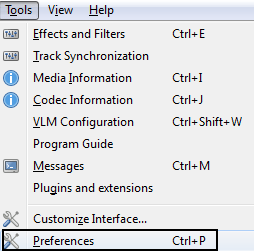
- In VLC, go to Tools > Preferences.
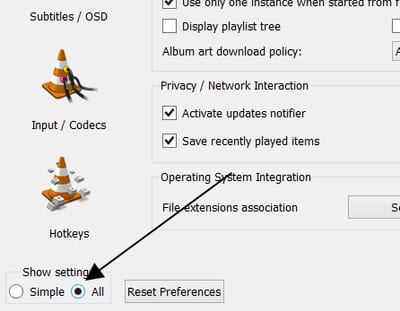
- In the bottom left, from Show settings click on All to switch to Advanced preferences.
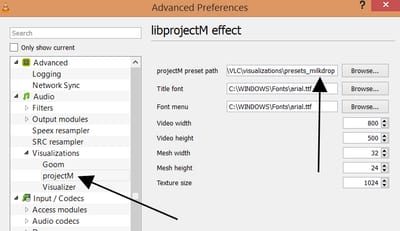
- In Advanced settings under Audio > Visualizations > projectM > projectM preset path browse and point to C:\Program Files\VideoLAN\VLC\Visualizations/presets_milkdrop.
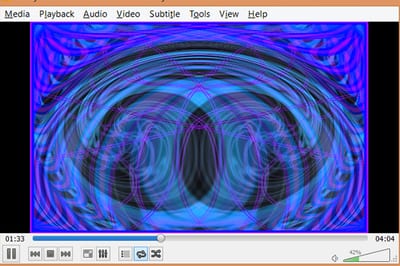
- After this, if you choose Audio > Visualizations > projectM , it will play a random projectM visualization that follows the waveform.
- If the visualizations folder does not exist, then you will have to create the new folder.
- You'll have to give admin privileges to create a new folder and to copy files.
- You can also copy and point to the other five presets directory besides presets_milkdrop.
About Audio Visualizations
If you do not know, visualizations are used to fill up your screen when playing audio files. They respond to the audio track that is currently playing. They are accessible through Audio > Visualizations menu. By default, in Windows, you you will find six visualizations:- Spectrometer
- Scope
- Spectrum
- Vu meter
- Goom
- projectM
HI, I've followed the steps but VLC doesn't show on Audio->Visualizations menu the option for projectM (just from Spectrometer to Goom). I'm using VLC 2.2.0 on Windows 8.1. Thanks!
Is the projectM visualization option present in VLC's Advanced Settings (under visualization)? Also, what OS and VLC version are you using?
I also followed the steps, and "projectM" doesn't appear under the Visualizations menu. I'm using Windows 7 with VLC 2.2.1 and projectM is present in the Advanced Settings. I've set the preset path to "../Visualizations\presets_milkdrop".
Getting the same thing here.
Hi, it looks like the author has made a small typo. One of the slashes is facing the wrong way. The path is supposed to be: ../Visualizations/presets_milkdrop Depending on your region it might also be: ..\Visualizations\presets_milkdrop Basically slashes should always be facing in the same direction every time.
Fixed
actually the problem is remaining... if I choose to open projectM automatically VLC will crush and also not be able to upload the error. if I simply rename any plugin itself to be the libprojectm for ex libgoom dll it will cause that the renamed effect is not listed in dropdown anymore and in all settings it will have 2 entries. additional old VLC user since 9x times prepared projectm allready on a lot of systems VLC 2.2.0 weatherwax 32bit + subdownloader addon Win 8.1 (6.3) 64bit AMD E1 APU 4GB DDR3 Quite enough space
just checked out the 64bit version its the same except report could be sent
I think the problem is due to the Version 2.2.0 Wheatherwax. In my opinion it can not be due to 32bit or 64bit because of projectM there is no own 64bit version. I tested it once with my PC: Under 2.2.0 "Wheaterwax" 64bit, the integration results (before playback) to crash. A transmission of the error is not possible. ** I use a 64bit system and have automatically received when the update to 2.2.0 the 64bit version. Before that, I always used the 32bit version. I tried again with the 32bit version 2.1.5. Under 2.1.5 "Rincewind" 32bit, projectM is integrated properly. Of course I tested the same files on both players. Is clear. My advice: Get an old version or wait for the 3.0.0. Perhaps the proectM support comes back. You can download the beta of 3.0.0 already, testing it out if it's going again.
ProjectM disabled in VLC 2.2 (X86). Here is the bug report: https://trac.videolan.org/vlc/ticket/13650 It has been moved to bugs paradiz which doesn't look good for re-enabling it any time some
Have the same problem too “projectM” doesn’t appear under the Audio --> visualizations menu If I choose "libProjectM effect" from the combobox Audio --> Visualization in the Advance Preference, VLC crashes imediately
Can I do this in Linux (Ubuntu)? I can't find the directories mentioned above.
The project download is a .tar.gz file. Windows won't open it without first installing a 3rd party utility.
Hi friends. i tried on my windows 8.1 to add new Visualizations (projectM, precet_milkdrop) but i am unable to see ProjectM in VLC visualizations options. i thing there is some problem in above shown method.
Wel.... I just did this and it completely broke VLC... I will have to clean reinstall...
You can just reset the preferences from Tools > Preferences
open vlc.exe itself in the folder, it wont crash
Why does VLC have poor visualization support for Ubuntu?
The dir. path was "VLC\plugins\Visualizations" so I added the Vis folder under VLC as shown in the instructions above... "VLC\Visualizations\presets_milkdrop".
It sure would be nice if there was just a super large display of what the heck is playing "Track Title and Artist"
Followed all instructions, using latest version. Under Preferences, simple, audio tab, selected LibprojectM under visualization dropdown menu. Then, under "all" settings (advanced), under Audio, visualizations dropdown, it shows glSpectrum, Goom, ProjectM, and Visualizer. I can select projectM, and fill in the path, as instructed. Problem: When playing an audio file, if I select the Audio dropdown menu, and select visualizations, it does NOT show projectM in the list of avaliable visualizations! Yes, the "slashes" in the path are all pointing in the same direction. Help!
I tried putting the presets in plugins/visualizations folder (with slashes I followed status quo for my Windows 8.1) along with trying it the way explained and adding a Visualization folder to put presets in, and neither worked (after trying pointing to all the variations and crashing and redoing preferences many times), and as Simon says, the menu does not show projectM................So how do we operate on the menu problem. Is there a way this could be offered as a plugin that would work in the plugin folder where visualizations currently are? I'm looking forward to a functioning Milkdrop, so keep me posted
People, MAX very clearly posed on May 31, 2015 - 6:11 am that ProjectM is defunct. Kindly take the time to read the full thread before posting, yet again, that this does not work for you. ProjectM is no longer enabled in VLC and it looks like it will NOT be re-enabled any time soon, if at all. You CAN try to install manually, but please be aware that VLC's implementation of the plugin was always buggy at best. Your mileage may vary. ;)
On Mint linux 17.3 path is /usr/lib/vlc/plugins/visualization
WoTTa cryin' shame! Somebody said "milkdrop" today, and it all came flooding back to me: I used to spend like...well, I don't want to say how much time I spent - trying every single setting that could be adjusted, picking out the ones I loved, making visual playlists to go with my audio tracks. I even have a bag filled with all types of 3D glasses imaginable that I have collected over the years, which always helped things. One evening I had been playing with it like a zombie for an hour++, and I turned around from my huge HDTV / monitor...and there were like three buddies of mine behind me with glasses on, just watching the stuff that was being created. Hilarious...but TOTALLY GREAT at the same time... HOWEVER! THAT was all accomplished on another computer (XP?) and I was using Windows Media Player. (I had not yet been seduced by VLC, hook, line, and sinker. I don't think I even HAVE anything related to Windows Media Player on my current, Win7 PC. I am so PRO-VLC and ANTI-WMP. haha) Well, now that I HAVE become a VLC user, 100% for quite a few years now actually, now that the subject of VISUALIZATIONS has come up, I am really kind of appalled at how incredibly limited VLC is in that department...and it seems like the guys who are smart enough to make any adjustments or improvements to VLC don't really care too much about anything relating to the hardcore visualizations like milkdrop. (I am clearly just a USER, you can tell...I AM very thankful that there are bountiful tecchies to make open source stuff like VLC for us to enjoy, though!) I mean....VLC will let you watch a movie clip while putting it together as a jigsaw puzzle, for crying out loud! And there's HUNDREDS of other little weird things you can do with VLC...so why no VLC-milkdrop-plugin-gizmo? Does anyone have any solutions when it comes to the Visualization dilemma? I won't stray too far from VLC...but maybe there is just a small application on the WWW that shows visualizations, regardless of the application that you use to listen to your music? I mean, I have desktop "Gadgets" running on my Win7 PC, and even THEY will play your choice of 4 different Spectrum Analyzers, that are affected nicely when any audio occurs... So it CAN'T be THAT difficult for someone to conjure up something better than "GooM" for us users! haha Any leads or suggestions would be highly appreciated! ~SDRanger
Lol, ProjectM Music Visualizer Pro should work great with any of the ProjectM Visuals
i hope this man is doing well
Gotta say this is pretty upsetting. VLC is great, but why disable Milkdrop and then just leave users hanging with no word of an update. Guess I'm going to have to start looking for a VLC alternative.
Installed older version 2.1.5 and was able to install and view projectM. Very cool.
This version does work. I uninstalled latest version to 2.1.5, and found it to work perfectly. Using milkdrop with the latest version somehow causes the pixilation to compress so tightly it causes a choppy effect along with crashing. But with the 2.1.5 vlc player you can adjust the pixilation or definition to its lowest point, and in effect grants the user a better viewpoint to the graphics with the music. Just go into the preference panel, and choose all in the lower left corner. Then click on visuals in the list on the left hand side, and then Projectm. On the right hand side it will show a number in pixel rate,... delete entry 1024, and then input 360, then save or apply. That's it. Go back, and restart vlc with a song, and enjoy the show. You won't even notice the difference when its running.
On the right side you will see a number with a pixel ratio, delete entry 1024 and enter 360, then save or apply. I did not apply a little more opener and picture uploads please please wait for an immediate reply :)
Hello, I used VLC v2.4.4 and bad luck for me, but ProjectM don't work and i don't know why. I follow every step and it don't appear in the Audio Visualization. What's up ? Thx for any help
Try in older versions of VLC.
NAMELESS is correct. You cannot extract from a .tar.gz file with a WINDOWS operating system. You should have explained that when you said extract. Unless you explain how to extract for WINDOWS users, the rest of your tutorial is useless.
I succeeded with this one 7-zip.org
7zip FTW
you can use cloud convert
This while tutorial reeks. First off, 7zip will get the files. Next is there a file called presets_milkdrop or is this assumed to be the directory we must copy. Also do we need to create the parent directory, "Visualizations". Then once you get past all of the filesystem faux pas, VLC configuration instructions are lacking. Found the place to enter the directory, however, there was no projectM selection under the Audio//Visualizations submenu. I did find a configuration setting where you can set the visualztion effect there. One of the options was libprojectM effect. Selecting this had no effect until you restarted VLC at which point it crashed! Then you have to start VLC manually (not from a song association) and reconfigure this off.
I know this is a little late on the reply. But I had no issues extracting .tar.gz on a Windows OS. Using just the factory default ZIP file opener. I know if you do use WinRAR, or 7-ZIP they can asl Extract .tar.gz files. Just some food for thought.
I used Winrar its Free and it worked fine for extracting.
On the right side you will see a number with a pixel ratio, delete entry 1024 and enter 360, then save or apply. I did not apply a little more opener and picture uploads please please wait for an immediate reply ?
i tried the nighlty build 3.0.0 of VLC and it works. On Other Sites some People use older Versions of VLC 2.1.5 and it should also works, but i didn't test that.
There are only 5 Default selections on me... can't see projectM option on my visualizations... all instructions followed.... im using the latest version of vlc and win10 OS..
Same happened to me, after searching for a while I found out that I needed to use VLC 2.1.5
NOTICE: VLC Nightly 4.0.0 (build-01-04-2018) currently supports ProjectM milkdrop visualizations. https://nightlies.videolan.org/build/win64/vlc-4.0.0-20180104-0507/ VLC 2.5 does not have support for ProjectM due to crash issues not handled correctly in that release
Thank you SO much. You completely solved my problem and frustration. Thanks to you, I'm now enjoying my visualizer < 3
Thanks, Working perfect
Thanks @WIZARD LIZARD, nightly build also works perfectly with projectM for me.
It's more useful if you explain how you did it, my friend. Nasıl yaptığını detaylı açıklarsan daha yararlı olur arkadaşım.
So i followed the instructions above and had no issues making this work, so thank you its a cool viz. I have one problem though the milk viz’s do not work full screen all my other different vis’s work full screen not sure if this is just the way it is or am i having some kind of problem any info would be appreciated.
I don’t have the path C:\Program Files\VideoLAN (x86)\VLC\Visualizations\presets_milkdrop, but I found the visualisation path in the plugin folder, but that doesn’t matter, you have just to specify the path were the payer have to find the visualisations.
I’ve extract all the files from the download link above: projectM-complete-2.1.0-Source.tar.gz (31.1 MB) and put all the files from the folders: presets_milkdrop, presets_milkdrop_104, presets_milkdrop_200, presets_projectM and presets_yin in the visualisation folder and then magic happened!
F11 Then Ctrl+H(Minimal Interface)
Thanks for these explanations. It's work but not perfectly. Can't, like with other Visualizations Goon and other, double click on mouse and have full screen mode. Not able too using the menu "View / Full Screen Interface". VLC media player version: 3.0.3 Vetinari OS: WIndows 10 (full updated) Try with audio files.
Damn!! Installed VLS version 3.0.8 to do this change-up, and now: 1) The screen STAYS BLACK for all video (is that fixable, or am I gonna have to downgrade?) 2) The GOOM visualization now pastes an annoying "GOOM" title floating over the graphics every minute or two!! It never did THAT before! Is that fixable?
"VLC 3.0.8", not "VLS 3.0.8". Typing too fast again....
Thank you for the great Visualizations. One possible bug is that the Fullscreen toggle is now greyed out and does not work. I hope you can fix that.
On View tab. Check Fullscreen Interface (or F11) then Click on Minimal Interface (or Ctrl + H) Or just simply F11 then Ctrl + H :)
Huge help! Thanks!
Hi. It does not work on Ubuntu 19.10. I have put the folders "preset~" in the path /lib/x86_64-linux-gnu/vlc/plugins/visualization (the only path that has vlc/plugins/visualization) and it doesn't show the new options in the preferences. SAD.
How can I output the audio visualizations to a separate effects mp4 video file in high resolution?
Simple. You use can a screen recorder software like bandicam or obs. If you cannot, you can also use the "Convert/save" feature and enable visualization. It'll output in a lower resolution if you use convert save
I simply extracted the .milk files to any folder of my choice, then pointed VLC to that folder for the visualizations to be available to VLC ;)
Hello. I have succesfully installed projectM vizualisations in VLC and it works but I seem to have no control on the presets. How do I navigate the various visualisations ? like changing from one to another, setting one of them to be permanent, etc. What are the shortcuts ? They work just like a slideshow randomly transitioning fromn one top another. Not even right-licking on the visualiation brings up anything. Thanks in advance
Use the Next or Forward controls to change the presets. Seems like you can only go forward though. Better then nothing I guess.
Two questions on this both equally important.... Is there any way to make milkdrop go fullscreen with the current version of VLC (3.0.16) for Win10 x64? Fn+F11 isn't working, it simply adds a second control pane but won't go anywhere near full screen. Also is there a way to select an individual visualization instead of it hopping around skipping through every single one? I recall on older versions about a decade ago I could select from a pull down menu & go through them so that particular "vibe" wouldn't get ruined when the setting changed. Any help would be GREATLY appreciated as it's driving me nuts!
If you know the individual one you want you could move it to its own folder but i don't know how to find the individuals
I tried to follow the instructions on my Mac, but I cannot find a "visualizations" folder in Mac's VLC. Any chance I can install them in VLC 3.ß.17.3 on Mac?
I think it is for Windows.
Create “visualizations” folder and then copy all the folders begining with preset* in to that folder. Once you have done that carry on with adding the presets in VLC Player. You'll only be able to point to one of the folder at a time.
If the visualizations folder does not exist, then you will have to create the new folder. You’ll have to give admin privileges to create a new folder and to copy files. You can also copy and point to the other five presets directory besides presets_milkdrop.
HELL YEAH thanks for this - i've long missed my visualizations :D
bul sit vlc bul sit... for many years im using vlc for videos and musics but vlc still can not rise winamp for visualizations winamp was allowing change visualization instantly.it was can double click full screen.clumsy vlc developers still can not develope vlc since sooo many years.