We VLC fans want to use it as a media player on every device we are on. For a laptop powered by Windows, it is quite simple to make VLC Media Player the default software for playing video and audio files. VLC seems to be a perfect video/audio player on computers and laptops powered by Microsoft Windows. It’s a few steps to download and install, and then, change the settings to make it the default app for media.
VLC is good; especially for videos. If you want to do it then we can simply set it as the default video and music player app. The option available in the main Settings > System > Default apps allows us to change it back. You do not have to do it on an extension-by-extension basis while the option is still there. We can make it work for all video and audio files at once. Windows will set back the association to VLC for recognized video and audio files.
Here are the detailed steps to make VLC the default media (video as well as audio) player:
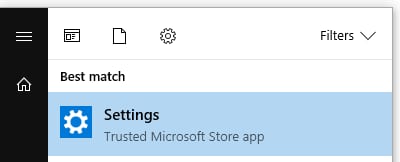
- Click on the Windows Start button, search for and go to Settings.
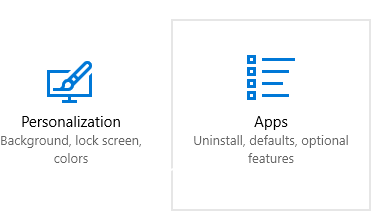
- Click on Apps.
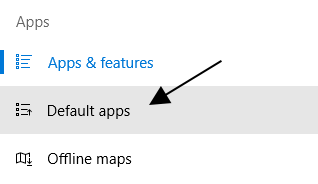
- Access the Default apps.
- Under Choose Default apps, for the Video player click on Movies & TV and switch to VLC Media Player.
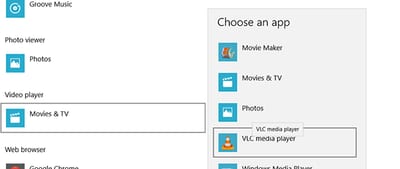
- If you want to do it for music files as well, do the same thing for the choice present as a Music player.
Choosing Default Apps by File Type
If you want to assign video file types like .mp4 to open with VLC and other file types to open with the default media player then we use the option Choose default apps by file type. It is available in the same location Settings > System > Default apps, near the bottom of the page.<img src=“/images/2015/08/choose-by-file-type.png” alt=“Choosing by File Type” title=“Individual File Type Selection Option” / loading=“lazy” decoding=“async”>
Once you click on it, different recognized extensions will be listed. Scroll through the list and once you find the desired extension like .3gp or .mp4 click on the default app. Choose VLC media player from the options listed. The changes will be saved immediately.
<img src=“/images/2015/08/choosing-granularly.png” alt=“Choosing One by One” title=“Choosing Granularly” / loading=“lazy” decoding=“async”>
Changing the Default App while Opening a File
One more option that helps us to change the default app to VLC without visiting the settings section. The option is right there when you open a media file.- Right-click on a media file and select Open with > Choose another app.
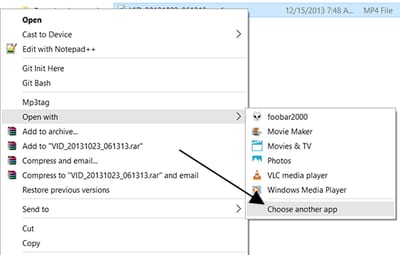
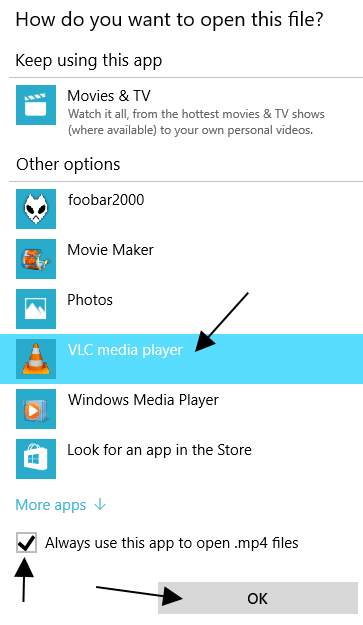
- From the list, choose VLC Media Player.
- Check the box that says Always use this app to open .mp4 files.
See Also: How to Make VLC the Default Media Player on a Mac
I have done this many times but once in a while i get a notification that an apps has caused a problem with Microsoft and will be changing back to the default Movies & TV or Groove Music or both! I am looking for some way to delete these out two out of my computer so that they will never appear again! But short of that, what else can i do?
Well, just remove both Movies & TV and Groove~ Here is how you can do that with Powershell: Run with administrator, and then: Get-AppxPackage *zunemusic* | Remove-AppxPackage ((Press Enter Get-AppxPackage *zunevideo* | Remove-AppxPackage ((Press Enter
Uninstall zunevideo with link above is working.
It is annoying if you use a lot of Video formats though... can't we get the functionality back like in old vlc where you cans et all the video files to it? I need the K-Lite codec pack for transcoding videos from my camera and always when I update these they overwrite the file extensions and set them to M$-Player...
I've been googling around and find people always recommends as the first method, but end up with problems because only partially formats associate with their default app. What the most important thing is you will need to set the file type associations during VLC installation, it's better to check them all (Audio Files, Video Files and Others), later in Windows "Set Program Association" setting, you can select any file extensions you want VLC as default app.
Utilized VCL in Windows 7, upgraded to Windows 10 - worked great. Transferred media files to new computer with full version Windows 10 - now VCL disables audio track so you have to manually change, and change does not save, and it only happens on some files
This is USELESS, I want VLC to open all the media it is capable of working with, now you make me go to Microsoft and set each file type one by one, Microsoft later when I connect to the internet resets it back to their advertising platform, GROOVE. I am making a complaint to Anti Trust and EU Commissioners about that but meanwhile can you PLEASE give me the old VLC facility where it just made the changes in the registry. It is disgusting that Microsoft does not even show VLC for some filetypes that I know you support. You MUST fight back. I am also complaining to FTC and EU Data Commissioner about Microsoft resetting data privacy settings with WinUpdate, there are even apps now to monitor this W10Privacy is one, having reset over 238 permissions Microsoft resets them without the user realizing. If you want to create a separate app that resets associations I define in VLC that would be fine too, but you had a perfectly capable facility in old versions of VLC.
I am not computer savvy like a lot of posters here. I ordered some mp3 files and downloaded them to my computer. I have VlC as my default player. The problem I'm having is i can't transfer my mp3 files to my mp3 player! If I cam move them to windows media player I can transfer to my player. Anything you can tell me to help me accomplish the transfer will be greatly appreciated. But please, send instructions as if you are talking to a 5 year old. I don't know how to do anything but surf the web and download. I hope you can be of some help. Thanks in advance
If you are talking about an MP3 player that you connect like a flash drive then you copy the MP3 files like you would copy any other files. If you are talking about an MP3 player like VLC, then you press CTRL + L and drag the files to the playlist.
When I try to do this it just ignores my command and does nothing! I want windows 8 back!
Removed as above. Haven't tested yet, but is the same for adding it back? Something like Add-AppxPackage?
Choosing Default Apps by File Type, in the screen shot above use "Set default by App". and then choose VLC and select all extension VLC support or choose specific defaults for this program
When I try to 'Choose Default APPS by File Type' it won't let me choose the one I want. For instance I use Notepad++ for .txt type files. For a .inf file it doesn't list Notepad++ as a choice.
If the app is not listed then we can click on "Look for app in the store" option. Otherwise, we can right click on .inf files and use the open with option to specify a default file.
There is no such selection as "Movies & TV" in Windows 10 v 1809. Also, when I go into the file type selection for .swf, It won't show VLC, only Firefox or Microsoft App Store, which is utterly useless. When I go into default apps for VLC it won't show .swf. What happened to the method where you could just put in the extension? Or did the dead hand of marketing kill that?
"Movies & TV" is not a selection. It is the default app for Windows to play media files. In the screenshots above, we are changing from the default "Movies & TV" app to VLC Media Player. The "Movies and TV" selection might be different if your default media player app is something else. If you cannot find VLC for the .swf files while doing it from the "File Type" method, try the third method where you right click on a file and open it with VLC while making it the default one for that file type while accessing it in the future.
Right click on a SWF file and select Properties. Then on the General Tab, it shows "Opens with", press Change and select VLC. This will now be the default for SWF files.
I just made VLC as default for my laptop, but i face an issue when high frame rate video is player. Any help to solve this will be highly appreciated.
When playing high frame rate videos, if you get choppy video, this tutorial will help you.
I have an issue with VLC player on Windows 10. While playing a video, if I use the "frame by frame" function, the video will no longer play properly once I press play again. I can see the blue bar at the bottom of the video advancing, but not the picture itself. I rewind to the beginning, same thing. Blue bar moves, picture doesn't. I close the player, go back to the file location and click play, VLC player doesn't even open. I click "play with vlc player", file still doesn't open. Only when I restart my pc am I able to view the file again. However, when I try using the frame by frame function, the same thing happens. I gotta restart my pc all over again. I open VLC player to "check for updates". It says I have the latest version. What is happening and what do I need to do to have everything functioning as it should?
Changing the Default App while Opening a File. I am not offered VLC as an option and cannot find it when I go to Other Apps either. Help!!
Did you install it as a portable version?
I don’t know what that means?
Reinstalling VLC using the Windows Installer would do the trick for you.
No. There is no "always use this app to open...". Its just not there.