If you have been looking for a simple way to record your desktop and may be share the video on YouTube, then you already have the means. The means is of course VLC Media Player. There are many features of this software besides the ability to play videos of any format. Recording your desktop in your desired format happens to be one of them.
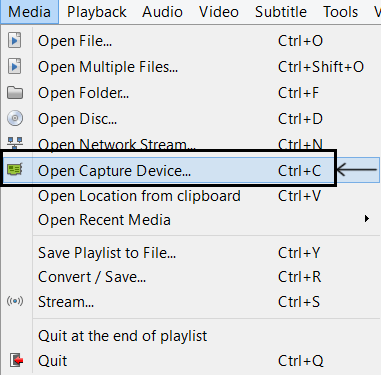
To perform desktop video recording, we have to use the “Capture Devices” feature. It is accessible from Media > Open Capture Device. From there we will choose Desktop as a capture mode and stream it to a video file. Advanced users have already figured out the steps, but for the simple user- here are the steps in detail:
- In VLC, click on Media > Open Capture Device [CTRL + C].
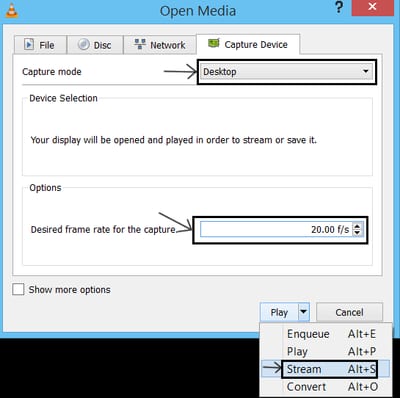
- For Capture Mode, choose "Desktop". Also chose a desired frame rate.
- In the bottom, press the small down facing arrow and choose Stream.
- In "New destination" make sure "File" is selected and then click on Add.

- Browse the location to save your recording file and give in a full filename like record.mp4. Hit Next.

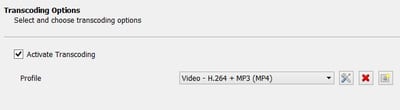
- Under profile choose the video format and container. The default H264 video format with MP3 audio is a great choice. Hit Next.
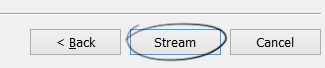
- Click on "Stream" and the recording begins immediately.
- To end the recording, press the stop button in the main VLC screen.
- You will know that the recording is in progress as the timer in player screen increments.
- After stopping, locate the video file you just saved and play it to see your recorded screen.
- If you want a smoother video, then try increasing the frame rate. Higher frame rate means smoother videos but it requires greater computing power and resources of your laptop or desktop.
Display Mouse Pointer in Recorded Videos
If you've noticed that without additional configuration, your mouse pointer is not recorded when you capture your desktop using VLC. To configure a pointer to be displayed, you'll have to download a mouse pointer image and configure it to be used as the screen mouse image.To do so:
- Download a mouse pointer image file. Here's one for you.
- Place the mouse.png file in your VLC Program files folder i.e. C:\Program Files\VideoLAN\VLC\
- In step 7 of the desktop capture wizard—when you reach the Stream Output option step—add the following at the end:
:screen-follow-mouse :screen-mouse-image=mouse.png<img src=“/images/2014/11/mouse.png” alt=“mouse” / loading=“lazy” decoding=“async”> <img src=“/images/2014/11/steam-output.png” alt=“Stream Output” title=“Screen Follow Mouse Image” / loading=“lazy” decoding=“async”>In Generated stream output string and click stream

I have been trying to capture my desktop (actually game video) or just the still desktop but every time I set up the capture and press start, the VLC window closes. When I try to re open it , I get an error message saying that VLC has crashed. This happens both when I try to capture or use the streaming to a file functions. Other media playback seem to work ok. I have twice downloaded the program and re installed but no success. I have used the default settings as well as creating my own profile for high motion capture. Nothing is captured or streamed and the resultant files have 1k only. Win7 pro 64 i7 2.8 intel processor NVidia GeForce 580 12 gb RAM
I have the same problem, running roughly the same system. A file is created, but no program (including VLC) is able to read it. Also tried uninstall and installing from fresh download, same result. Also tried different settings, same result. I was hoping that by now there would be a solution. This happened with version 2.2.2 and now also with 2.2.3
not a problem in older versions (eg: 2.1.5 ) or new builds not yet released: 3.0.0
exact sam here. win 10.
Is there a limit as to the amount of time that can be recorded? I would like to record for approximately 2 hours?
There seems to be no limit but it is recommended to do the video recording in parts. That way you do not lose your content when there's an error.
I have the same problem with the Window disappearing. Using Windows 7 trying to capture Internet Explorer 11 browsing.
The same problem happen to me. I used to record computer screen with acethinker free screen recorder, never had that problem.
Same disappearing window here... only the "Play" option works with no audio and at 4GB/minute avi. You see the VLC icon for a second in the taskbar and then it's just gone.
Having same issues as James
There is a drop down from view which allows you to select "advanced controls". Another bar will appear at bottom you can hit the record button to capture video. It will automatically save to my video file.
I have issues with play back of video capture of web cam they play so slowly. Have changed the input rate to 30 and size to 1280x720......but then I get error msg file settings do not fit parameters. This win 7....the win 8 computer handles without problem.
Found the issue is all the different parameters for web cams. Choose "device settings" you don't need to bother setting size, frame rate just push play and the info for camera will appear and they are already set for you.
why can't I put the image in my home folder and give the absolute path? how can i record the cursor if i have no admin/superuser privileges so i can't put it in install dir?
I have the same problem as James. ;(
In response to those having problems with VLC crashing when capturing the desktop in Windows 7: I've found this to be a problem with VLC 2.2.1 or later (documented bug). Version 2.1.5 does not have this issue. If you've already installed the latest version (like I did), uninstalling the newer version must be followed by deleting the VideoLAN folder from Program Files (or Program Files x86 depending on version)...uninstall does not clean this folder out. Then install version 2.1.5. I also found that capturing to a network location doesn't seem to work well either, so capture to a folder on the local drive. Spent hours until I found this magic combination to getting the capture desktop feature to work. Hope this helps.
I just tried it - worked perfectly. Thank you so much for taking the time to figure it out and being willing to share.
Great help! But, no audio?
Thank you, Michael, your advice is spot-on; it solved the problem for me. Background - I was using VLC 2.2.4 on Windows 10 and my VLC crashed every time I followed the tutorial instructions. After following Michael's instructions, I'm now able to successfully capture my desktop.
Thanks for the tip; I will try it. Wish they would fix this known bug, though...
cannot make this work with windows 10. constantly crashes or doesnt start recording at all
do you find a solution for it i have the same problem it keeps craching in win 10
I found that having dual monitors was the issue in my case. When I disabled the second monitor so that only one monitor was working, screen capture worked fine (VLC 2.1.5 as per Michael's advice).
Anyone having success getting version 2.2.4 working with Win10x64? For me, 2.2.4 crashes immediately using the tutorial above. Will roll back to 2.1.5 if I have to but would rather not..
any way to save settings ('edit options :screen-fps=25.000000 :live-caching=300:screen-follow-mouse :screen-mouse-image=mouse.png )' so as not have to type it everytime for capture with mouse pic?
There is no audio for the video. Please advise. Thank you.
Hi all, Is there any way to quickly record without having to click into all those steps and choose a filename? Many other recorders usually just assign a date and time filename.
I guess not. Just hit next, next really fast?
Thanks, Excellently done.
To have permanent mouse fix, click Tools – Preferences – interface Show Settings All – Acces Module – Screen – put check mark in Follow the mouse and its location
Thanks a bunch.
I did not get any response as to how to get the audio to play on windows player after recording or the video with VLC please.
That works. Thanks a lot.
Excellent. I was able to do a video recording from my PC but it can't play on VLC. I tried using windows player but the audio is not coming with that one, only the images rolling. kindly advice
Excellent.
Is this for real? I am really amazed! I was not even aware that VLC has other functions rather than playing movies or video. Usually, I am trying Screen Grabber Pro as my go to computer screen recorder. But because of this awesome suggestion. Let me definitely try this one. Thanks!
I don't understand: it seems that everything works fine but then I can't manage to open the recording file (I used the deafult settings). Does anybody has the same problem?
yep! It's saving as a ts file but then says it can't open a ts file...
Hi Greetings Thanks for the tips. However I'm not technical and want to know if I can VLC Screen capture an online video or a BBCiPlayer program as opposed to record/download given the DRM issue and time-restricted BBC downloads. Do I launch the video first and then set about the VLC capture sequences. Also we would need to minimise the VLC screen/interface but when you are setting the Screen Capture procedures how do you minimise when there is no link or sign to do so. Your help and advice will be much appreciated. Thanks a lot Kind regards Hassam
VLC can capture anything playing on the screen but the frame rate and audio can be an issue. If I were to capture anything, I would run the capture sequence on VLC first and then, play the on-screen content. VLC will minimize automatically after you start the recording. The minimize button will also still be there to help you with the same feature.
hii there, in my screen recorded video, there is no audio. i mean neither the mic's audio getting recorded nor the pc's itself(i.e spotify and youtube) what should i do or what am i doing wrong
Hi, the VLC screen recording cuts off midway through my recording session. How do i ensure that the file saved at the end is the full length?
hello there, i have tried this method..but sound is still not recorded in the screen recorded video...neither mic sound nor the computer itsef (i.e spotify or youtube sound) . what should i do? does anybody experiencing the same problem?
Yeah i have the same issues and haven't found any resolution yet.
Yes!
I need to know how to switch between capture devices using hotkeys? I would like to use this much like obs so I can switch between capture devices using the hotkeys. Thanks
Finally found another option to record my Roblox gameplay on desktop. Before I record it with iMyVid Free Online Screen Recorder, I am looking for an alternative to it that lets me customize the fps for up to 100. I can't wait to try VLC, a good thing that I have it on PC! I love that it's free too!