VLC supports a number of Linux distros officially and Ubuntu is one of them. There are a number of ways VLC Media Player can be installed in Ubuntu Linux. The simplest way is to use the utility called Ubuntu Software Center which will install VLC for the Snap Store. Terminal or command line users can also use the Linux terminal to install VLC Media Player. Users who prefer the traditional deb packages can install it with APT. No matter where the application is obtained for, it is free, doesn’t have any ads and plays almost every video and audio media file that is presented to it. This post is your guide to install VLC in the Ubuntu distro that you use.
Method 1: Installing VLC Using Ubuntu Software Center
- Click on the Show Applications button.
- Search/locate Ubuntu Software and open it.
- Click the search button 🔎 on the top right and search for VLC. Alternatively, click and navigate to Audio & Video and locate VLC.
- Click on Install and authorize it with your password (if required).
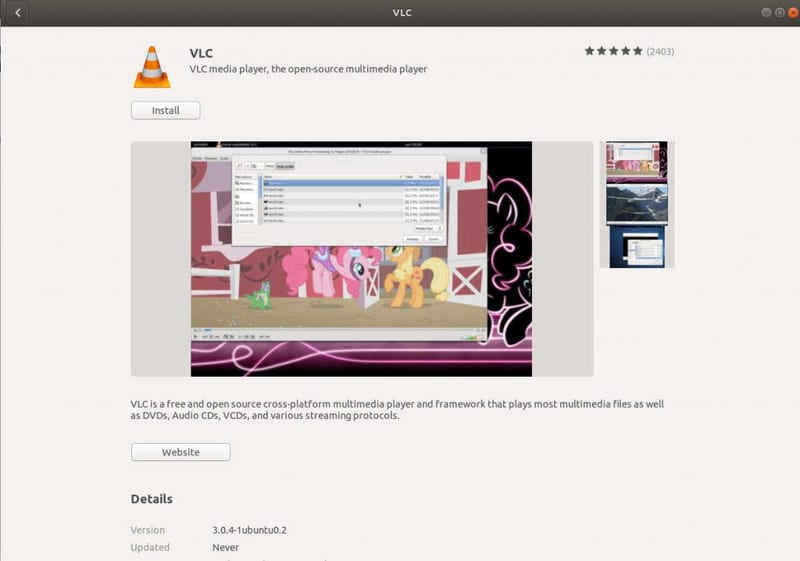
Now, you can easily locate and launch VLC from the application list.
Quick Tip: A shortcut to open up the VLC install page would be to go to Show Applications and type VLC in the search bar. You can quickly reach the install page for VLC from the search results.
Method 2: Using Linux Terminal to Install VLC in Ubuntu
- Click on Show Applications.
- Search for and launch Terminal.
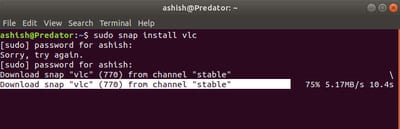
- Type the command:
sudo snap install vlc. - Provide the sudo password for authentication.
- VLC will be downloaded and installed automatically.
sudo apt install vlc
sudo apt-get install vlcMethod 3: Using Advanced Package Tool (or APT) or Snap Store for Ubuntu
- Open
apt://vlcorsnap://vlcin a web browser - Click on Open link under the Launch Application dialog
- Click on Install in the Install additional software dialog
- Authenticate with your login password
These were the three methods to downlaod and install VLC Media Player for Ubuntu Linux. If you want to remove the application from your system, then go the the Ubuntu Software utility and locate VLC. Then, you can easily remove it.
sudo snap install VLC is incorrect.
It worked for me. What would be the correct version, according to you?
sudo snap install vlc
VLC in capitals would be incorrect if you just copy/paste, JG was right, should be lowercase on webpage above.
Thanks for the simple guide got it set up in no time, VLC is truly the best video player. Could you update the post to mention snapd as without it the command won't work to install the player.
How do install VLC in Ubuntu 15.10. ????
Use one of the methods described above.
its not the version JG questions. It is the way crappy snap system installs. JG is correct.! At later stage you will not wake up PC quite often and it always related to VLC
sudo snap install vlc correct
sudo snap install vlc The above is the correct one! Please fix the webpage as well.
the last(3rd) option has worked.
I apologize if this isn't the "proper" forum for this query but I installed VLC via the software manager (on a recently installed Mint Cinnamon 19.0 build to replace a W7 laptop on which W10 wasn't a viable option due to processor incompatibility, etc). I absolutely CANNOT get it to display properly on a tv screen/external monitor - it displays as wildly-pixellated and distorted GUI, let alone no audio/video coming through. Have tried all the tools-preferences settings (XBC/X11; always open full screen/maximized, etc, etc) with zero effect. I prefer ALL formats VLC to everything else (celluloid, mplayer). http://geekpic.net/pm-3CF4VC.html
3rd method works !
sudo apt-get install vlc
I am having problem installing vlc on my system. Here is the error code i got… error: snap “vlc” has install-snap” change in progress. Please what do I do? Thanks. PLEASE THE INITIAL MESSAGE HAD A WRONG EMAIL. SORRY ABOUT THAT.
sudo snap abort 123 As it seems that your snap is working on something.
broo dont use capital letter in "VLC" use small letter bro("vlc")
My problem is that once installed I have no idea how to find it and launch it... it’s wandered off, but it installed it and it now says already installed
Access VLC for Linux via the Ubuntu Dash. Click on the Dash Home which is represented by the Ubuntu logo. Then you can type VLC in the search bar to be able to launch the application.
Go to the bottom right icon says "show all applications" you will see VLC and by default show "Frequent " selection on button but go to "all" and you will see it. Right click and add to favourite option will bring in the task bar.
click on the apps panel and search for it
you should search in your device you will find it or you can use the command line way
how do I load VLC on a linux computer not on-line?
There is no way to download anything while not being online. If you can not connect to your Wi-Fi, you can just grab your internet cable and stick it in your laptop/PC. Or use you mobile intent through USB.
1) Download all packages and dependencies to a removable media from and online machine then copy everything to the offline machine. 2) build and install.
VLC needs to be lowercase in the commands
Yeah, it's true !!
exactly
thanks
I don't know why you guys are recommending snap installs instead of APT. VLC installed using snap was much slower for me compared to APT including resource usage. `sudo apt install vlc`
QUESTION! HOW CAN I DOWNLOAD THE VLC DISTRO FOR UBUNTU ON A PC-1-UBUNTU-Machine ( NOT sudo snap.. i have vlc on this first ubuntu-online-machine) TO take it to second PC where i install this VLC-DISTRO OFFLINE? IT IS NOT POSSIBLE TO DOWNLAND VLC for UBUNTU with an UBUNTU PC because it will start the known 3 ways. DO YOU READ THE LOGIC PROBLEM- HUSTON?
sudo apt install vlc
The terminal command should be in lower case letter, including the word vlc ( not VLC )
Installation was successful. An additional driver was necessary!! After then DVD can be played but the movie are some time interrupted by about 5 to 10 seconds. So VLC is not really stable.
I tried the snap command and it didnt work. The error code was "error: cannot install "VLC": invalid instance name: invalid snap name: VLC" I changed the uppercase of VLC to vlc and it worked. You may update the snap command to "sudo snap install vlc"
Done. Thank you.
Thanks, CEDRIC NGWA and Imran-- however, since there is no connection to internet and it is offline - snap is not working either; is there a way to install snap and then try installing vlc. much appreciated
To empower all type of learners, both novice and advance - a complete solution of Ubuntu should include a OpenOffice/LibreOffice ( that it has), definitely an audio- video software -VLC/.mp4/wav ( that is unavailable without internet); a voice recorder; a snipping tool type alternative and similar basic tools so that after installing Ubuntu desktop someone can work off-line, independently, seamlessly - without requiring any additional upgrades or software installations. This solution will save a lot of time particularly for beginners.
The repository package "vlc" isn't capitalized. Right command is "sudo apt install vlc" (with no caps)