VLC Media Player flawlessly streams online radio programs to your computer. It’s easy and quick. Did you also know that VLC Media Player is great for saving online radio streams as MP3 files in your PC? You can record those streaming radio shows as audio files to listen to them later. This way you won’t me missing any online radio programs even if you are busy.
You can easily configuration VLC to download live radio shows to your computer while you are away or busy. Then, when you come back, you can tune in to the show without missing anything. This is one great feature that VLC has been providing to its users.
To record and save/download online radio streams as MP3 using VLC:
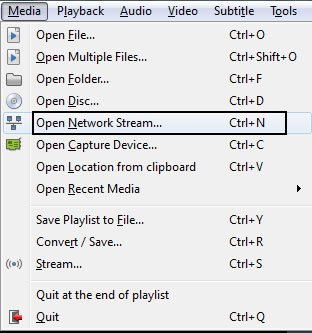
- Open an online radio stream from Media > Open Network Stream [Shortcut: CTRL + N]
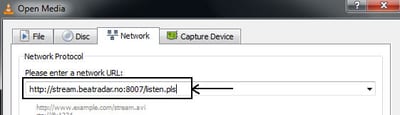
- In "Open Media" dialog box, paste in your .pls or .m3u online audio streaming URL.
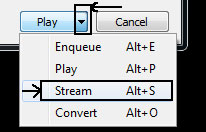
- At the bottom of the "Open Media" dialog box you will find a small downward facing arrow right next to the Play button. Click on that arrow to bring up the streaming option. Then Click on "Stream". The shortcut for this is ALT + S.
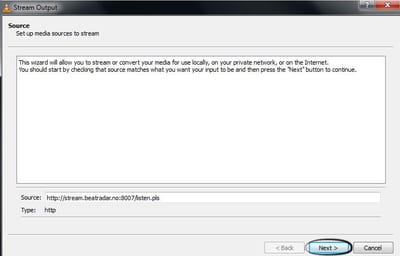
- "Stream Output" wizard will open. The source is already entered, so just hit the "Next" button.
- In "Destination Setup" make sure that your new destination is selected as "File", then click on Add.
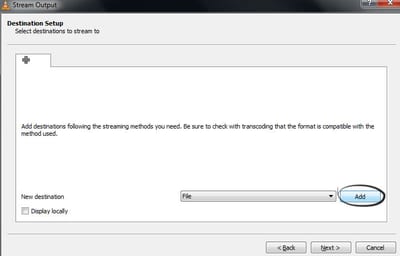
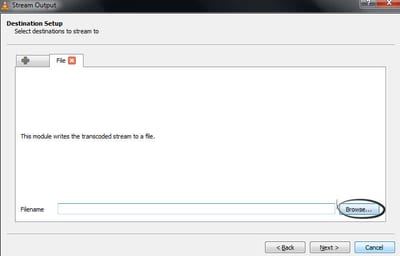
- Immediately you will reach the file name selection box. Click on the "Browse" button to browse to a location where you will be saving your audio.
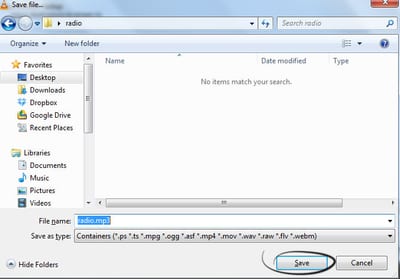
- In the save file dialog box, give a file name of your choice like radio.mp3 and click on save. Then click on Next.
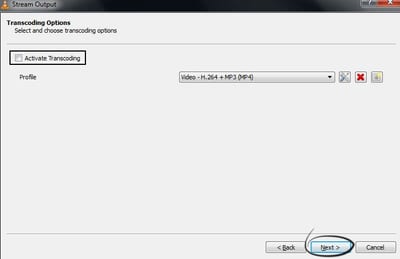
- Transcoding Options are displayed. We do not require to use transcoding on this. So uncheck the check box of "Activate Transcoding". Press next to continue.
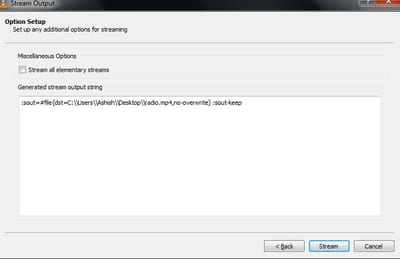
- The final step is "Option Setup". Leave it as it is. Stream all elementary streams is left unchecked. Click on "Stream" button.
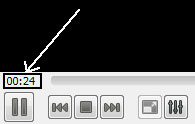
- Streaming will begin as soon as the connection with the radio show is established. This happens really quickly. You will know that your program is being saved by looking at the elapsed time in VLC's controls. That just means that the number of seconds and minutes will add-on.
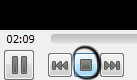
- After a certain amount of time, when you are done with recording the stream, from the VLC's playing control bar hit the stop button to stop the saving of online audio stream.
- To listen to your show, navigate to the location where you saved the audio MP3 file. Just open it, preferably with VLC Media Player.
In my case, the chosen filename.mp3 is automatically renamed by vlc player to filename.mp4. Everything else works as is described in this instruction. My vlc version is 2.2.1
I have tried this numerous times with a .pls address (the station is running fine on their home page through a java player) and when I get to stage 10, nothing happens: the time remains --:-- and no file is generated. I have tried different file output formats at stage 8 but no dice. What am I missing? I have VLC 2.2.1., Windows 10. Thanks very much for any help, it would be so great if I could take advantage of this VLC function ...
@ZM: My extension also got converted to MP4. Manualy renaming it to MP3 worked fine. @CRA: Does your stream play in VLC ? Try that first, just open the stream and try to play it. If it does not work, something is not correct in your url. Once you got it playing in VLC the "save stream" should work also.
To harness the pure power of VLC, the GUI is kind of limited. I wrote a batch file to record a raw stream a live program I'm rarely home to hear, and download it to my hard drive for later listening. Once saved to the hard drive, you can use Windows task scheduler to start recording at the specific time. To stop the recording, change the numbers (seconds) after the --run-time command I hope this helps someone else: NOTE: this is for 64-bit VLC. if you are using 32-bit version, you will likely have to use the Program Files (x86) path unless you are still rocking XP or older... ----------------------- @echo off echo recording ARK Midnight to MP3... "C:Program FilesVideoLANVLCvlc.exe" "http://13743.live.streamtheworld.com/KLIFAM_SC" -I dummy --dummy-quiet --sout "#duplicate{dst=std{access=file,mux=raw,dst=D:_AudioARK_Midnight %date:~10%-%date:~4,2%-%date:~7,2%.mp3}" --run-time 7200 vlc://quit echo ARK Midnight MP3 ready! echo Files Ripped to D:_Audio. Enjoy! pause exit --------------- Output file in this example is ARK_Midnight 2016-08-03.mp3 (date stamped to give a unique name and make for a clean archive, and the date is set this way to give it a clean sort in Windows This will make for a large file. If you are trying to record something long, you will need to transcode it since my show is 2 hours long, and since it's just talk radio, I mux it down to mono, 64K using the transcode command: @echo off echo recording ARK Midnight to MP3... "C:Program FilesVideoLANVLCvlc.exe" "http://13743.live.streamtheworld.com/KLIFAM_SC" -I dummy --dummy-quiet --sout "#transcode {acodec=mp3,ab=64,channels=1,samplerate=11025}:std {access=file,mux=mp3,dst=D:_AudioARK_Midnight %date:~10%-%date:~4,2%-%date:~7,2%.mp3}" --run-time 7200 vlc://quit echo recording of ARK Midnight with John B. Wells is complete... pause exit ---------------------------------- In my scenario, the source stream comes in at 80K stereo, and I'm taking it down to 64K mono, I am able to reduce the file from 1MB/min to 815K/min. Not a lot, but 20% space savings is well worth it to me, and the fidelity difference is negligible. If I get AAC encoding (MP4, amazing compression) working in VLC, I'll be sure to post that as well.
This is the AAC codec info for audio. AAC was throwing an error, it does work, but VLC has flagged it as experimental so you have to use the "strict=-2" switch to make the command work without errror. AAC is amazing. I have taken the audio quality as low at 16KB/sec for voice/talk radio and the quality is still better than AM Radio (while making a 218KB/minute file) I tried to reduce that down to 8, but it's starting to get below "verizon digital cellphone on 1 bar" audio quality, so it looks like 16KB is as low as I can recommend pushing the AAC codec for voice, which makes a 116K/sec audio file. Here's the AAC command for my script example: @echo off echo recording ARK Midnight to MP3... "C:Program FilesVideoLANVLCvlc.exe" "http://13743.live.streamtheworld.com/KLIFAM_SC" -I dummy --dummy-quiet --sout "#transcode{aenc=ffmpeg{strict=-2},ab=64,channels=1,samplerate=11025,acodec=mp4a}:std{access=file,mux=mp4,dst=D:_AudioARK_Midnight_aac %date:~10%-%date:~4,2%-%date:~7,2%.mp3}" --run-time 60 vlc://quit echo recording of ARK Midnight with John B. Wells is complete... pause exit
is it possible to make scheduled audio stream recording? for example, everyday from 11am to 1pm
I could not find such an option within VLC.
I use a batch file and make it a scheduled task, been working for me for almost 2 years now.
Can you share it with us?
Sure. It's for CBC in Canada, this will run for 2250 seconds, I use task scheduler to trigger the start time. With the _%date:~4,2%_%date:~7,2%_%date:~10,4%, in the name, it saves the date with the filename so you know when it was 'recorded'. It saves it as an MP4, I have looked at saving to an MP3 but the encoding is horrible, so I haven't really looked into it much. Saved as 'name'.bat "C:\Program Files (x86)\VideoLAN\VLC\vlc.exe" --qt-start-minimized http://playerservices.streamtheworld.com/pls/CBC_R1_FRD_H.pls :sout=#duplicate{dst=file{dst=X:/path/folder/name_%date:~4,2%_%date:~7,2%_%date:~10,4%.mp4}} :sout-keep --run-time=2250 vlc://quit Create your batch file, double click on it to see if it does what you want, then use task scheduler to trigger it, automagically.
Here is an updated version of my batch file, it saves it as an mp3 and it has been working just fine. "C:\Program Files\VideoLAN\VLC\vlc.exe" --qt-start-minimized http://cbc_r1_frd.akacast.akamaistream.net/7/553/451661/v1/rc.akacast.akamaistream.net/cbc_r1_frd :sout=#duplicate{dst=file{dst="X:\\path\\where you want\\it saved %date:~4,2% %date:~7,2% %date:~10,4%.mp3"}} :sout-keep --run-time=1800 vlc://quit
Is it possible to record into separate files? For example, when I record an audio stream, all songs are recorded into one file. I'd like VLC to create a new file every time the tag data changes to a new song.
Try one file at a time?
Similar to CRA above, I have tried numerous times and after Stage 10, nothing happens
Dear Gents, I am trying to adhere this procedure.All good but resulting format checked by Gspot utility is still mp4 which is not usable with my car audio system. How to grab internet radio stream to MP3? Thanks, regards
Dear gents, I have adhered this procedure and I set output file format to mp3 but my vlc captures stream to MP4 file instead of MP3 one. What could be problem? Many thanks, best regards, andy
If your live audio stream works with mp4 and hear sound ? than you don't have to worry about any thing. That MP4 is a new formate of the old MP3 , so MP4 sounds much better than MP3 that is the diffrence between the 2 formates. About 20 years ago so that was the time even before MP3 there was MP2 and that was the start.
MP4 is a video format.
First of all thanks everybody for the instructions and the comments. Like some others, after step 10 I'm not getting the file I was expecting. I've tried a couple of different options, one generating a file with mp4 extension which is only 1 KB in size no matter what I do, and another one that I forced to use mp3 extension by manually specifying that option, but that one writes a file to disk that stays at 0 KB no matter what. In other words, the output file is created in the file system, but the stream data are not getting written to the file. Could this be dependent on the radio station you are streaming, i.e. some allow data to be written and other don't. I'm using an .m3u file, and I do get the stream to play in VLC, but not recorded. Thanks for any suggestions
Go to PLAYBACK and click on RECORD. VLC will save the open stream in LIBRARY under MUSIC folder. That is all.
Where is the Library / Music folder to which you refer?
When I tried this, my vlc just glitched and when I opened the file, it had an error... what do I do?
Can you try it with other radio stations?
Hi. Can l do any of this on a Kindle fire?
I don't think so.
Doesn't work. MP3 file created is completely blank.
I have the same problem to save download and save a broadcast stream. I carefully went through the 10 steps, but the mp3 file (it is created in the target folder) contains 0 bytes. The stream will not even play in VLC. I can only play (but not save) it in Firefox with the source site open. Earlier versions (prior to 3) had a problem playing and saving youtube files, but an updated youtube.luac file for VLC version 2 fixed the problem. The update is included in version 3 and up. However, the stream I am trying to save is not youtube. The stream name that appears in the Firefox address box does not have any file-type for extension. My VLC version is 3.0.11. Thanks for any help.
The problem may be because of security issues of today and the site address displayed in the browser window is not recognized by VLC. For instance an internet radio site address may look like this: https://www.internet-radio.com/servers/tools/playlistgenerator/?u=http://178.32.62.163:8185/listen.pls?sid=1&t=.pls. However if you paste only the http part of this address (http://178.32.62.163:8185/listen.pls) into VLC, it would both play or stream depending on what you want to do. Hope this helps.