Just like syncing subtitles, VLC media player is also great for fixing audio that is not synced. Sometimes, while playing video files, you hear the sound before the actual time or you hear spoken words only after the lips move. This means that the audio is not in sync and you will have to fix the audio delay. This removes the fun of watching a movie if it happens continuously.
Sometimes, the sound syncing is automatically fixed after a few moments. There are times it never gets fixed on its own. Sounds are generally off by only a few milliseconds but at times, they are even off by a few seconds or so. It can be irritating. This tutorial teaches you how you will be able to fix such sound syncing problems using VLC Media Player. The steps are easy and quick. Once you learn the shortcut keys, you will be fixing audio syncing errors like a pro.
To sync audio in VLC Media Player:
- Make sure that your video is playing and the audio syncing is incorrect.
- If your audio requires to be slowed down then hit the 'K' hotkey from your keyboard. For the opposite of this hit the 'J' hotkey on your keyboard. For Mac, the shortcut keys are 'G' and 'F'. Confirmation is displayed on the top-right area of the player's screen. It fades away quickly.
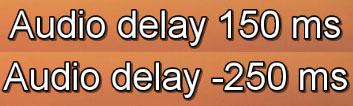
- Pressing the hotkeys once will speed up or slow down the audio by 50 milliseconds. If you continue to press it, the number of milliseconds will continuously be incremented.
- Speed up or slow down the sound timing of the video until you reach the desired state. Make sure that the video is playing and listen to the sound carefully and match it with the video to do this.
- Go to Tools > Effect and Filters [CTRL + E]
- Click on the Synchronization tab
- Under Audio/Video enter a numerical value
- Press Close once done
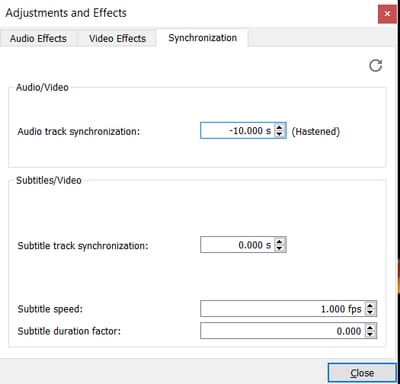
Note: A positive value there like 5.000 s will delay the audio. A negative value like -10.000 s will hasten the audio.
In VLC for Android
For the complete details: Syncing Sound by Adjusting Audio Delay in VLC for AndroidIf you are a user of Android’s VLC player then, you will have to access the on-screen interface to fix the Audio delay. Here are the steps:
- Tap on the screen when a video is open
- Press on the second button from the interface controls
- Tap on the Audio Delay
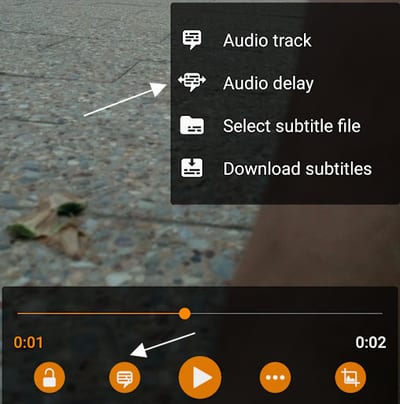
- The plus and minus button will help us to synchronize the audio
okay, i know how to sync, how do i save the synced file now? when i return to the video after i exited, it's still out of sync as it was before and i have to do everything over again!
Well, that is it with VLC Media Player. You can fix the sync while playing the video, but it does not save it for ever. VLC is more of a player than a video editor.
When I play files with audio that is not synced, VLC autocorrects the problem and I don't notice the problem. The issue I am facing happens when I stream video to my TV or phone which do not have the autocorrect feature VLC does. Is there a way to check what the correction time VLC is using to sync up the audio properly? I would then be able to open the file up in some video editing software and delay or advance the audio to the same time VLC did to permanently fix the problem.
Hi Eric, I have same problem. Unsync Videos on VLC plays as synced, but in TV plays unsynced. The only way I have to detect that on Windows, is playing the video first on Windows Media Player, Windows Media dont apply a fix on unsync videos, so, thats the way I found before playing on TV.
I have the same issue with streaming to (smart Android) TV with VLC. This, NO matter if used VCL on Android TV as server or VLC on Win10 PC as media server. All of these videos, however play in Sync with any other player ie. CnX or 5K or WMP. Strange enough, the same videos that are out of Audio sync in the range of 10 - 15 sec. play perfectly synced on TV if streamed via PLEX and other Streaming SW on Android or rendered from PC via 5K or WMP. Hence, there appears to be a specific problem with streaming within VLC. I tweaked the streaming settings and found that the Sync gets worse with increasing the CACHE. Which, of course is often needed to make the stream fluid and without stuttering. Also, disabling Decoding won't change a thing.
I'm having an issue on my mac where every time I try syncing the audio for this one file in a series the audio stops all together. I tried it for other files as well and I'm noticing the same result so I'm sure its not the file. What could be the problem?
VLC Player needs to add the ability to save the file once the audio sync correction is applied!
Use record feature in vlc
I have a file that has somehow had the video saved at the right speed, but the audio somehow plays too fast, so it starts with matching audio, but then the audio quickly leaves the video behind and the gap becomes greater until finally the audio ends and the video just plays on to the end. To complicate matters vlc is the only program i have that can even open the file. Is there any way of fixing this in vlc? Thanks, and also thanks for making such an amazing program!
VLC won't be able to do that with perfection. You will need an external editor to extract the audio and then, slow it down or speed it up to match the speed with the video.
I thought this may be the case, but thanks nonetheless. Any recommendations on a (preferably free or low cost) candidate on an external (mac) editor? Thanks again!
I have quicktime pro, and another quicktime player, mpeg streamclip, divx, nicepayer and even final cut pro, but still vlc is the only one that will open the video...
I'm having a problem where once I record video from vlc the clip is out of sync but the video was perfectly fine.it worked fine it just started happening awhile back
I have videos in various formats (mkv, mp4, avi, etc) where the audio sync is off when I play them in VLC on a Mac mini but the same videos play perfectly on an iMac. I can sync them using the audio tools in VLC but it appears to be a larger problem with either the mini itself or a VLC setting on the mini. The odd thing is, older videos that I copied to the mini weeks ago play fine - its only recent videos copied to the mini that experience the audio problem. Any ideas?
thanks
Why VLC dont detect the unsync videos (with audio delay)? I have to use Windows Media Player to know if the audio is unsync to check first before play on TV. Any way to disable the autorrection on audio unsync?
My movie has un uniform audio no one knows when to delay and how much to delay after every 10-15 minutes.....plzzz help...
I have downloaded CDs onto laptop on itunes - transferred to external SD Card in my phone Samsung S8. After adding music to the SD card and put it back in phone, all titels and albums are correct on SD card, but via VLC i can see many albums are DBL ur even triple and also individual songs. How can I correct this.
Clear your media database from Menu > Advanced > Clear media database. Then start fresh by scanning your local storage again.
thanks worked like a charm
This functionality appears to be gone now. When I bring up those icons, the list is now vertical with names of each icon. And the audio delay is gone!! Why??
The interface options have slightly changed. I have updated the post to reflect those changes. You can also view this post for the full details.
I recently corrected the sync in a video I was watching @ -9.000 (hastened). After I was done watching it I closed the VLC, then at a later time, opened it again to watch a different video and the track sync on THAT video was automatically set at -9.000 (hastened). I reset it to 0.000 and I used the circular arrow icon (in the upper right corner) to "force an update of this dialog's values" but the the next time I watched a video AGAIN the track sync was set to -9.000(hastened) and every time I watch a video the track is set to the same hastened setting and I must reset it, which wouldn't be so bad but it seems to create an issue to the normal functionality of advancing a video (it gets stuck when you try to advance the videos via the circular icon along the timeline, which IT DOES NOT prior to the resetting of the track sync settings). Has anyone else had this issue? How do I fix this?
Try going to Tools > Effects and Filters > Synchronization and see if changing the value there under Audio track synchronization helps. You can also reset all the settings by going to Tools > Preferences and pressing on the Reset Preferences button [ALT + R].
So I tried the above recommendation PRIOR to starting a video and just from the vlc itself and when I opened that panel the setting was at the normal default 0.000. However I reset it to 0.000, which I figured was not going to do anything, but couldn't hurt. When I opened the next video (I should just state, for the record, this problem is occurring with every single video I open, different ones, every time) it began with the sound advanced and I opened the normal track sync via the method I did previously (tools>track synchronization) and it was again set to -9.000. So the problem(s) remain the same.
I use an external HDD to watch some programmes on my TV. These are stored on my PC. I fixed some out of sync subtitles using the advice you offer and it works perfectly on the PC using VLC media player. However the changes are not saved and once it is transferred to the external HDD they are out of sync again. Can you please tell me how to save the changes permanently.
Yes, the changes are not actually saved by VLC. The effect is not permanent.
How to save the changes?
When I play a DVD disc on my laptop and watch it via VLC, the video and audio are perfectly in sync. However, when I convert that very same disc to MP4, the video and audio are no longer in sync. How can this be? Why can VLC figure out how to sync them whilst playing a DVD, but no longer when converting a DVD to MP4? Pity that the video which is playing does not have a "save as MP4 using same settings" button.
I am using vlc in my android device.I tried the audio delay option but it's not working...the audio track remained same even after i pressed the - button....what can i do to fix this problem???
Try it with other videos or reinstall the application.
Haha thanks a lot, I could watch the end of my film without having to go to the video store to reap it again !
I always get sync problem with VLC. I correct them and after a short time have to uncorrect then correct. It i an ongoing battle. I can take the same video and play it on my LG TV with no sync problem at all, this tells me that the problem is with VLC and not the medium.
I use VLC to determine the sync value required, then AVIDemux to re-sync the file permanently - works like a charm!
Fantastic. Worked perfectly on some old videos I had. Love VLC!!!
How to save it!
This tutorial is just for playback.
Is there a tutorial that actually includes save. It is a real pain having to do this every time
When I sync the sound usually -250ms on my 4K Firestick it shuts down after 20 mins. If I don’t alter the sound it will run ok but obviously well out of sync. I’ve deleted and reinstalled VLC player but it’s still giving the same problems. Any ideas??? Thanks
1) What do you mean by "shutdown", this isn't WINDOWS, so that term doesn't literally apply. Thus, do you mean "the app crashes"? Or "The Fire Stick spontaneously reboots" or "VLC shows an error and stops playing the file, but other files work OK"? Set yourself up to win, not fail, by using accurate language to describe a problem (or in general, it is a modern disease related to real-time communication technology making accuracy of and efficiency in general of communication less of a priority and de-skilling people, IMHO).
It works!
Alot of people asked this already but none of them get a clear Answer. How can this be done, and saved? I, and many other people here as well, have videos that have out of synch audio, and i need a program to fix this permanently, so that i can save these videos back onto my harddrive in a fixed state. I have been redirected to use vlc, but from my 30 minute experience with the program, vlc doesnt seem to be capable of actually fixing this issue. All it does is alter playback, not the file itself. Is it possible to save those changes or not?
I don't think VLC can save that synced file. I used VLC to determine the time delay needed (1000msec) and then used the MKVToolNix GUI program (a great all-purpose MKV re-muxing tool!) to add in the time delay for both audio and subtitle files. The part of the program that does that is in the right hand window box. Click and highlight the audio or subtitle file you want to sync, then scroll down the right hand window box to Timestamps and default duration. Fill in the Delay (in msec) box for each sub-file of audio or subtitle you want to delay/advance and then click on the Start Multiplexing button on the bottom of the main window to re-mux the files at the synced speeds
I don't think VLC can save the synced file. Use MKVToolNix GUI. Input the MKV file. Click on the audio or subtitle file that you want to sync, then in the right hand window box, scroll down to Timestamps and default duration and input the Delay (in ms). Then click the Start multiplexing button at the bottom of the main window.
I don't think VLC can save the synced file. Use MKVToolNix GUI. Input the MKV file. Click on the audio or subtitle file that you want to sync, then in the right hand window box, scroll down to Timestamps and default duration and input the Delay (in ms). Then click the Start multiplexing button at the bottom of the main window.
I don't think VLC can save that synced file. I used VLC to determine the time delay needed (1000msec) and then used the MKVToolNix GUI program (a great all-purpose MKV re-muxing tool!) to add in the time delay for both audio and subtitle files. The part of the program that does that is in the right hand window box. Click and highlight the audio or subtitle file you want to sync, then scroll down the right hand window box to Timestamps and default duration. Fill in the Delay (in msec) box for each sub-file of audio or subtitle you want to delay/advance and then click on the Start Multiplexing button on the bottom of the main window to re-mux the files at the synced speeds
Man! You've saved my life with this comment. I've just discovered my audio is out of sync in one of the project to be completed today. I moved it in no time with your solution. Thanks again!