With VLC Media Player, you always want the latest version of the software in your computer. There are additional features, security updates and improvements in the app when it is the most up to date version. The VideoLAN group always pushes regular updates and you will get an automated notification when you open the application. If it doesn’t show any update notification, go to Help > Check for Updates from the menu bar and a manual check will be performed. It will look for new versions of VLC Media Player online.
To update VLC Media Player to the latest version in your laptop or desktop:
- Click on Help > Check for Updates. If there is an update, it’ll display a message like,
A new version of VLC (3.0.3) is available.
<img src=“/images/2018/06/vlc-media-player-updates.png” alt=“VLC Update Found” title=“VLC Update Found Dialog” / loading=“lazy” decoding=“async”>VideoLAN and the VLC development team present VLC 3.0 “Vetinari”. VLC 3.0 is a major update to VLC, introducing hardware decoding by default, allowing 4K with low-cpu usage (and 8K on recent machines), supporting HDR and 360 video. It also improves audio passthrough, allows to stream to ChromeCast, Blurays and local network drive browsing.
Do you want to download it?
- Click on Yes and it will begin downloading the update file immediately.
<img src=“/images/2018/06/downloading-update.png” alt=“Downloading Update” title=“Downloading Update File” / loading=“lazy” decoding=“async”>
Once downloaded, it will say
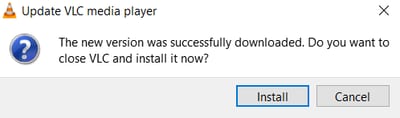
The new version was successfully downloaded. Do you want to close VLC and install it now?
- Hit the Install button.
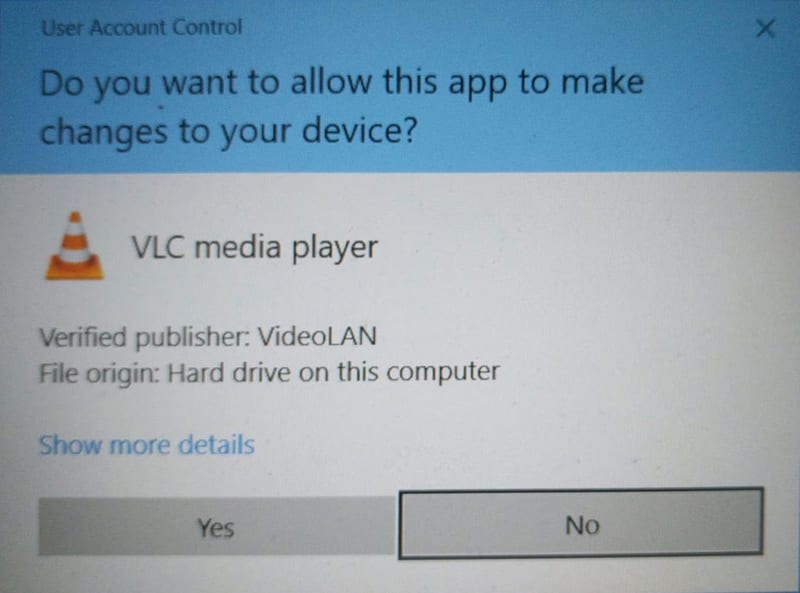
- It will ask for admin privileges. Click on Yes to proceed.
Do you want to allow this app to make changes to your device?
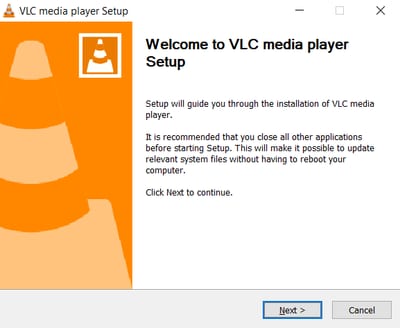
- The installation wizard will start. Click Yes.
- You will have two options. Hit Next.
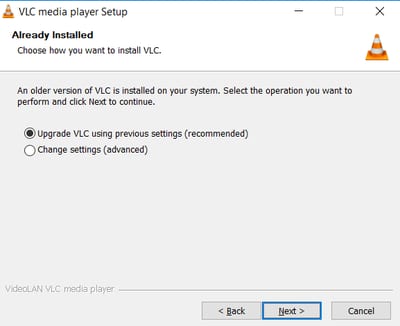
- Upgrade VLC using previous settings (recommended)
- Change settings (advanced)
- The installer will now extract the files and install the software
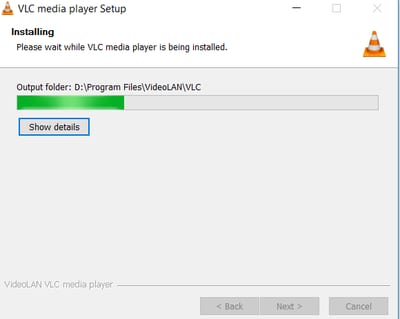
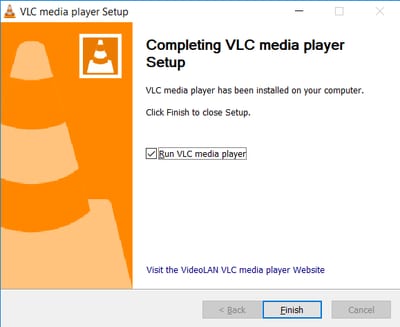
To confirm that everything went smooth and the update happened, Click on Help > About.
<img src=“/images/2018/06/help-about.png” alt=“About VLC Media Player” title=“About VLC Media Player Screen” / loading=“lazy” decoding=“async”>
The update file is temporarily stored in %HOME%\AppData\Local\Temp folder. Navigate to it to access the file directly.
How to install the upgrade to an alternate HDD?
It is better if you uninstall and download the latest installer to select a path to the alternate HDD.
This was a big help. Thanks!!!!!!!!!!!!!!
After installing latest update to VLN, video no longer works (audio does). The video on the .mov file worked perfectly on the older version. What do I do now?
Maybe, try downloading the old version?
Thanks for this post.
The question is installing VLC update using powershell. How about answering the question with an example of powershell and not the update from VLC?
thank you
Thanks for this post. It's useful to me.
Step 2 doesn't work for me. I press "Yes" and nothing happens.
I upgraded my player and now it won't play anything. It whines and makes all kinds of weird noises for about ten minutes then just stops.
Where does it download the updates? It does't tell me the name, where it downloaded it, or anything to help me. I searched for vlc*.exe, vetinari, 3.0.14 -- nothing. It isn't in my downloads list. I give up.
I think it auto updates the current installation instead of you having to execute the downloaded file.
I downloaded it 5 times but once a week it wants to download the update again?
they tell you, that you have to install it manually...but they dont give you any info at all where to find the installation file...cmon vlc
I am looking for this.
%HOME%\AppData\Local\Temp is where I found vlc update for Windows 10 vlc-3.0.14-win32
thanks:)
@SEE_FURST This worked! Thanks! I appreciate it! VLC should tell us where to find this file.
they did! but you didn't notice that
They said it would be in your temp folder. The problem is (at least on a Windows computer), that there are many different temp folders (which they know). It is an obvious problem, as the responses here show.
They just tell you in the temp folder. So......naturally you're going to look in your Windows temp folder.
Thank you! I would have never found that folder!
THANK YOU; F-sake VLC devs, this guy communicated it better...
That location was the best advice given. Thanks
Here's how i found the update file(on windows 10). Make sure hidden items are visible, go to "This PC", might be named differently, "Users", select the account you are currently using, "AppData" should be visible, from there go to "Local", "Temp", scroll until you find the update file; and bob's your uncle. PS, make sure you are using the admin account.
thank you, saved me.
Thank you very much! Very weird that VLC themselves does not inform about where to find the file
Thank you, Florian N. That helped me greatly. And, I agree with Sara. I'm confused as to why either VLC hasn't fixed their update issue by now, gave us the option of "Save As" so we would know where we were saving the exe file, or showed us the path to where it was saved. There's probably a lot of people who will give up on the update or use another program out of frustration. Thanks again for your help.
Thanks Florian!
Thank you, Florian - you helped many people. With your instruction I was able to find the update file.
%LOCALAPPDATA%\temp then sort on date to see the download .. then run it.
vlc is the perfect input and perfect output but u need to update your settings day by day and u required perfect hard ware and perfect software i am unable to comment detaily follow me on google gokul work shop tiruchengodu
Gokul.s... what are you talking about? VLC doesn't require updating of settings day by day and perfect hardware? No such thing or requirement. Been using VLC player for as long as I can remember and none of what you say is needed is true.
I don't understand you, sorry. The facts: I click on "update", then "download" and nothing happened! There are nothing downloaded!
The app really needs to have an option to open the download location. The installer failed to load, and even failed to pop an error. I had to go on a hunt to find the file because it was not in the downloads folder where it would be expected. Please fix so this is more intuitive and less frustrating.
i totally agree! just did one of VLC's auto updates on 10-24-23 and this issue has NOT been addressed. i could not find the download folder location in any of the settings. as mentioned above, this needs to be changed to allow the user the option to relocate where the downloaded versions get saved.
Been using VLC for years but the most recent update changed it completely. I updated and now VLC has no menus or even a version flag anywhere. Win10 says it's V 3.2.1.0. Very nice UI but where are the menus? And how can I view/hide the display of the control bar? The VideoLAN site has no documentation for this new major version...where can i read about it?
very misleading. it says it keeps your settings, but that's wrong. i updated and now have to again go through all advanced settings that got reset.