Bookmarks in VLC allows you to mark certain parts of a video or audio file. You will be able to mark a certain place of a media file. Then using the same bookmark feature, you will be able to move to that certain place. This feature allows you to mark your favorite part(s) of media files so that you can navigate to that portion of the file easily.
Just like the name, this feature is similar to saving bookmarks in your browser. Just like saving a favorite website for easy access, you save your favorite parts of a video or even audio for easy access. Then you can move to that part whenever you want with just a few clicks. You can have multiple bookmarks of a single media file if you want.
To create bookmarks:
- To set up a bookmark for your media file, open up the file and navigate to your favorite part.
- Hit CTRL + B or from the menu bar click on Playback > Custom Bookmark > Manage.
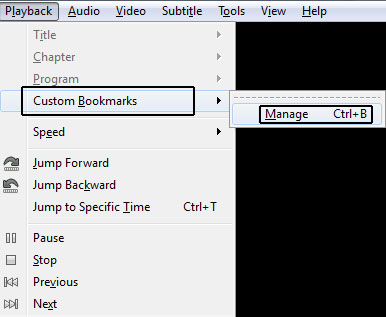
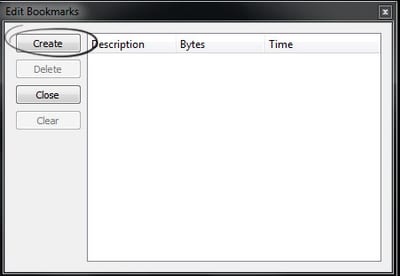
- "Edit Bookmarks" option will open. In that box, click on create button to create a bookmark at that time.
From the menu click on Playback > Custom Bookmark and then click on the saved bookmark that you would like to navigate to. You can also open up the bookmark menu [CTRL + B] and double click on a particular bookmark to shift the playback to that point.
<img src=“/images/2013/11/select-bookmark.jpg” alt=“Selecting Bookmark” title=“Selecting Bookmark” / loading=“lazy” decoding=“async”>
To delete particular bookmark or all bookmarks:
- Click on Playback > Custom Bookmark > Manage or just hit CTRL + B
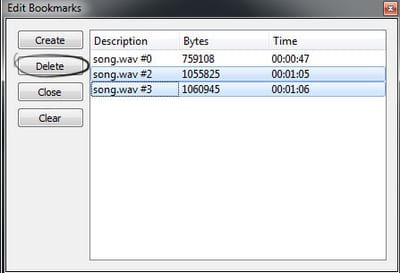
- Click and select a bookmark that you want to delete. SHIFT clicking or CTRL clicking will allow you to select multiple bookmarks at once.
- Hit the "Delete" button and the selected bookmarks will be deleted.
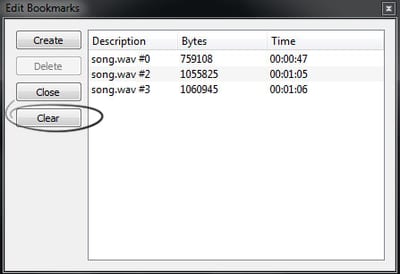
- Hit the "Clear" button and all the bookmarks will be deleted even if they are not selected.
Can I make a playlist with those bookmarks? I saw at https://superuser.com/questions/349712/batch-video-presenting-playing-pausing-going-to-specific-time-in-linux you can add custom vlc commands to a .m3u playlist like vlc://pause:10 Any help appretiated!
After creating bookmarks, you can click on "Media > Save Playlist to File [CTRL + Y]" to saved your media file(s) to a playlist along with the bookmarks. When you open the playlist, bookmarks set by you will load as well. But it is not directly possible to play the bookmarks as a playlist because with bookmarks you just specified the start point of a video and not the end. You'll have to edit the .m3u file with a text editor to make sure it matches the format specified in the website you shared.
Thanks Ashish. This is very useful
to add, for the mac it's cmd b, or tools, then bookmarks. Nice job.
On next VLC startup all the bookmarks are gone.
how do i save a bookmark for the next time i open VLC? they all disappear after closing as is
Try this: https://3.80.182.104/skipping-and-playing-audio-and-video-portions-in-vlc/
Boring since there is not a FAST KEY to control them, ... instead you need to open menu ALL THE TIMES and if u wanted instead to use this feature in a "presentation" without destroying the experience of who is watching you actually can't. Please INTRODUCE A FAST KEY to PErsonalize or connect to a letter the various parts\bookmarks. Thanks.
Well, you can always use autohotkey or something similar, I think. I use some AHK scripts to control VLC transparency and size/move the windows around - so I can overlay a slideshow on a video, on another video, etc.
I'm unsure why the bookmarks are cleared between sessions. Why is this a desired behaviour of bookmarks?
Are bookmarks available both Windows and Android, can be set on Windows then played back on Android?
I do not think so.
The lack of bookmarks in Android makes using it for audiobooks impossible, especially since it keeps loosing its place when phone reboots.
I create bookmarks, but they disappear after closing the player.
Read the 5 year old comments.
This bookmark stuff is SHIT. Mkv and DVD uses chapter system that is wayyyy more usefull, why can't it be used with sandard file and text file ? I guess writting a plugin for this isn't very hard in the end...
Thank you Ashish , believe it or not , this is totally changing my video editing speed/work flow appreciated :)
what do you do once you're done bookmarking your clips? I want to use this feature to bookmark my recordings for highlights so I can utilize it when editing, but the fact that it deletes them once you close vlc has me concerned. I was hoping it could be easily transferred into a document or something. Do you have any advice? If it helps, I edit with premiere pro.
Many thanks for the tip!
Is it possible to create a bookmark automatically when a video playback is paused and the file is closed?
In version 3.0.8 on pc, when you close vlc while it is paused, next time you open your file a resume button will appear for maybe 5 seconds in the upper right corner.
Can you NAME the bookmarks or not?
Maybe. First save the bookmarks as a playlist using Media>Save to Playlist. Edit the playlist in a text editor. You can open the playlist in VLC and then use Manage Bookmarks to jump around your video.
Yes, one at a time only. Open up the custom bookmark window either by CTRL+B and click on a bookmark of interest to select it. Then you click on that bookmark again, this time on the bookmark name (the default name should look sth like "File-name #number-of-bookmark"). You can now type in a different name for that bookmark. In fact, you can do this to rename files in Windows' File Explorer too.
I have two questions. First, for some reason, the timestamps on my bookmarks do not match the timestamps in the video. At 8:20 into my video, for example, my bookmark for that same timestamp was way off (I had to input 6:55 for it to match). Does anyone know why this is? Second, is there a way to rearrange the order of the bookmarks or sort bookmarks by time? Clicking on "time" heading does nothing. I wanted to add a bookmark that occurs before the first marked segment.
Hi - on Mac OS Big Sur the functionality of bookmarks in VLC disappeared completely. Are there any update concerning that issue?
On macOS Monterey 12.6.2, "Bookmarks" doesn't appear in the Playback menu, but Command-B brings up (and puts away) the Bookmarks dialog box.
Hey all I want to auto jump to a bookmark on reaching a specific location on VLC player, skipping the part i want to be skipped. Can anyone help ?