VLC has options to enable or disable the player icon in the Windows System Tray as well as Task Bar. These options enables the configuration of how the shortcuts appear in those desktop user interfaces. You will see the options in effect when you minimize the player. If you have turned on the system tray display option, then you will find VLC icon in the bottom right area (right next to the time) and most probably hidden and accessible by clicking on “Show hidden icons”.
You will find the system tray option in VLC under Tools > Preferences. You will see it as “Show systray icon” in the Interface settings (the default tab). If that option is checked on, then the tray icon is active. Using that icon, you can perform all the basic controls. You can hide the player in the system tray which effectively stops it from being displayed in the Windows Task Bar (the bottom bar) and also from the ALT + TAB app switching menu.
You will notice that clicking on the small system tray icon will effectively minimize and maximize the player. The minimize action will hide VLC from the task bar while the media continues playing. You will find more options from the right click menu. The basic controls like play, pause, stop, previous, next, record, volume and speed controls are all there. You will also find the option to open media and quit the player.
As always, here are the steps and screenshots:
To Enable Systray Icon
- Go to Tools > Preferences [CTRL + P].
- Make sure the Show systray icon option is checked under Look & feel.
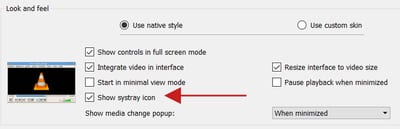
- Hit Save to keep your changes.
To Access the Systray
- Click on Show hidden icons (the up arrow head).
- Right click on the VLC icon to access all the options.
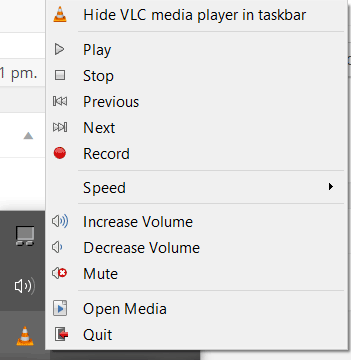
- Click Hide VLC media player in the taskbar and see how it minimizes.
Hi! It would be really nice, if we had a "simple" buttons on our taskbar (Like with iTunes toolbar).
Would be nice if you clicked "Hide VLC media player in taskbar" that vlc actually remembered it (At present the next time you load the player you get both sys tray AND taskbar)... - All I really want is the system tray icon :)
Cheers, way better (and less crashy) than Foobar, which is kinda what I was trying to achieve - a background audio player that doesn't clutter up the main taskbar while working. I didn't even know VLC had this feature - new things to learn every day I suppose :)
Minimize IS NOT on the right click menu, and it is near impossible to get to any other program window, because VLC hogs the screen fully ! IT WILL NOT even let the taskbar show ! Every time you want to switch out, normally am Alt+Tab proceedure, you ARE FORCED to hit the "Windows" key, thus forcing the start menu to appear next, and selecting the other window you want ! Even then, only sometimes, and after a very long wait, does that work either ! PUT MINIMIZE BACK ! Oh, and selecting tray icon, then clicking on said icon..., DOES NOT minimize it either ! I barely use VLC because of this, and would like to as my main viewer...
Erm...try resetting the settings or reinstalling the software first??
with multple instances of vlc open, the taskbar periodically fails to auto minimize, when the program switches to a new file when the current file has reached the end..and a new one opens in a playlist...and this did NOT happen in previous versions of the player so why now? Also new versions of VLC crash as soon as you open the program and then actually open without crashing once you acknowledge thhe error...again this did not happen in previous versions of VLC player.......i'd just like to add that despite these frustrating issues and behavours VLC is far and above the best media processing program iv'e ever used... win 7 sp1 professional x64.....nvidia geforce gtx960 amd fx9370....
To be clear (since some of the answers seem to misunderstand what is being asked), the question is not about minimizing to tray, but rather to leave the VLC window open and playing a video, but not show the VLC button on the taskbar https://superuser.com/questions/196242/vlc-only-in-windows-7-system-tray/471775#471775 We need that option. Most voted answer is incorrect, and those 20 people didn't understand what was asked. Correct answer: "You can't hide the VLC icon when it is running. It will ALWAYS appear on the taskbar while it is running." Can VLC please allow the mentioned behaviour?
Do you know any actual programms with such behavior ? Because I have none in mind. I don't think Windows actually (officially) support this kind of behavior.
Yeah, I second this . Wonder why it s so hard to get this right for the UI guy. Care more?
ignored since 1998 ... someone should get a medal
i was thinking VLC could display like Windows Media Player 10.... 1) dock in the systray 2) displaying a little window so you can watch movies and still working Those who use WMP 10 knew this functionnality very well from systray you play your playlist and watch your movies VLC does not have that functionnality
I can't find any mentions of the issue I've always had with VLC. Whch are right-click on the task and then click on quit doesn't actually quit VLC (at least not all the time). VLC is the only player I know of that provides a native way to show your video as a transparent overlay. Unfortunately, the only way you can change the opacity is DEEP into the config, under the QT interface parameters. I want it to be a knob or be associated with a hotkey. I wound up just doing that myself, but I made it so it works with whatever window I have in scope, not just VLC. I like to watch overlays of Noam Chomsky discussing Manufactured Consent while I watch pornography filmed in regions with much economic duress. I use the 'logo' feature to insert alpha blended PNG files with cheesy moralistic catchphrases (like 'if you hate consent, you'll love crony capitalism') and then record the realtime output using a screen capture program. I then upload the finished product to a Bible advice website I like to troll. Hey.. everybody's got their thing.
I'm not sure if what you are talking about is a Windows taskbar's toolbar (desk band). If not I would like to see this feature in VLC. It should mimic MediaMonkey's "Switch to Microplayer" functionality. That is a minimal set of player buttons accessible from the taskbar.
so this is about one third of a tutorial, currently, with the systray option off in vlc, it is NOT visible in windows systray, thats just fine, but with same options, vlc skinned is not only visible to the tray, but in both normal AND hidden states. i am on win 11, yesterday was on win 10. the internal option worked fine skinned in 10. now, my systray ONLY has hardware related controls, whenever something pops up in the hidden menu, thats my que that something BAD has happened. currently VLC skinned is DOUBLY bad as it obfuscates what is REALLY bad. can anyone get the same hidden-from-systemtray behavior in w11 home from both the skinned and non skinned players? or do i have to use a different player entirely?